
How to Convert Videos to PSP
If you love watching content on your PlayStation Portable, in some cases, you need to change it to an extension supported by this device. This article shows how to convert video to PSP-friendly formats using a versatile free video file converter, guaranteeing seamless playback.
Initially designed as a gaming gadget, it has garnered a reputation as a media hub. Yet, its compatibility is limited to particular PSP video formats, predominantly MP4 and AVI, and is subject to criteria such as maximum resolution and codec specifications.
Discover how to effortlessly convert videos to PSP format.
Step 1. Install the program
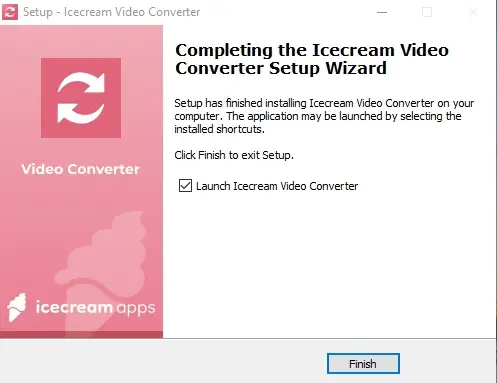
Begin by downloading free video conversion software and setting it up on your Windows PC.
Step 2. Import your videos
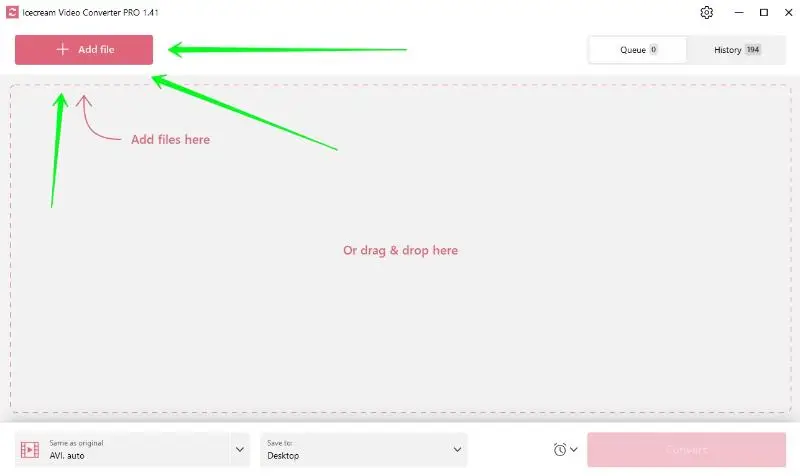
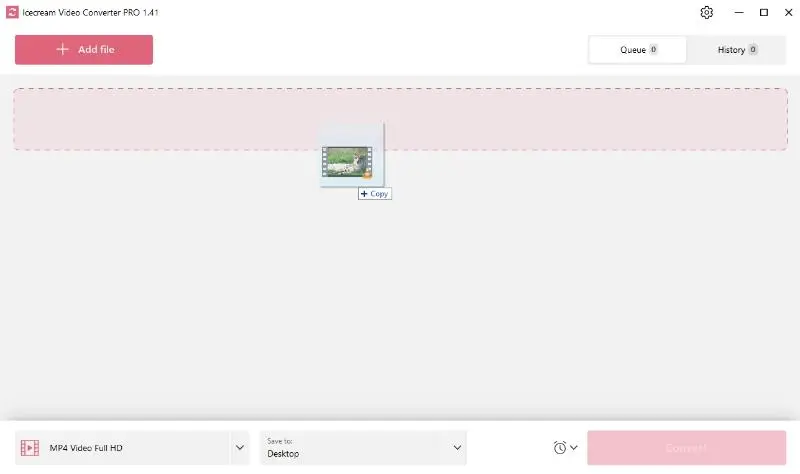
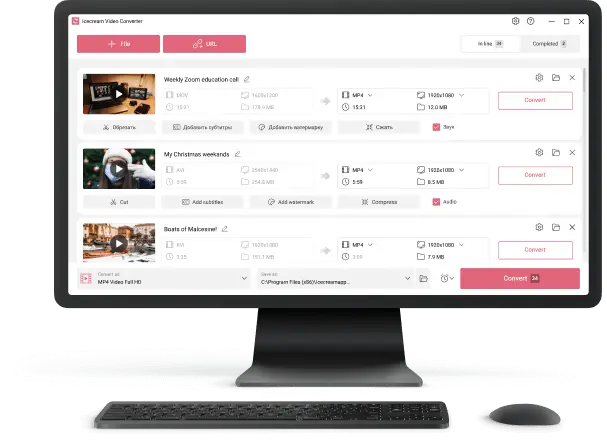
Start the application, click the "Add file" button, and navigate to the clips you intend to transform. Alternatively, you can drag and drop the desired elements directly into the window.
Step 3. Configure the output PSP video settings
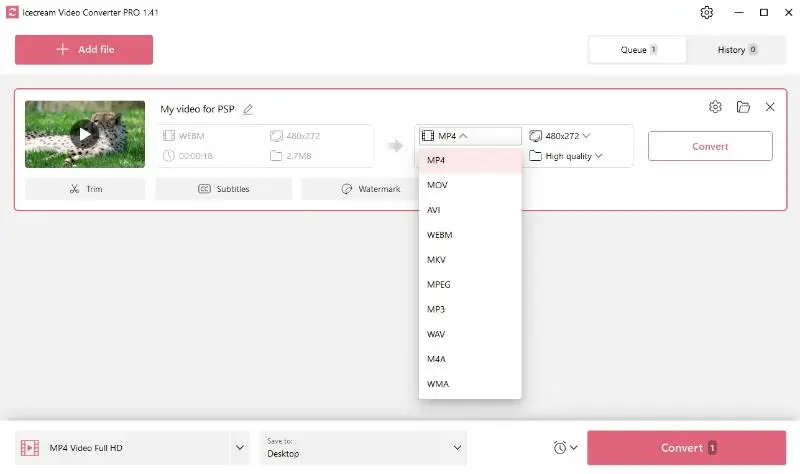
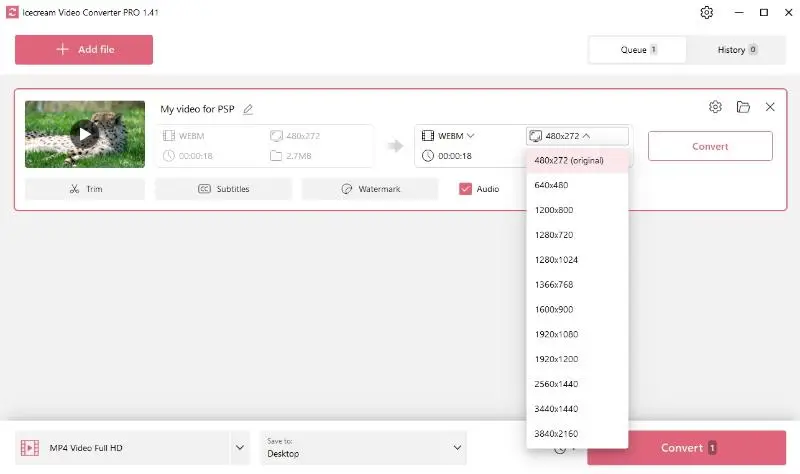
In the "Convert To" section, select the PSP-friendly format (MP4 or AVI).
Adjust the resolution and quality so that they align with the requirements. These include: a maximum resolution of 480x272 pixels and a reduced bit rate to prevent dropped frames.
Step 4. Edit footage
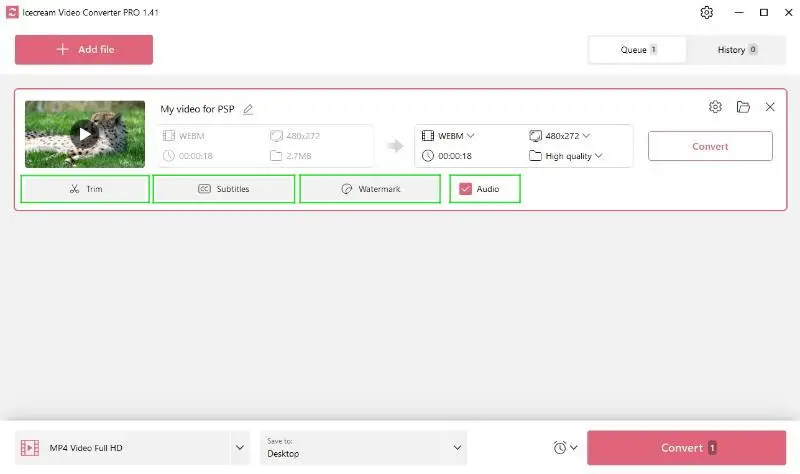
This free video converter also offers these unique options for further customization:
- Subtitles. You can add a separate subtitle file into your output for an enhanced viewing experience.
- Audio. Preserve the original track or choose to export a video with no sound stream.
- Trimming. Employ this feature if you want to cut your clip to a specific length.
- Watermark. Personalize the output by adding a logo.
Step 5. Start the operation
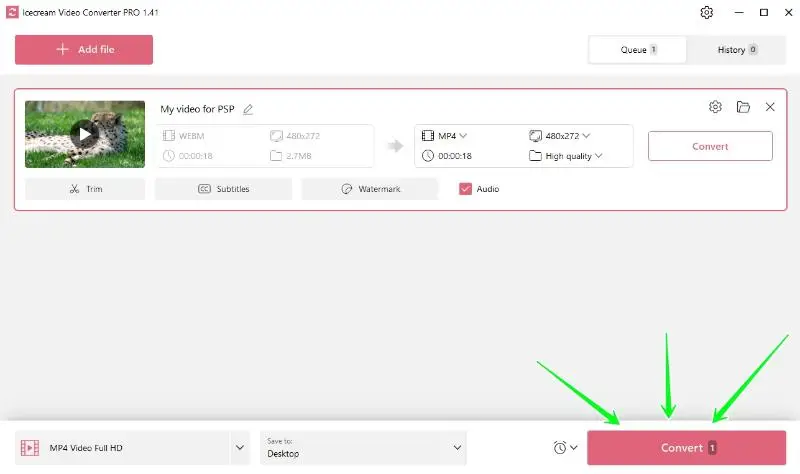
Once the preferences are set, press "Convert". The process will be completed in several seconds, as PSP supports a very small resolution.
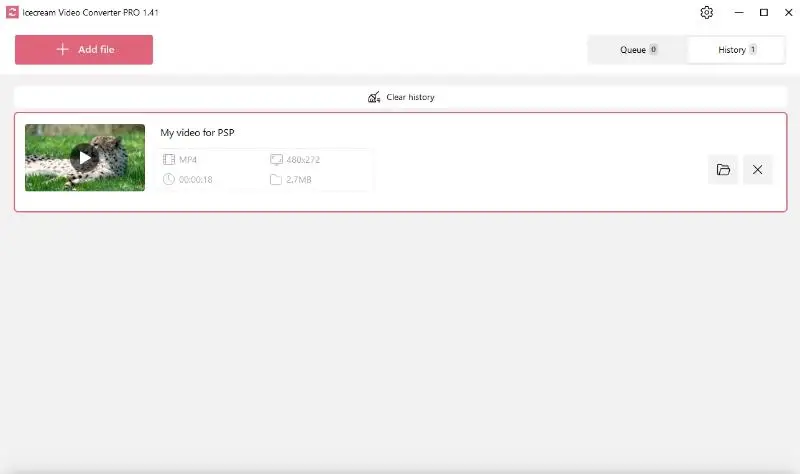
After successful conversion, you can find the resulting files in the "History" tab.
Convert video to PSP: Checklist
It is important that the result matches the capabilities of the console.
Below we have prepared a list especially for you:
- Ensure the extension is supported by PSP, primarily MP4 and AVI.
- Check if the file meets requirements regarding maximum resolution (480x272 pixels) and specific codecs (AAC).
- Optimize the frame rate, ideally it should be 29.97 fps.
- Maintain the correct aspect ratio to avoid distortion during playback.
- Compress the video if necessary to fit within storage constraints.
- Transfer to the device using appropriate methods (e.g., USB connection or memory card).
Video conversion tips for optimal results
- Adjust Brightness. Lowering the brightness can help conserve battery life and enhance viewing in dimly lit settings.
- Ensure Full Battery. Charge your device fully or keep it plugged in to avoid interruptions.
- Unneeded Apps. Close other applications to allocate resources for uninterrupted streaming.
FAQ
- How can I transfer videos to my PSP?
- Use a USB cable to connect it to your computer. Then, move all elements to the VIDEO folder on the Memory Stick.
- Can I play YouTube videos?
- Not directly. You need to download and convert YouTube files to a compatible format beforehand.
- Can I watch downloaded movies on my PSP?
- Yes, as long as they are in a supported extension and transferred correctly.
How to convert videos to PSP - conclusion
By adhering to the instructions and checklist outlined above, you can ensure seamless playback and an optimal experience. Whether you're a gaming enthusiast or a multimedia aficionado, the process is straightforward with the right tools.
Icecream Video Converter streamlines the task even more. Offering a range of handy features and a user-friendly interface, it enables smooth processing and customization.

Editor-in-Chief at Icecream Apps
