
Find Your Best Snipping Tool in 2025
Finding the best snipping tools is essential for capturing good-quality screenshots.
Whether you're a manager who needs to share video instructions or a software engineer looking to capture an application's bug, having the right program is the key. A versatile and practical utility that can greatly improve your workflow.
This guide will explore the top 6 screenshot takers for Windows and macOS, helping you find the perfect fit for your needs.

How we picked the best snipping tools
Discovering the ultimate screen capture program can be a challenging endeavor, given the abundance of choices on the market.
When compiling our list, we considered several key factors:
- Ease of Use. An intuitive interface to make taking screenshots an effortless task.
- Functionality. Various capture modes (full desktop, window, region) and additional attributes like screen recording.
- Editing Tools. The ability to crop, annotate, and highlight screenshot content.
When you choose the screenshot taker for you, assess your unique needs. Do you want a basic utensil for simple screenshots or a more advanced one with editing features?
Also, consider the app's compatibility with your device and operating system.
Best snipping tool for Windows: top 3
Icecream Screen Recorder
Icecream Screen Recorder is the software that allows to capture any area of their desktop, either as an image or a video file. This makes it particularly useful for creating tutorials, recording webinars, and capturing gameplay.
This screen capture software provides a range of tools to annotate the taken images, add text, draw, and highlight specific areas. Additionally, contributors can schedule recording tasks, which is helpful for filming live streams at a specific time.
Another notable feature is the capacity to add watermarks to your recordings or screenshots ensuring that your content is branded and protected. This is the best free screenshot tool for Windows chosen by many consumers.
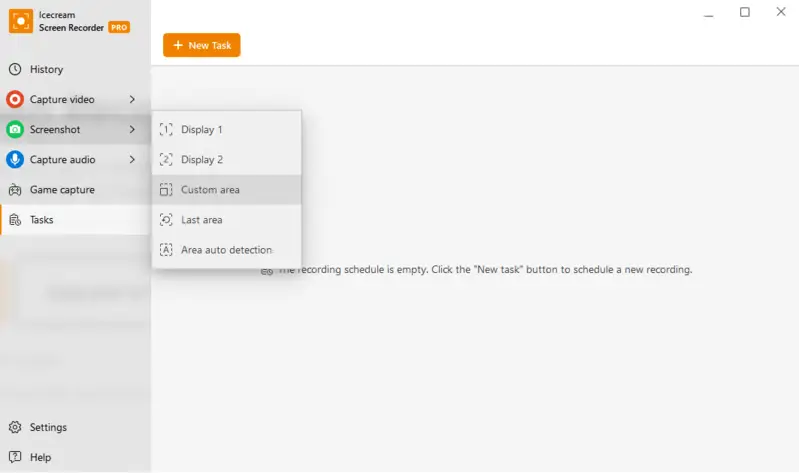
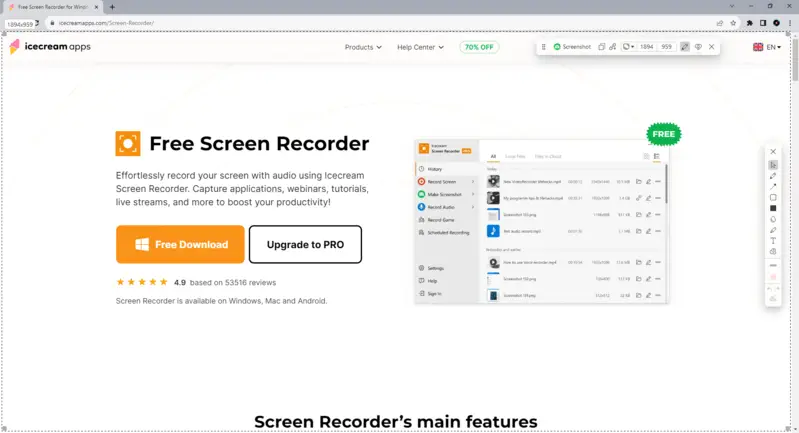
The free version is available and quite capable. Icecream Screen Recorder PRO for advanced and commercial use is only $29.95 per year or $ 59.95 for a lifetime.
Pros:
- The intuitive interface ensures ease of navigation for all operators.
- Several capturing modes are available, including screenshots of selected area, window, and full screen.
- Members can take screenshots and upload them to the integrated server for seamless sharing.
- The screen recorder allows to capture of the display activity in the video form. Web camera and microphone input are both supported.
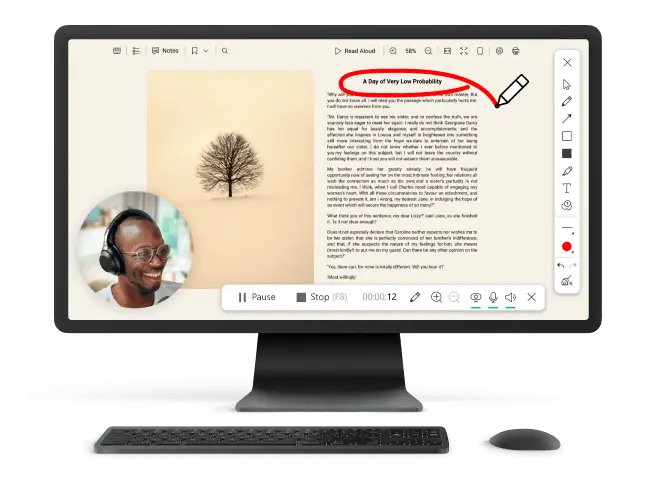
There’s an academic paper "ImageR: Enhancing Bug Report Clarity by Screenshots" that shows in software issue tracking, adding screenshots significantly improves clarity of bug reports, speeding up communication.
ShareX
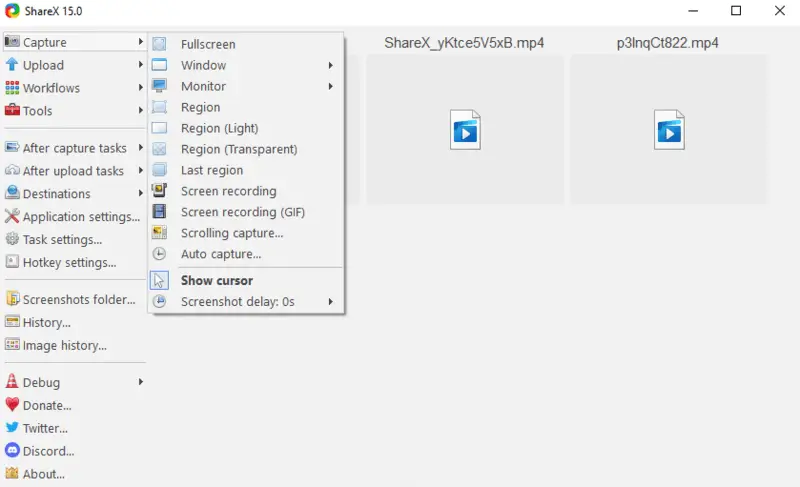
ShareX is an open-source snipping tool renowned for its extensive features and customization options. It supports a wide range of capture methods, including the ability to take scrolling screenshots.
This screenshot maker provides a comprehensive set of editing utensils, including image effects, watermarks, and annotations to pictures. The app also integrates with numerous cloud services, enabling easy uploading and sharing of captured content.
This program, apart from the snipping tool, also includes screen recording with audio capabilities, turning it as a robust solution for both static and dynamic content creation.
Pros:
- The screenshot generator is free and its code can be modified as needed.
- There is a wide array of capture and redacting options for quick image enhancement.
- Users can streamline their tasks through the scheduling feature.
Cons:
- The program’s interface, while functional, may appear dated compared to more modern software designs.
- The extensive feature set may require significant time to fully explore and utilize effectively.
PicPick
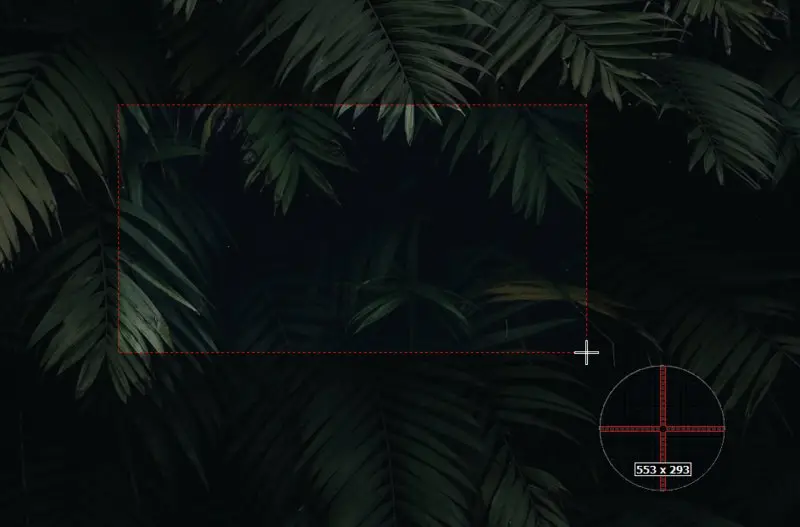
Let’s dig into PicPick for a second. Basically, it’s a pretty robust snipping tool that wraps up a lot of components into one neat package. You get a flexible capture utility paired with a surprisingly capable image editor, so it’s not just about grabbing screenshots — it’s about actually doing something with them afterward.
There’s plenty of choice here: several modes mean you can snag your whole monitor, a specific window, or a custom area. The built-in editor? Honestly, it’s more powerful than you’d expect. You can add text, draw shapes, highlight stuff, or toss on effects, which helps your pictures look sharp without much effort.
It even throws in some extra graphic utensils you might not realize you need until you have them. Think color picker, pixel ruler, protractor — little touches that make design work way smoother.
Pros:
- This snipping tool alternative is refreshingly straightforward. You won’t get lost poking around for the right button, which is a relief.
Cons:
- While the instrument is free for personal use, unlocking everything or employing it for business means you’ll need to grab a license.
- Also, it’s worth noting there’s no option for screen recording — this one sticks strictly to static images.
Best snipping tool for macOS: top 3
Monosnap
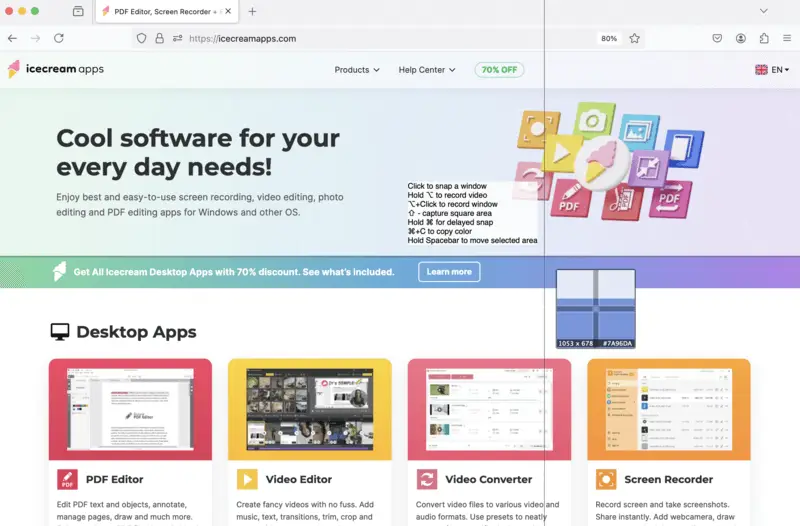
Monosnap isn’t just your average screenshot tool — it’s packed with handy features for both photos and desktop recording. You can catch the entire screen, a specific window, or a portion of it.
What really stands out are the editing options. You get a solid set of instruments for annotations, blurring out private info, and adding text. It’s actually pretty great if you need to write clear and informative outputs (or a bit more presentable).
The program also supports customizable hotkeys, which can streamline the process for users who frequently take shots.
Pros:
- The screenshot maker works well with cloud storage services, which results in saving and sharing being a breeze. I find this super convenient, especially when moving files between devices.
Cons:
- You do need to create and sign in to an account for the cloud integration. Not a huge deal, but still an extra step.
- While the free version covers the basics nicely, some advanced elements and more storage space are only available with a paid subscription.
Lightshot Screenshot
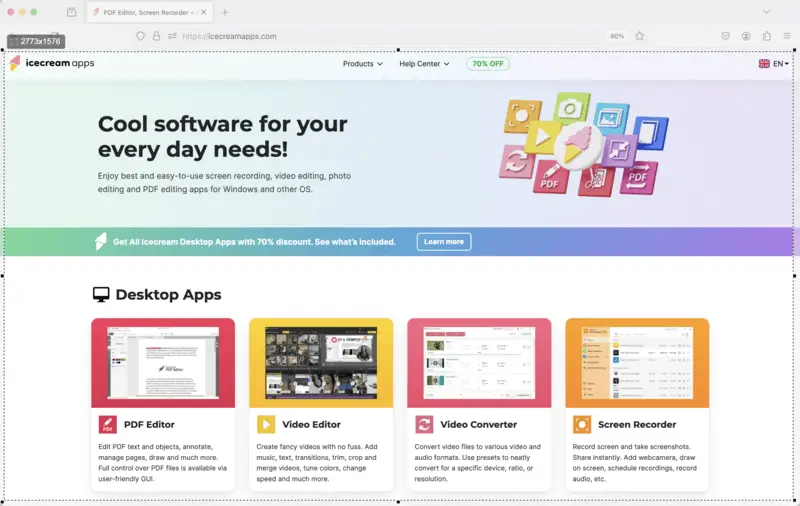
LightShot is one of those snipping tools that gets straight to the point. It's built for quick, hassle-free screenshots — no complicated setup, no unnecessary extras. The interface is clean and easy to navigate; you select the area you want, and with a couple of clicks, your capture is ready.
While it doesn't offer a full suite of refining options, it does let you add annotations, arrows, or brief notes. Perfect if you need to attract to something or jot down a comment.
The standout feature of this screenshot taker is that users can upload their pictures directly to platforms like Facebook and Twitter or save them to services like Google Drive.
Pros:
- The screenshot maker is impressively quick and runs smoothly without slowing down your computer.
- There is an option to directly upload taken pictures to social media platforms and cloud services.
Cons:
- It's pretty basic — don't expect advanced perks you might find in more complex programs.
- The application focuses solely on capturing screenshots and does not include functionality for recording desktop activity.
iScreen Shooter
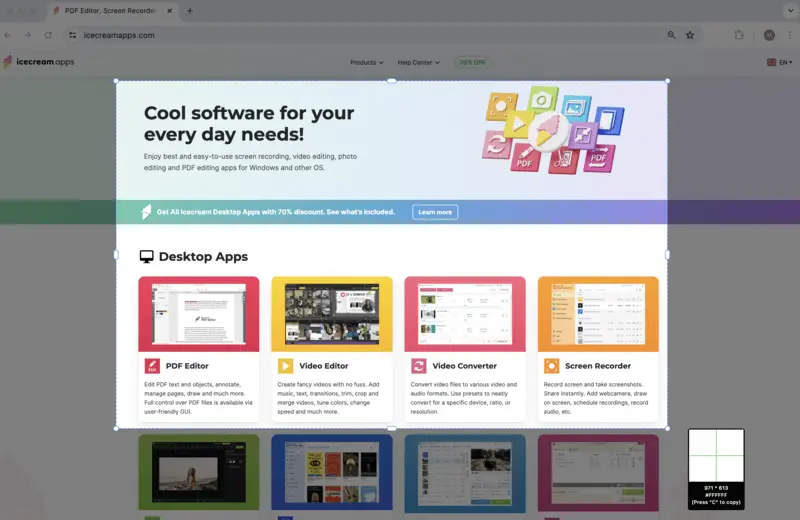
iScreen Shooter is one of those utilities for macOS that manages to blend flexibility with genuine usability. You get multiple ways to snap a shot, so you’re not boxed into just one method — nice touch.
Adding text, shapes or highlights is straightforward, which streamlines the process of perfecting your artwork. Plus, it syncs up with various cloud services, which means storing or sharing your screenshots doesn’t turn into a scavenger hunt later.
Pros:
- The interface is clear and easy to pick up, no matter your experience level.
- OCR capabilities lets you pull text from footage, which is honestly a huge time-saver.
Cons:
- Some of the higher-end features sit behind a paywall, so you’ll need a subscription if you want everything unlocked.
- Screen recording is included, but it’s pretty barebones compared to other options out there — don’t expect anything fancy.
Best snipping tools: final comparison table
| Feature / Tool | Icecream Screen Recorder | ShareX | PicPick | Monosnap | Lightshot | iScreen Shooter |
|---|---|---|---|---|---|---|
| Recording | Yes | Yes | No | Yes | No | Yes |
| Annotation Tools | Yes | Yes | Yes | Yes | Yes | Yes |
| Editing Capabilities | Basic | Advanced | Basic | Basic | Basic | Basic |
| Cloud Integration | Google Drive, Dropbox | Multiple (e.g., Dropbox, Imgur) | Google Drive, Dropbox | Google Drive, Dropbox | None | None |
| Cross-Platform | Windows, macOS | Windows | Windows | Windows, macOS | Windows, macOS | Windows, macOS |
| Cost | Free version available | Free | Free version available | Free version available | Free | Free version available |
| Extra Functions | Scheduled captures, hotkeys | Workflows, FTP upload | Color picker, pixel ruler | Video refining, cloud storage | Instant sharing, simple interface | Timed captures, adjustable settings |
How to use a snipping tool effectively
- Choose the right mode: Decide if you need the whole screen, a single window, a rectangle, or a custom shape. Pick what fits your purpose best.
- Familiarize yourself with shortcuts: Learning handy key combos like Windows + Shift + S will streamline your workflow.
- Edit right away: After you snap a screenshot, take a moment to highlight, add a quick note, or draw attention to something important.
- Save immediately: Trust me, there's nothing more frustrating than losing a photo you needed. Get into the habit of saving, don't leave it until later.
- Keep things organized: Sort your images into folders that make sense to you — label them in a way that you'll actually remember.
- Crop out distractions: Don’t let unnecessary details clutter. Use the crop tool to focus on what matters.
FAQ
- Can I utilize a snipping tool on my mobile device?
- Absolutely. Pretty much every smartphone has built-in screenshot functionalities, plus you’ll find plenty of apps if you want more options.
- Can I save my screenshots in various extensions?
- Most snipping makers allow you to save your output in diverse file formats such as PNG, JPG, or even PDF.
- Are there snipping tools that support both Windows and macOS?
- Yes, programs like Icecream Screen Recorder and Monosnap run on Windows and macOS. They usually include the same features on each platform, which is great if you switch between devices.
- What security modules should I consider?
- Pay attention to encryption, secure cloud storage, and access controls like password protection and two-factor authentication. Software that allows local storage can keep sensitive data offline, and regular updates help address potential security vulnerabilities.
- Can snipping tools take high-resolution screenshots?
- Definitely. Some programs are built for high-res screenshots and videos, so your captures will look sharp and clear — even on 4K monitors.
- How do I share my screenshot with others?
- You’ve got options: attach it to an email, upload to cloud storage, or send it via your favorite messaging app. Whatever’s easiest for you.
- How can I take a screenshot without interrupting my work?
- Keyboard shortcuts are your best bet, or set up your tool to run in the background for seamless snipping.
Tips on picking a snipping tool
To ensure that you make the right choice, consider the following key points:
- Check which characteristics are included, like annotation and various modes.
- Pick something with an interface you actually enjoy using — no one wants to wrestle with clunky menus.
- Verify it’s compatible with your device.
- Compare pricing and see what fits your budget.
- Read some reviews or comparisons to see what other people are saying.
Conclusion
In summary, choosing the best snipping tool has the potential to significantly improve your productivity and efficiency when capturing and editing screenshots.
Whether you are looking for the best free screenshot tool for Windows or a powerful desktop capture taker for macOS, our list and tips will help you make an informed choice.
By using our guide, you can find the optimal screenshot taker that meets all your requirements. So go ahead and start shooting professional-looking screenshots with ease!

Expert Tech Writer
