
Top 3 Timed Video Recorders
Taking pictures of what's on your display has become more popular. Screen recording technology lets you set a specific capture time, which can help you make sure you never miss an important virtual event.
This article goes into detail about the 3 best timed video recorders for Windows and macOS, comparing their main features, pros, and cons.
Knowing how to choose the recording time can be beneficial for individuals or businesses that require regular desktop capture without the need for constant manual operation.
Option 1. Icecream Screen Recorder
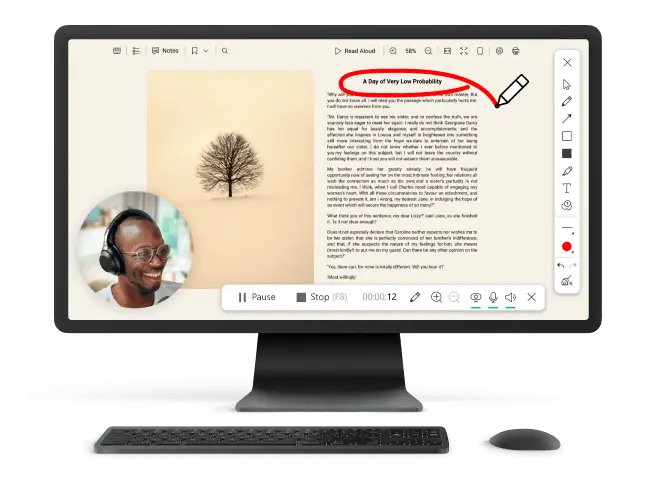
Icecream Screen Recorder is an intuitive program that has a video timer to postpone the process. It has a simple interface and extensive customization options, making it suitable for both beginners and professionals.
How to schedule screen recording with this software
- Download Windows screen recorder and install it.
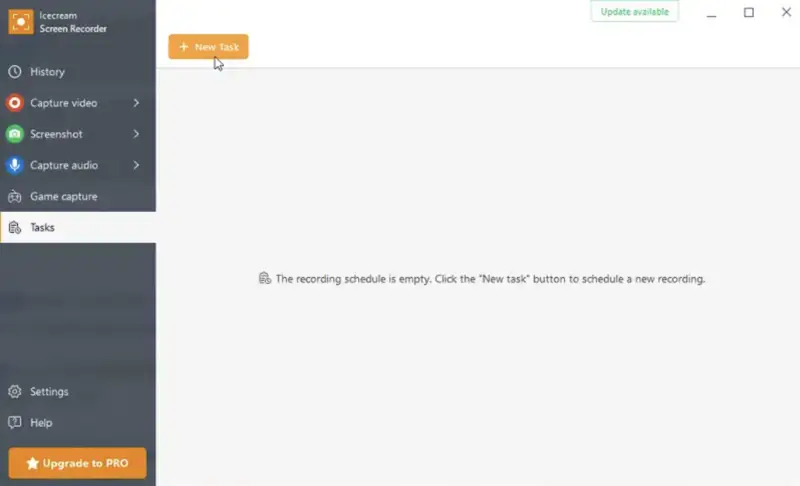
- Go to "Tasks" and hit "New Task".
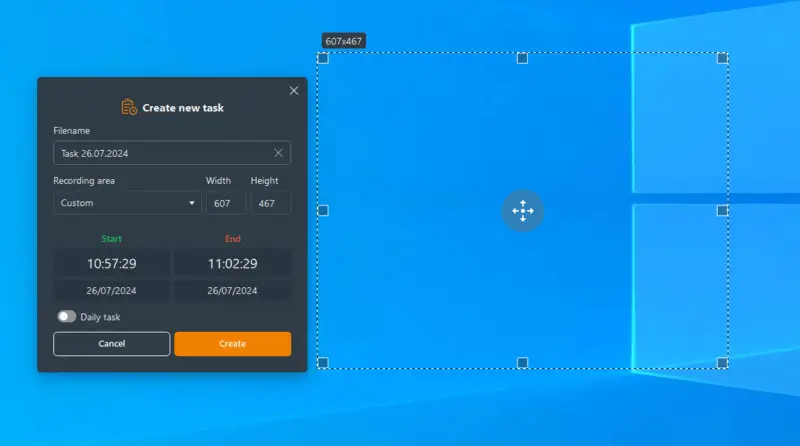
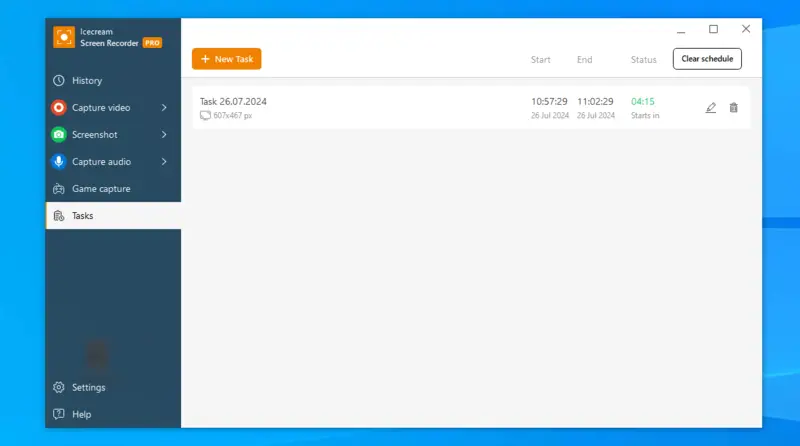
- Choose the area, enter the filename, and set when you need the session to begin. There is an option to make repetitive, for example, daily, tasks.
- Save everything by clicking the "Create" button.
Pros:
- Screen recording options. You can schedule the capturing of a particular part of the display or the entire desktop.
- Different formats. It allows you to save output as an MP4, WebM MOV, or AVI file, providing flexibility in choosing the most suitable option for specific needs.
- Customizable Settings. Users can pre-select the resolution of the result, pick the desired audio and webcam sources, and set hotkeys for quick actions to ensure a seamless working experience.
- Built-in Editor. There are integrated essential video editing tools to trim the footage, change the speed or size, or mute the sound.
Overall, Icecream Screen Recorder emerges as the leading option for Windows computers. Its clean interface, advanced features, and versatile tools make it the go-to choice among content creators and professionals alike.
Option 2. Iris
Iris serves as the top option for macOS users seeking a timed video recorder. It is a powerful and versatile program that enables you to effortlessly make HD content at specific intervals.
How to create a recording schedule in Iris
- Get the software from the App Store.
- Click the app icon in the menu bar and choose "New Recording”.
- Tap the icon on the main interface to set up a new session.
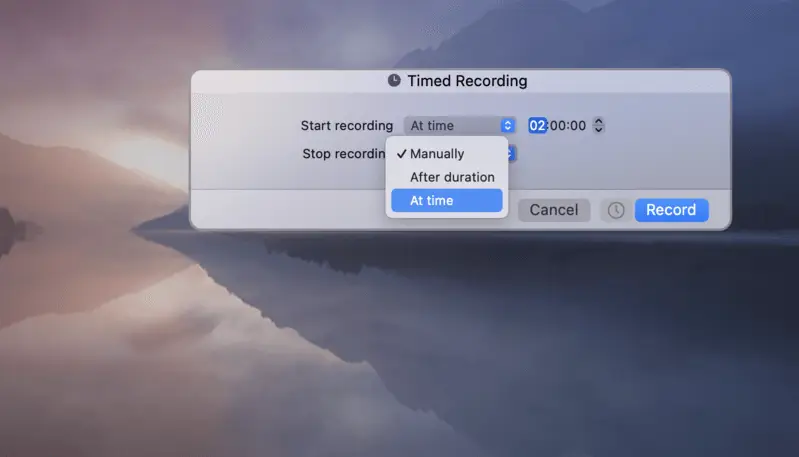
- Pick an option from the "Start recording" and "Stop recording" dropdown menus.
- Press the "Record" button, and the software will begin the capture at the designated time.
Pros:
- High-Quality. Offers excellent clarity with support for HD and full HD resolutions.
- Flexibility. Provides screen recording settings for starting and ending the capture at a time or after duration. Manual options are available too.
- Range of resolutions. Allows to pick from a variety of dimensions Actual Size, Retina, Scale_, or specific aspect ratio values for optimal visual clarity.
Cons:
- Free Version Limitation. If not subscribed, people will have their output with a watermark and with a promotional intro at the beginning.
- Limited Windows Support. As this software is designed for macOS, Windows users will need to look for alternative solutions.
In summary, if you're looking for a reliable program with a recording timer for your Mac, Iris is undoubtedly a great choice. With its top-notch features and friendly interface, it is sure to elevate your experience.
Option 3. Debut Video Capture
Debut Video Capture is a comprehensive option for Windows and macOS. It’s known for its robust features and simple interface, making it a convenient software for recording live streaming videos, webinars, or other online events.
How to set the recording time with macOS version of Debut Video Capture
- Download and install the app on your PC. Launch it.
- Go to "File" menu. Locate the "Schedule Recording" option.
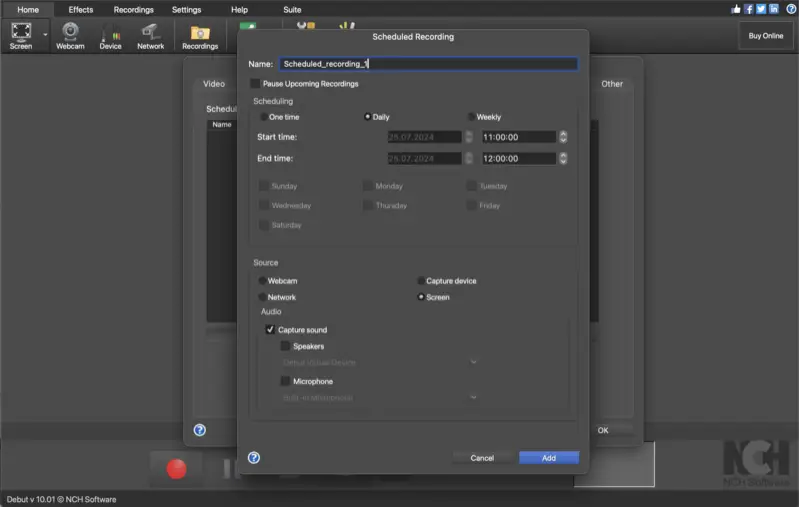
- In the new window, hit "Add..." to create a new task. Enter the file name, start and end, and indicate the sources to be captured: webcam, network, etc.
- Once all parameters are customized, press "Add" to save the changes. Click "OK" to close the menu.
- In case you notice any mistakes, you can edit and delete tasks.
For those using the Windows OS, the process is similar. The only difference is that you need to open the "options" menu and hit "Schedule".
Pros:
- Versatile Options. Supports multiple sources, including webcam recording, monitors, and external devices.
- Advanced Scheduling. Allow the program to access not just at one designated episode but to create a regular task.
- Customization. Provides numerous settings for adjusting quality, resolution, and file format (AVI, MP4, FLV, etc) depending on the preference.
Cons:
- Paid Commercial License. To employ this screen recorder with a timer for enterprise utilization, a subscription is required.
- Outdated Design. The interface can feel dated compared to more modern tools, impacting the ease.
Overall, Debut Video Capture functions as a trustworthy option suitable for Windows and macOS devices, boasting multiple advantageous capabilities.
Tips on using a timed video recorder
- Test Beforehand. Always try out your program and its screen recording settings before relying on it for scheduling the tasks.
- Check Storage Space. Ensure that you have sufficient storage space, especially if you're planning for long or high-quality sessions.
- Update Regularly. Keep everything updated to benefit from the latest features and improvements, as well as to ensure compatibility with your OS version.
- Adjust Settings. Choose the frame rate per second for smooth and clear footage.
- Keep Track. Set a reminder to avoid going over the desired length.
FAQ
- Can I use a timed video recorder for live TV?
- Yes, it is ideal for broadcasts. You can set it to start capturing at the moment your show or event begins and stop once it ends.
- Can a timed video recorder preserve gameplay?
- Yes, it can get letsplays from consoles or PCs. Many gamers opt for OBS Studio or dedicated cards.
- What happens if my PC shuts down?
- If your computer turns off unexpectedly, the video will be interrupted. Some applications may offer automatic resume options or allow you to schedule backups, but it's always good to ensure your system is stable before long sessions.
- What will happen if I don’t have enough storage space?
- If your PC runs out of disk space, the process may fail or stop before completion.
Conclusion
Selecting the right timed video recorder can significantly enhance your content creation process. The described options offer extensive capabilities.
- Icecream Screen Recorder stands out as the best Windows app, featuring versatile features.
- Iris excels as an app for macOS computers due to its seamless integration and high-quality output.
- Debut Video Capture is a capable macOS and Windows screen recorder that can work for multiple sources.
By considering your specific needs and preferences, you can choose the best screen recorder with a timer to automate your tasks, ensuring efficiency in the workflow.

Expert Tech Writer
