
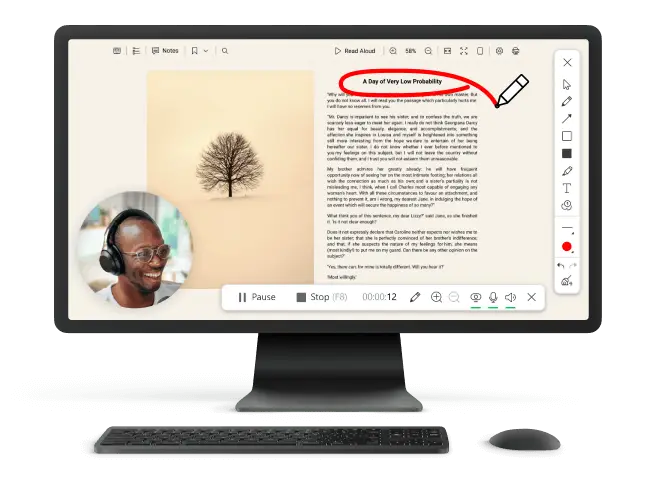
How to Screenshot a Website on a PC
If you need to capture the data of a web page, then having a reliable screenshot maker is essential. Taking an image is a convenient technique to save the content for your future reference or to share it with others.
In this article, we will cover some basic and advanced tools for different operating systems that will help you screenshot a webpage. You can utilize those for preserving evidence, producing tutorials, illustrating reports and presentations, or simply keeping records.

How we picked website screenshot generators
To create this tutorial, we considered the various needs of different users.
We will describe apps that work on Windows and macOS. Some offer the bare minimum. We will also tell you about advanced programs that, for example, will allow you to take a full website screenshot.
We hope that everyone will find a suitable option on our list.
Way 1. Icecream Screen Recorder
One of the best methods is utilizing Icecream Screen Recorder. It makes generating images an easy and almost effortless task.
How to screenshot a webpage using Icecream Screen Recorder
- Download and install the software to take a screenshot on Windows. Launch the program.
- In the menu, click "Screenshot". Pick what you want to record - "Display 1", "Display 2", "Custom area", "Last area", or "Area auto detection".
- Now, hit "Copy" to save your capture to the clipboard, or "Screenshot" to preserve the picture, edit it, or crop if the desired size is not achieved.
- You can also opt for the "Upload" option to share the result via a link.
.webp "Screenshot an entire webpage with Icecream Screen Recorder")
.webp "How to screenshot a website on Windows using Icecream Screen Recorder")
Pros:
- It's a free and convenient method to take a screenshot of a website in a browser.
- It supports both Windows and Mac devices.
- You can make annotations on your desktop while capturing the area.
- It allows you to share and edit the picture without leaving the program.
- Additional screen and webcam recording options are available.
Way 2. Snagit
Snagit is a powerful screenshot maker that lets you capture, edit, and send images quickly and easily. It offers sophisticated editing features and the capacity to export output in various formats.
How to use Snagit to create a webpage screenshot
- Download and install the program on your computer. Launch it and sign in for an account.
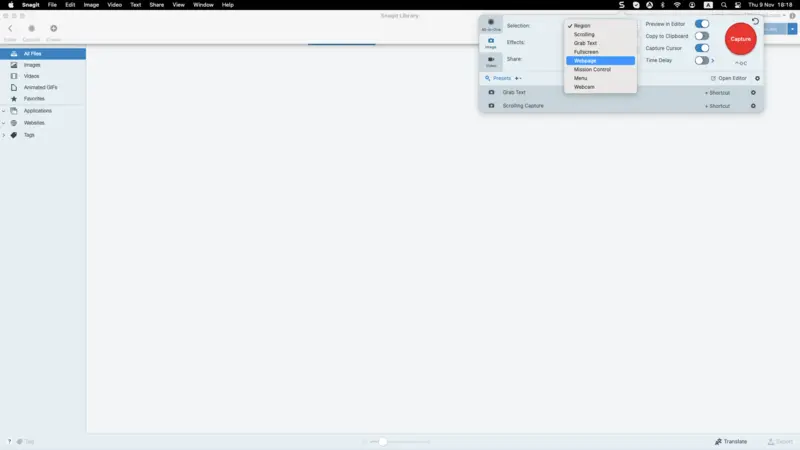
- Select the "Capture" option from the toolbar and hit "Image" from the left-hand side menu.
- In the drop-down list "Selection", pick "Webpage". To preserve the content of the entire website, set "Scrolling".
- Adjust the settings. For example, you can "Capture cursor" or set the "Time Delay". You can also apply "Effects" if needed.
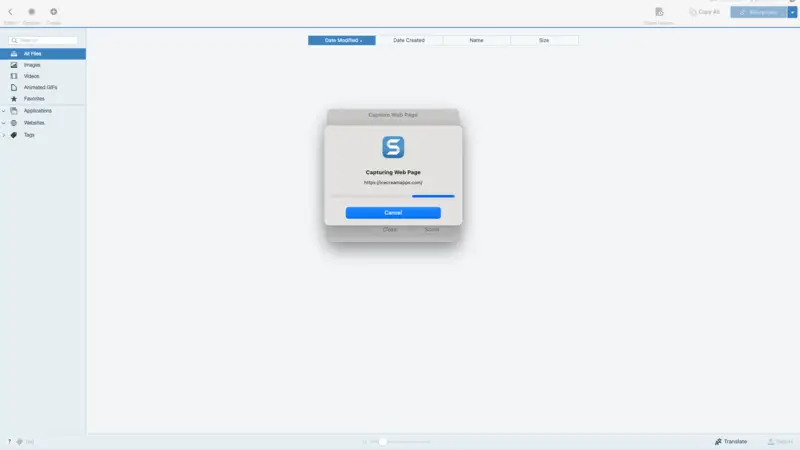
- When ready, hit the red "Capture" button. In the new window, enter the URL and hit "Scroll".
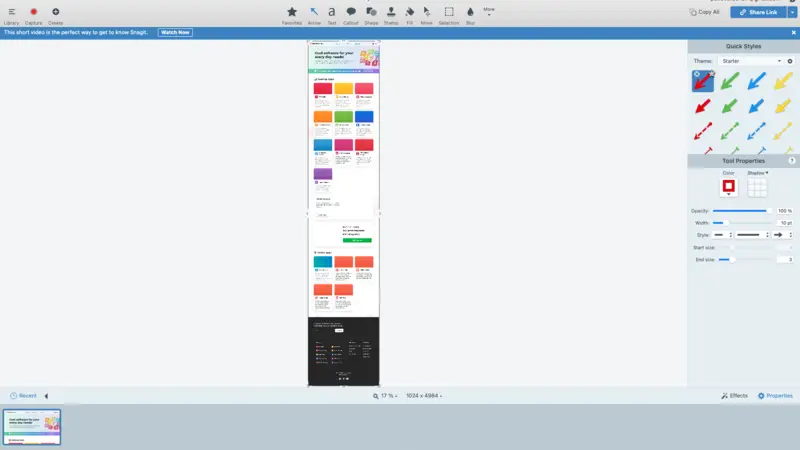
- To save the website's screenshot, open the "File" menu and utilize the "Save as" option. Alternatively, click "Share link" at the top right corner and choose one of the many ways to share the result with others.
Pros:
- Full page screenshot. Allows you to capture a whole website or a specific area of it.
- Editing capabilities. Has advanced tools that let you add text annotations, arrows, shapes, etc.
- Formats choice. Saved files may be converted to export in multiple extensions, including JPEG, PNG, PDF, etc.
- Variety of options. The website captures can be sent directly from the program.
Cons:
- Not free. There is a free trial available, but you will have to buy a subscription to utilize this screenshot maker.
- Learning curve. Some people may need time to get used to the interface and explore all the features.
Way 3. Pikwy
Capturing images is a great procedure for making a library of references for the future if you are a web designer.
Pikwy is a popular screenshot-making service that helps quickly preserve all the needed content.
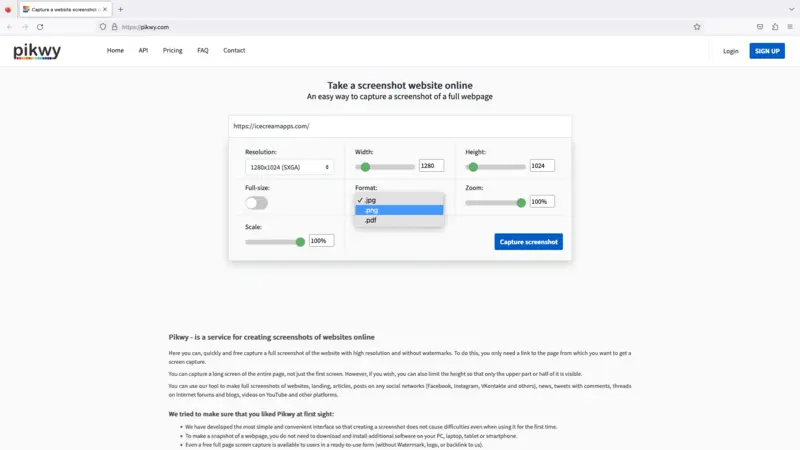
How to use Pikwy to screenshot a page
- Copy the link you wish to save.
- Go to the website and insert the URL into the top field.
- Customize the settings: choose the resolution, adjust the width and height, pick a format, etc.
- Once ready, hit the blue "Capture screenshot" button.
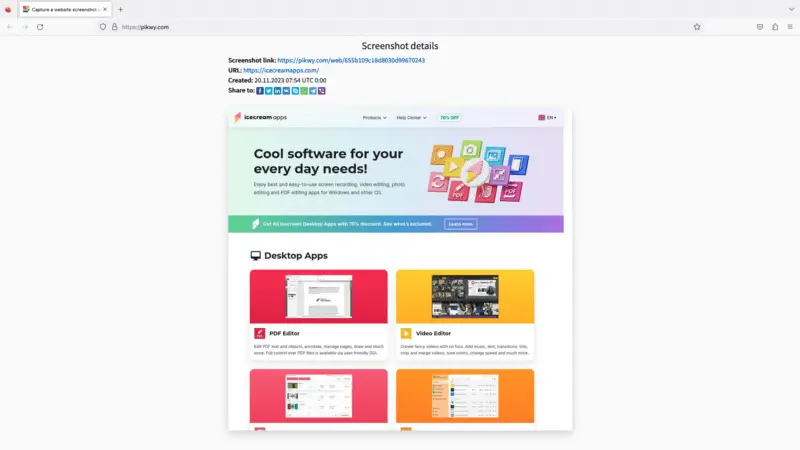
- After the processing is finished, below the settings area, you will see the preview of the result as well as the link to share it.
Pros:
- Free version. There is a free way to make webpage screenshots without signing in.
- Online screenshot tool. Since it's browser-based, you can capture content on a desktop or mobile device of any brand and OS.
- No watermark. Even if you use the trial version, your picture won't have any watermarks applied.
Cons:
- No downloading. You can only share everything via a link or through social media.
- Limitations. Without a subscription, you can only take 100 images with this platform.
- Compatibility issues. The tool may not be able to create full-page screenshots of some websites.
Ways 4 and 5. Screenshot hotkey combinations
In case you don't need the additional functionality, such as editing or a full website page screenshot, you can try the basic hotkeys for your operating system.
macOS
- To make a picture of the full display, hit Shift + Command + 3. Click on the image that will appear in the bottom right corner to preview the result. If satisfied, opt for "Done". If not, utilize the Bucket icon to delete the current element and create another one.
- To take a screenshot of a specific part, press Shirt + Command + 4. Manually select the area and let the mouse button go. Similarly to the previous option, preview and save your capture.
The results are either sent to your Desktop or Documents folder, depending on the settings your computer has.
Windows
- Press the Windows and Print Screen keys simultaneously. This will preserve the entire display.
- The combination Windows + Shift + S will allow you to capture a concrete area of the browser.
If you take a screenshot of the entire screen, go to your Pictures folder to locate the photo. In case you select a part, click on the preview once it appears or hit CTRL + V to save it.
Why screenshot web pages
Saving the content is a good way to record and share data. Below are some of the top reasons why you might need to do it.
Reference information
Browser screenshots are an effective way to store and refer back to important data. This allows you to quickly access what is on the page without having to search through bookmarks or type in the URL again.
Share content
If you find something interesting or insightful, you can take a screenshot and send it to your friends or colleagues. This is a simple and fast way, bypassing the need to copy and paste links into emails or messaging apps.
Document your work
If you're working online or need to provide proof that something happened, a webpage screenshot is an easy way to do so. You can track the progress you make on any given site.
Record changes
Websites change all the time, and it's often helpful to preserve them for future reference. Full-page screenshots can help you keep track of how the content looks at different points in time. Hence, you will compare how it's been developed.
Best formats: comparison table
| Format | Ideal For | Compression | Advantages | Disadvantages |
|---|---|---|---|---|
| PNG | Text-rich screenshots | Lossless | Maintains sharp details | Larger files, not ideal for complex or photo-based images |
| JPEG | General-purpose photos | Lossy | Compact size, suitable for colorful or photographic content | Loss of quality |
| WebP | Optimized web graphics | Lossy/Lossless | Balanced quality and reduced size, ideal for fast web loading | Compatibility issues with some older browsers |
| GIF | Simple animations | Lossy (for animations), Lossless (for stills) | Supports motion | Limited color palette |
| SVG | Logos, icons | Lossless | Infinite scalability | Not suitable for complex pictures with high detail |
| TIFF | High-quality screenshots | Lossless | Preserves all data | Very large files, impractical for web |
| Multi-page or reports | Lossless | Retains layout and details | Not web-friendly |
Tips for high-quality website screenshots
- Adjust zoom. Set your browser level to a comfortable size where the content is readable. Zooming in too much may result in pixelation, while going out too far can make text and details appear blurry.
- Clear clutter. Remove any unnecessary elements to focus on what you want to capture. This includes closing some tabs, hiding bookmarks, and minimizing toolbars.
- Use full-screen mode. If applicable, opt for this option to maximize the space available. This can help eliminate distractions and ensure that the entire content is visible.
- Right file format. PNG is often preferred as it maintains high quality without compression artifacts. However, JPEG can be utilized for larger images where size is a concern.
- Edit if necessary. Basic tools like cropping, resizing, and adjusting brightness/contrast can be helpful for clear results.
FAQ
- Is it legal to create a website screenshot?
- If you capture for personal needs, you are likely not to break any copyright laws. However, you should be mindful of how you utilize other people's content so as not to get yourself in trouble.
- Can I take a screenshot on my phone?
- Yes. On an iPhone, press and hold the Power button and Volume Up button simultaneously. On a Samsung phone, press the Volume Down and Power buttons at the same time and hold for a second. The picture will be retained in your gallery.
- Can I edit my website screenshots?
- Yes, like any other image. For instance, many tools offer you to trim and make some other changes even before you save the capture. However, if there is no such option, you can always use a photo editor to do so.
- How do I take scrolling screenshots?
- To capture a full-page screenshot, you need a program that has such a capability. For example, in this article, we discussed how to create a scrolling website capture with Snagit.
- What is the best format?
- Saving as either PNG or JPEG files will ensure they look clear when viewed later.
Conclusion
As you can see from the article, there are multiple ways to create a website screenshot. Overall, it's a simple process that requires minimal effort and knowledge.
We hope that our review will help you find the most suitable method. By following the outlined steps, you'll be able to take great screenshots with ease.

Expert Tech Writer
