
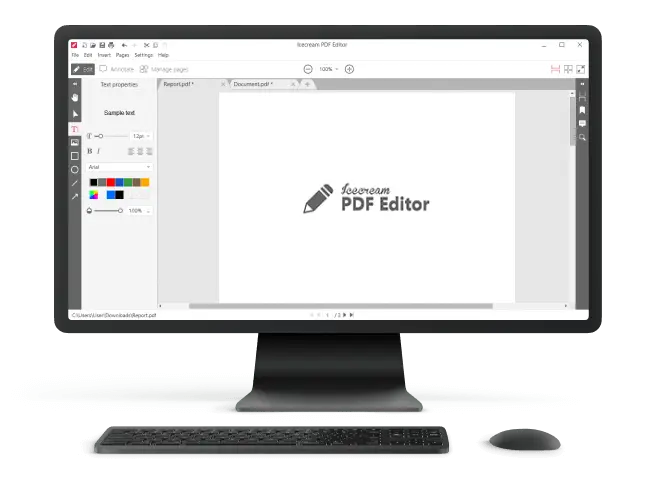
How to Stamp a PDF Document
Today's business world revolves around the daily signing and sharing of papers. Do you know what else would make workflow easier? Learning how to stamp PDF documents right on your computer.
In this article, we will walk you through the steps required to master the process. Whether you're looking to brand a company report or prevent unauthorized use of your unique content, digital stamping is your go-to solution.
PDF editor that can stamp documents: table
| Program | Access | Available | Stamp presets | Multiple stamps on one page | Price |
|---|---|---|---|---|---|
| Icecream PDF Editor |
Windows
|
Yes
|
Yes
|
Free
PRO version $49.95
|
|
| Adobe Acrobat |
Windows
MacOS
|
Yes
|
No
|
7 day trial
$19.99 per month
|
|
| Google Docs |
Online
|
No
|
Yes
|
Free
|

How we picked tools to stamp PDF
When making our selection of the best services, we considered several factors:
- Customization. The PDF editor should allow you to change the text and position of the stamp to fit your specific needs.
- Quality. The result should maintain its original quality.
- Security. The tools should have a reputation for reliability and secure handling of sensitive files.
Following these criteria, we've managed to make a list of PDF editing software that offer the best stamping abilities for both personal and professional uses.
Method 1. Icecream PDF Editor
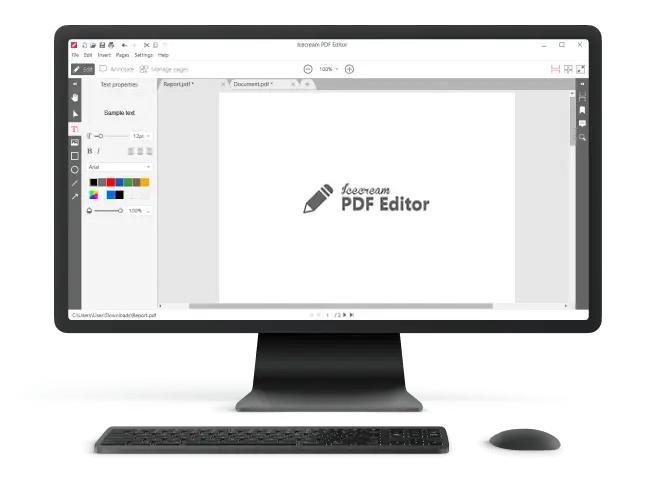
This free PDF editor can be downloaded on a Windows PC. Installation takes just a few minutes. You won't have to pay anything to utilize the free PDF editing software unless you decide to upgrade to the PRO version.
The utility performs useful operations for everyday management tasks. You can employ it to annotate and edit documents, insert new PDF pages, add comments or text, insert images, and much more.
How to apply Icecream PDF Editor to stamp PDFs:
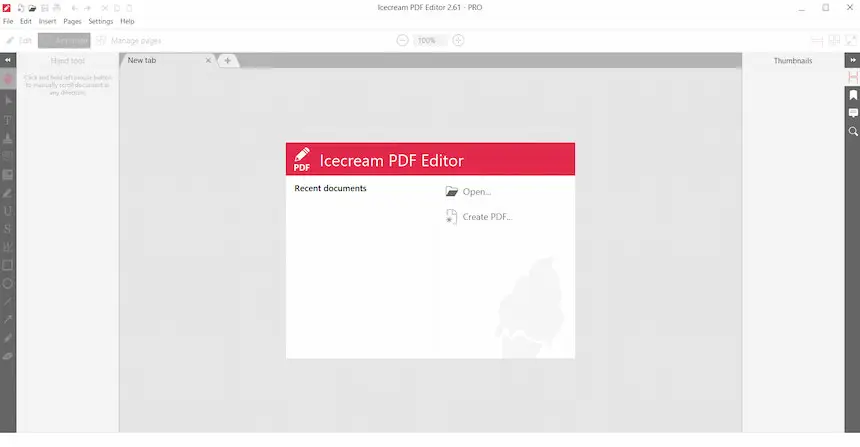
- Add a file by dragging and dropping or by clicking the "Open…" button. You can upload several PDFs at once.
- Proceed to the "Annotate" mode and select "Manage stamps" in the menu on the left. Or go to the "Insert" tab at the top bar and press the "Stamp..." option in the drop-down list.
- You will see PDF stamp templates. Hit the one you want and pick the place where it will be applied. You can resize and incline a custom description to it.
- Add a stamp to PDF as many times as you need (see steps 1-4). When finished, press CTRL + S or go to "File" > "Save" or "Save As" to load the output.
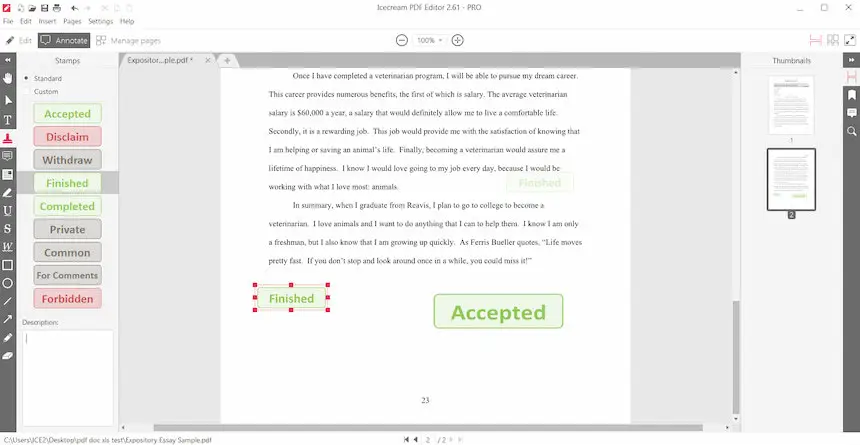
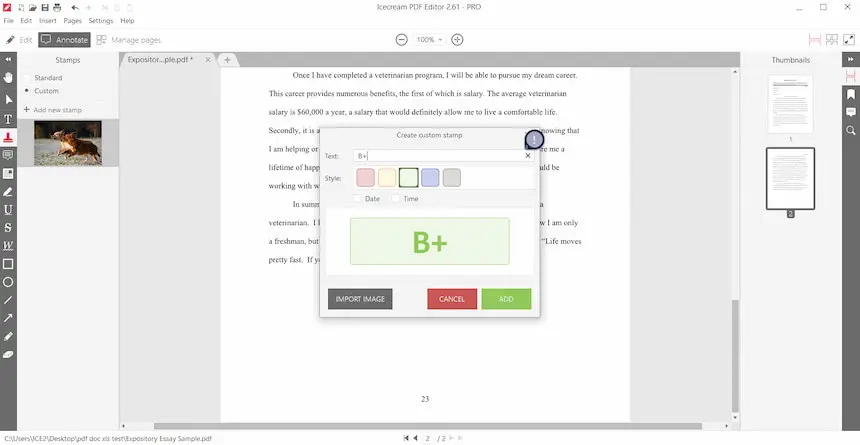
If no PDF stamp fits your needs, create one by selecting "Custom". Write any text, pick a color, or even type the date and time. What's more, our service lets you create seals from images.
Note: To avoid distorting the item as you resize it, hold down the CTRL and drag it in the desired direction.
When you are done with PDF stamping, you can continue working on the paper in the PDF editor. Thanks to its wide range of features, you can redact text, change its colors, and reposition it.
With various modes, you can rotate, resize, annotate, and add notes to PDF pages. Moreover, the platform can be used for filling forms, and as a regular PDF viewer.
Method 2. Adobe Acrobat
Utilizing the mark feature in Adobe Acrobat offers a simple approach to customizing and creating PDF documents. PDF stamping is an effective way to secure documents and streamline authorization processes.
How to stamp PDF with Adobe Acrobat
- Open the PDF in Adobe Acrobat.
- Hit on the "Tools" tab and settle on the "Stamps" > "Stamps Pallete". This will open up a large selection of standard templates for you to choose from. Elect the one you wish to use by clicking on it.
- To position, simply click it and place it where you want on the page. Need a different size? Adjust it by dragging the corners until it looks just right.
- Save your document via "File" tab.
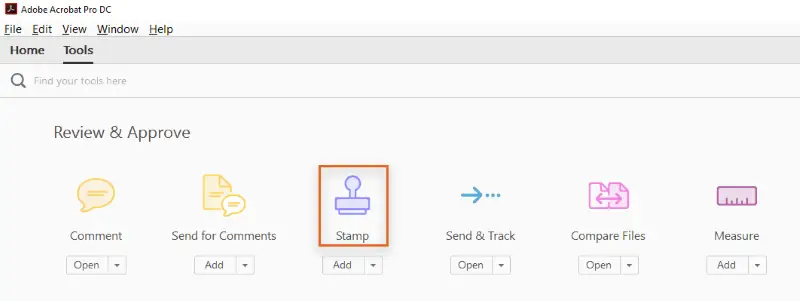
Adobe Acrobat allows you to insert a stamp on your PDF and add that personal touch to your papers. Users can upload their images or logos and build seals with ease.
Plus, it is possible to make custom PDF stamps like animated or password-protected ones. However, you can't incline multiple marks to one page.
Keep in mind
The main downsides of using this PDF editing software are its price and complex interface. The trial version is available for 7 days, to continue applying the program you have to purchase a premium subscription.
Method 3. Google Docs
Google Docs is another tool you can employ for editing PDF documents. With its wide array of features, it's also a fine solution.
How to add stamp to PDF in Google Docs
- Open your document in Google Docs.
- Select "Insert" from the top menu bar.
- Click "Image" > "Upload from computer". Import the picture of the future PDF stamp.
- Resize and position your item as desired, then save your PDF with the newly added footage.
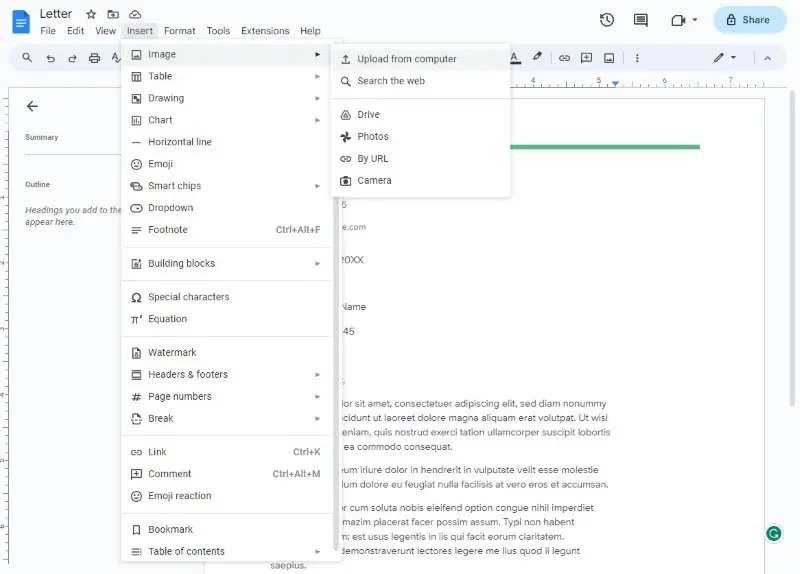
Stamping a PDF via Google Docs is an uncomplicated procedure.
Limitations
While it's good for creating basic stamps, the service does not offer more advanced features such as customization. Plus, in terms of security and privacy, Google Docs is not the most reliable platform.
What is a PDF stamp
Seals for PDF documents are digital images embedded into the page. Stamping may be used to add a personalized touch to documents or as a way of validating the authenticity of the document. It can contain text, images, logos, and even signature fields.
PDF stamp types
| Type | Purpose | Examples |
|---|---|---|
| Text | Contain short phrases or words. | "Approved", "Confidential", "Draft", "Final Version", "Reviewed", "Urgent" |
| Image | Use graphics, logos. | Company logos, Custom pictures (e.g., check marks) |
| Date | Automatically adds the current date to the document. | "MM/DD/YYYY" |
| Signature | Represent a digital signature or official approval. | "John Doe" signature, "Approved by [Name]" |
| Confidentiality | Mark the confidentiality level of the document. | "Confidential", "Internal Use Only", "Top Secret", "Restricted" |
Where should I place the stamp?
Stamps are usually placed in a specific area of the PDF. This area is referred to as the "stamp box". The dimensions of that frame depend on the amount of space available.
Digital stamps can be applied manually or automatically:
- Manual require you to drag and drop pictures into a designated stamp box.
- Automated allow you to upload an image or type in text that will be applied to multiple documents at once.
No matter which option you choose, having a stamp on a PDF adds a professional and individualized flair to your materials. It also verifies authenticity and protects PDF files.
PDF stamp vs watermark
These are two ways of adding a copyright protection. They both display a footage or words over the PDF but work differently.
- A PDF stamp is placed directly on the sheet. It can serve as a signature, to certify a document, or simply to incorporate a logo.
- A watermark is a semi-transparent graphics that appear in the background of a paper. It is often used to protect archives from being copied or changed without authorization. Watermarks can be set up on all or just certain pages.
Here's a comparison table to illustrate their differences:
| Feature | PDF Stamp | PDF Watermark |
|---|---|---|
| Purpose | Often employed for adding annotations or official marks, like "Confidential", "Approved", or "Draft". | Typically used for branding, copyright protection, or to signify the document's status (e.g., "Sample" or "Paid"). |
| Visibility | Fully visible and may cover specific sections. | Often semi-transparent, covering the entire page or a specific area, providing a background note. |
| Positioning | Can be placed in precise locations, like a corner or center. | Usually spans a large area, such as diagonally across or as a background element. |
| Customization | Highly configurable in terms of content, size, and position. | Adaptable in transparency, position, and angle, but generally serves as a background element. |
| Interactivity | Can include interactive elements such as hyperlinks or PDF form fields. | Typically static, though some watermarks might link to external resources. |
| Use Case | Commonly executed for internal document management and approval processes. | Frequently deployed for protecting intellectual property and enhancing branding. |
| Impact | May alter the appearance of the document significantly, especially if large or prominently placed. | Generally less intrusive and maintains the document’s overall layout and design. |
| Layering | Can be layered over text or images but may impact readability if not managed carefully. | Usually placed in a background layer so it does not interfere with the document’s content. |
Watermarks are also commonly used on draft copies or copies not intended for the public. In this context, the watermark (for example, "Draft" or "Not for Redistribution") is employed to immediately show the status.
Overall, PDF stamps are great for quickly adding logos and signatures, while watermarks provide more security as they cannot be easily removed or altered without permission.
Reasons to add a stamp to a PDF
Here are five reasons why you should consider creating a digital stamp for your PDFs:
- Customization. PDF stamps fully tune the look and feel of the documents. You can choose from a wide range of designs, colors, and sizes so you can make it unique to your business.
- Legitimacy. Your PDF files can be stamped to give them an official, legally binding appearance. It will help recipients take you and your papers more seriously.
- Security. Adding a stamp to a PDF can also protect the PDF by providing an extra layer of authentication.
- Brand Awareness. A custom stamp helps create a consistent brand identity and makes sure that everyone knows who the author of the archive is.
- Cost-Effective. Creating stamps for PDFs is much more cost-effective than other alternatives such as printing or signing by hand.
Among other things, a stamp on the PDF can be used to denote the status of it (e.g., "Approved", "Draft"), the date of approval, or who reviewed it.
Stamps are an easy and efficient way to add professionalism to your drafts while still saving time and money.
FAQ
- What format should I use for my own stamp?
- Most people go with PNG or JPEG. They look good and work well with PDF editors.
- Can other users edit or delete the stamp on my PDF document?
- That depends on your PDF’s security. If it’s password-protected, your stamp is safer. Without protection, it’s easier for someone to redact things.
- How do I digitally sign a PDF?
- Digital signatures are a type of stamp. Most PDF tools let you create and insert these with just a few clicks.
- Are stamped PDFs legally binding?
- They can help with legal validity, but it depends on your country’s rules.
- How does stamping affect the file size of a PDF?
- Text ones barely change the weight, but big image stamps can add a bit of weight.
- What is a dynamic PDF stamp?
- It’s a seal that updates automatically — like adding the date or your name every time you use it.
- Is it possible to apply multiple stamps to a single PDF?
- Yes, you can layer different stamps throughout the document, customizing which areas they appear in.
- Can stamps be applied to specific pages in a doc?
- Absolutely. Programs typically allow you to target specific pages when dining stamps.
Conclusion
Today you have learned how to easily add a stamp to any PDF. As you can see, this can be done quickly and easily, as long as you pay attention to the important points along the way.
Make sure you choose the right PDF stamp type and ensure that you preview your work before saving. Additionally, be mindful of the placement and take note of the size to avoid any potential issues.
With these tips in mind, you can have confidence that your stamped PDF will look great and be ready for any purpose.

Expert Tech Writer
Co-authors

Editor-in-Chief at Icecream Apps
