
4 Ways to Convert XLS to PDF
XLS is the old-school binary type Excel used before XLSX showed up. Sure, you can open them in OpenOffice or LibreOffice, but things can get messy - sometimes you lose formatting or run into weird compatibility problems.
If you know how to convert XLS files to versatile PDF, you make life way easier. Sharing and viewing grids gets a lot smoother, no matter what device or operating system people have. You keep the content just the way you want.
This guide shows you how to turn your Excel spreadsheets into PDFs without the headache. Fast, simple, and no surprises.
Method 1. PDF Candy Desktop
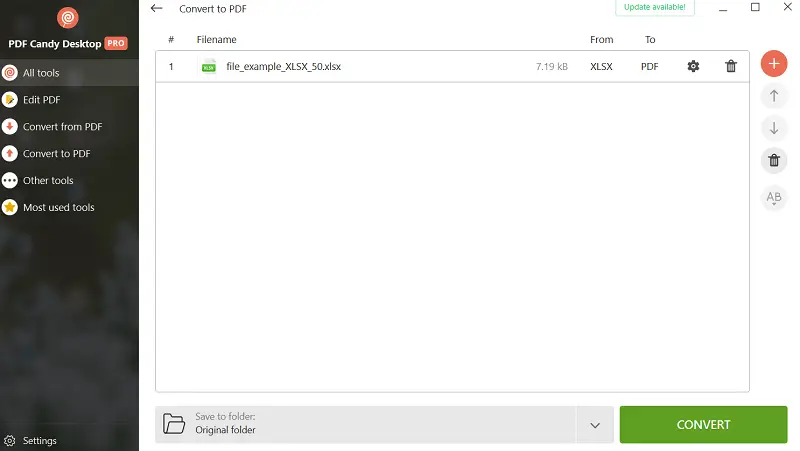
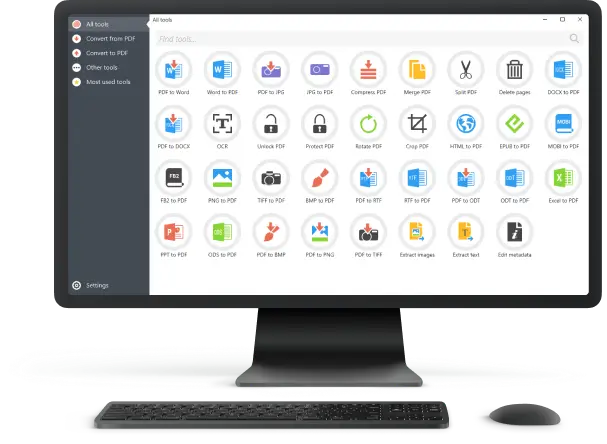
PDF Candy Desktop is a software designed for transforming various files, including XLS to PDF and vice versa. The interface? Super straightforward. You won’t get lost in menus or need a manual to figure things out.
How to convert XLS to PDF with PDF Candy Desktop
- Download the free PDF converter from the official website and follow the installation instructions to set it up on your computer.
- Launch the application and select the "Excel to PDF" option.
- Add your XLS, or toss in a bunch if you want to modify several at once.
- Specify the destination folder where you want the file(s) to be saved.
- Press the "Convert" button to save your Excel sheet as a PDF.
Pros:
- Batch operation. The XLS to PDF converter allows to process multiple papers simultaneously.
- Secure handling. Incline password protection and keep your sensitive docs safe when sharing them.
- Compatibility. Works smoothly with different Windows versions, so most users are covered.
- Cost-effective. It won’t break the bank - great for anyone who just needs reliable optimization.
Cons:
- Only available for Windows. If you’re on a Mac or Linux, you’re out of luck with this one.
Method 2. PDF Candy
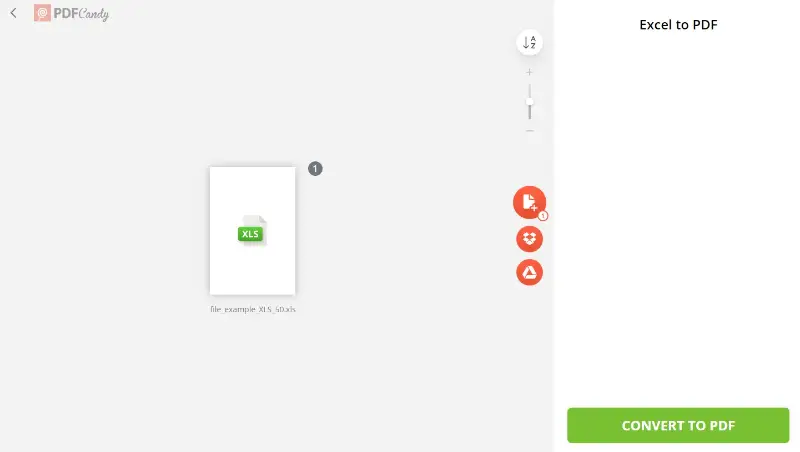
PDF Candy is a handy online platform packed with tools for handling all sorts of materials, not only PDFs. If you need to change a spreadsheet into a PDF, it’s got you covered. You can also rotate, rearrange, protect, or even edit your PDFs right there in your browser.
How turn XLS into PDF online with PDF Candy website
- Open your web browser and head over to PDF Candy website.
- Click the "Add File(s)" button to upload the XLS.
- Hit "Convert to PDF" to initiate the process. The app takes care of the rest.
- When it’s done, you’ll get a prompt to download your shiny new PDF.
Pros:
- Online access. Since it's a web-based tool, there's no need to install additional software on their devices.
- Batch operation. Users can convert multiple XLS files to PDF simultaneously, which really speeds things up if you’ve got a bunch to do.
- Simple sharing. You can send the output via a link or download them to your phone with a QR code.
- Versatility. Perform other tasks such as merging PDFs, splitting large documents into smaller ones, compressing, and more.
Cons:
- Internet dependency. It might take a long time to change Excel to PDF if you have a slower connection.
Method 3. iLovePDF
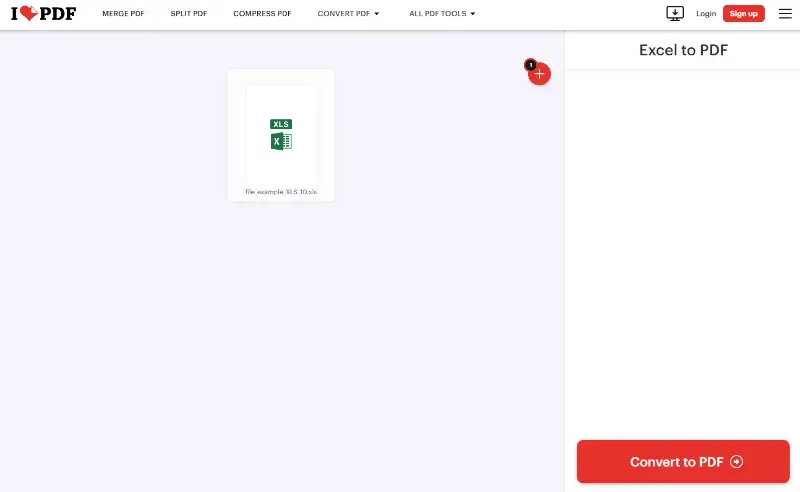
iLovePDF is one of those online platforms that takes the hassle out of working with papers - like turning Excel into PDFs. The site looks clean, and everything’s right where you’d expect, so you won’t get lost.
How to convert Excel to PDF with iLovePDF
- Open your web browser and navigate to iLovePDF's Excel .
- Click the "Select Excel file" button to browse and upload your document, or simply drag and drop it into the designated area.
- Once your draft is up, hit "Convert to PDF". The service will begin processing your XLS spreadsheet.
- After the task is complete, a download link for the PDF will appear.
- Save the result to your device.
Pros:
- Easy navigation. It’s super simple - no tech skills required.
- Batch processing. You can upload and transform multiple Excel files to PDF at once, saving time and effort.
Cons:
- Restrictions. The free version of online PDF converter puts a 15 MB cap on size. And if you want bulk transformation, you’ll need to pay for a subscription.
Method 4. Print XLS to PDF
The Print to PDF feature pops up in a lot of operating systems and apps. It create a PDF file from anything you can print.
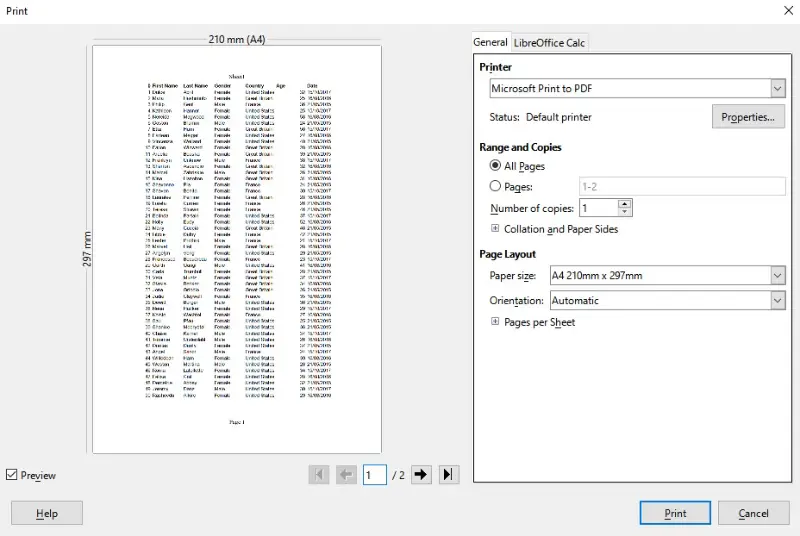
How to save XLS as PDF with printing feature
- Open the Excel spreadsheet you want to convert and go to the "File" menu at the top-left corner.
- Choose the "Print" option. Depending on your software or OS, this button might look a bit different.
- When the dialog appears, skip the real devices and pick a virtual one instead. Look for names like "Microsoft Print to PDF", "Adobe PDF", or something similar.
- Configure any additional settings - orientation, layout, margins - whatever you need.
- Hit "Print", specify the save location, and give it a name.
- Finally, tap "Save" to export your output to a PDF in the specified spot.
This trick is commonly used when you want to save a document, webpage, or any other content as a PDF file for plain distribution, archiving, or sharing while retaining its layout.
Pros:
- Ease of use. Seriously, anyone can do it. You don’t need to be a tech wizard to convert Excel to PDF.
- Built-in functionality. Most computers and apps have this feature, so you’re not hunting down extra software.
- Print settings. You get all the regular print options - PDF page orientation, size, margins - so you can tweak the PDF just how you like.
Cons:
- No batch processing. Saving a mountain of Excel as PDFs using this method might be time-consuming as it's usually done on a file-by-file basis.
- Print headers/footers. Sometimes the PDF will include headers and footers from your setup, which isn’t always what you want in a digital doc.
Tips for converting XLS to PDF
- Define Print Area: Select only the necessary range.
- Preview Document: Check layout before finalizing.
- Choose Orientation: Opt for Portrait or Landscape based on content.
- Modify Margins: Use Narrow for extra space.
- Fit Content: Change so it fits on one page if needed.
- Unhide Data: Ensure no hidden rows or columns.
- Simplify Design: Remove unnecessary formatting or merged cells.
- Consistent Fonts: Keep text size and style uniform.
- Add Headers/Footers: Include page numbers or other details.
- Adjust Padding: Make sure the text isn't too close to cell edges.
XLS vs PDF: summary table
| Feature | XLS | |
|---|---|---|
| File Type | Spreadsheet | Document |
| Editable | Fully editable | Limited |
| Use Case | Data analysis and manipulation | Sharing and viewing content |
| Compatibility | Requires spreadsheet software | Universal support |
| Interactivity | Supports formulas, charts, etc. | Static content |
| File Size | Larger, depends on material | Generally smaller |
| Accessibility | Requires compatible program | Readable on most devices |
| Security Features | Password protection available | Encryption and permissions |
| Printing Optimization | Not optimized | Print-ready format |
How to convert XLS to PDF: FAQs
- Can I edit the PDF after conversion from XLS?
- Editing PDFs is possible but may not be as seamless as working on the original Excel file. Depending on the complexity of the content and the nature of the edits you need to make, the process might involve some manual adjustments.
- Is the "Print to PDF" option available on macOS?
- Yes, you can use this feature on macOS for Excel (XLS).
- What is the difference between XLSX and XLS?
- XLSX is the newer extension introduced with Excel 2007, while XLS is the older version compatible with earlier Excel versions.
- Will complex formulas transfer accurately to PDF?
- While basic formulas and functions usually translate well, intricate or advanced calculations might not always display as intended. It's a good idea to cross-check the PDF against the original Excel to confirm that everything is in order.
- How can I convert an XLS to PDF using Microsoft Excel?
- Open the document in Excel, go to "File" > "Save As" > select "PDF" from the "Save as type" dropdown menu, then click "Save". This method retains the layout of your Excel document as much as possible.
- Can I change XLS to PDF without Excel installed on my computer?
- Yes, all methods described above allow saving Excel as PDFs without this software.
- What should I do if the PDF conversion results in missing data or formatting issues?
- Check if the XLS has complex structure or features not supported by the app. Try using a different program or adjust the format to simplify the content.
- Is it possible to password-protect a PDF after converting from XLS?
- Yes, many PDF editors allow you to add password protection.
- Can I convert an Excel file to a PDF with hyperlinks intact?
- Yes, most utilities preserve hyperlinks in the PDF format. However, it’s a good idea to test the output to confirm.
- Is it safe to utilize online converters for sensitive documents?
- Ensure you use reputable one and review their privacy policies. Consider offline methods or secure services.
- Will transforming an XLS to PDF reduce the size?
- PDFs can be smaller than XLS, but it depends on the content. Complex spreadsheets with many images or data might not see significant size reduction.
Conclusion
You now know how to convert XLS to PDF using 4 distinct pathways. Whichever option you choose, your ability to share, distribute, and preserve your spreadsheet data has been greatly enhanced.
Remember that the right method is the one that seamlessly integrates into your workflow.

Editor-in-Chief at Icecream Apps
Co-authors

Expert Tech Writer
