
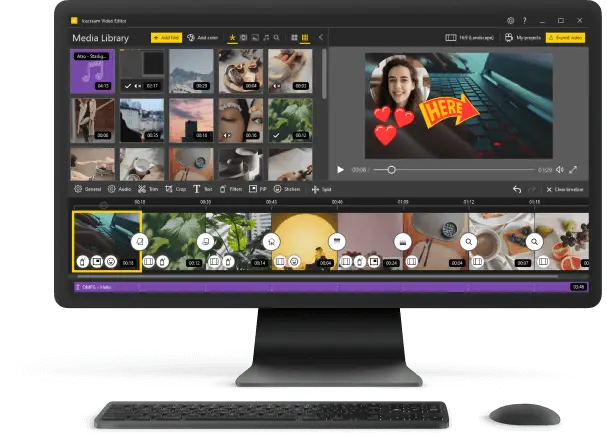
How to Add Text to a Video for Free
Knowing how to add text to a video can help create better content. Whether you want to include captions, subtitles, or titles, there are several ways to do so.
This article will explain the process on Windows and macOS, as well as the versatile video editing services.
Understanding the process of adding text to a video enables you to produce more engaging clips that resonate with your viewers. So let's get started!

How we picked free video editors
Selecting the right software is a critical step in ensuring a smooth and effective process. Here's a breakdown of the process:
- Platform compatibility. We included tools that cater to a wide range of users, including those on Windows, Mac, and online platforms.
- Intuitive interface. We selected video editing programs that offer a straightforward and accessible UI design to minimize the learning curve.
- Customization. We looked for services that provide extensive options, allowing you to align with your unique vision and needs.
Option 1: For Windows
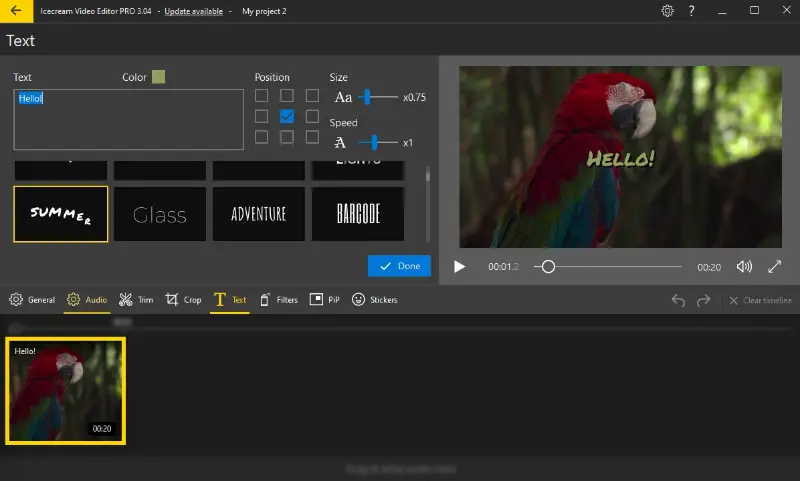
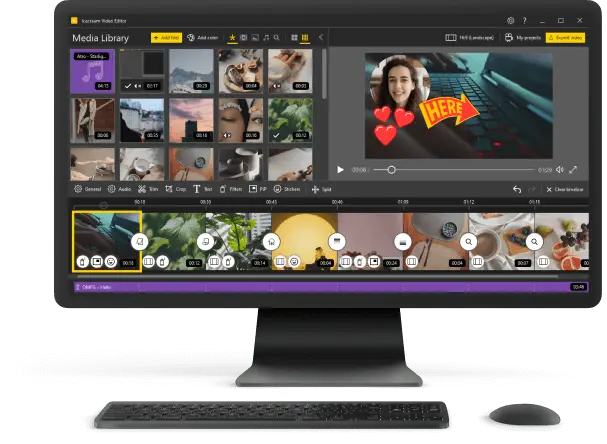
Employing Icecream Video Editor to overlay text on a video is convenient and simple. It's the perfect choice for those who need to quickly add captions or titles.
How to add text to video using Icecream Video Editor
- Download free video editor for Windows, install and launch it.
- Click "Add files" in the upper-left corner to select the file from your computer. You can also drag and drop it directly onto the timeline.
- Press the "Text" tab above the timeline.
- Customize your title by changing its font, size, color, position, and more.
- Once you're happy with the result, press "Done".
- Hit the "Export video" button in the upper-right corner to save your clip.
Pros:
- Ease of use. The software has an intuitive interface accessible for both beginners and those with some video editing experience.
- Customization. It provides different style options, allowing you to choose fonts, sizes, and colors to enhance the visual appeal.
- Subtitle integration. The ability to add subtitles to a video contributes to a more inclusive viewing experience. You can cater to diverse audiences with varying language preferences.
- Instant preview. You can preview in real time and see how the new element integrates with the footage before finalizing the changes.
Adding text to a video with Icecream Video Editor is fast and simple, making it an ideal choice for anyone who needs to edit videos with captions or titles quickly.
Option 2: For macOS
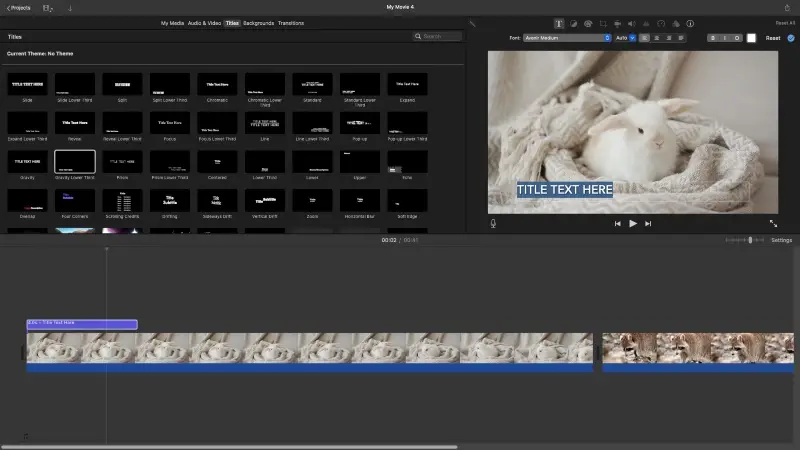
iMovie is a free video editing software for Apple devices. The application is available on Mac computers, iPhones, and iPads.
Steps for adding text to a video with iMovie
- Open iMovie. Start a new project or open an existing one.
- Import the content by dragging it into the project timeline or with the "Import Media" button.
- Click "Titles", browse through the title styles available, and select the one that suits your needs.
- Drag the title to the timeline above your clip and double-click it to enter the desired text.
- Adjust the duration by dragging its edges.
- Once you are satisfied with your changes, you can export the result.
Pros:
- Integration with the ecosystem. iMovie is well-integrated with other Apple products. This allows for the transfer of projects between different devices and services.
- Library of templates. The video editor includes pre-designed templates and themes that enhance the visual appeal.
- Learning curve. The interface makes it easy to learn and start editing quickly.
- Free to use. The program comes free for all Apple devices, offering a cost-effective solution for basic needs.
Cons:
- Rendering time. Exporting may take longer compared to more powerful software.
- No Windows version. Unfortunately, iMovie for Windows is not available yet.
All in all, iMovie is a great way to quickly put text on a video with multiple customization options and an easy interface.
Option 3: Online
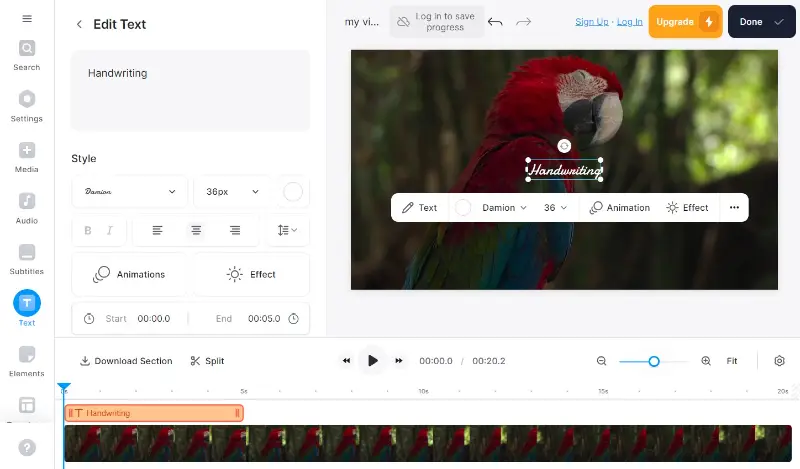
Using VEED.io is an efficient way to create professional-looking content without a lot of effort. You can simply add text to any video online with merely a few clicks.
How to add text to video online with VEED.io
- Go to VEED.io and press "Start for free".
- Upload the clip you'd like to work on. You can also opt for stock visuals, templates, and AI avatars.
- Once it has been uploaded, click the "Text" button in the toolbar.
- Select the style of caption from the list of options. You can also customize its font, size, color, and more.
- Use the preview option to see how the element appears. Once you are satisfied, hit "Done" to export the result.
Pros:
- Online accessibility. The web-based platform allows you to work from any device with an internet connection, eliminating the need for software installation.
- Customization. The online video editor provides a range of options for the text to add to picture. You can choose fonts, colors, sizes, and styles for your overlays.
- Cloud storage. Integration with cloud services makes it convenient to import and export files directly from and to platforms like Dropbox.
Cons:
- Watermark. The free version includes a brand watermark on exported videos. Users will have to upgrade to a paid plan to remove it.
Ultimately, though, VEED.io is an excellent tool for adding professional-looking text requiring little effort or technical knowledge!
Why add text to video
Clarification and emphasis
- Text on video can underline critical information, so the data stands out.
- It can provide quick summaries or key takeaways, ensuring viewers grasp the main points.
Accessibility
- Adding subtitles or captions makes the content reachable to people who are hard of hearing.
- They can translate spoken content into different languages, broadening the audience's reach.
Context and explanation
- Text can offer background information that might not be immediately clear from the visuals alone.
- In cases where the audio is unclear or the speaker has a strong accent, it can help ensure that the message is understood.
Engagement
- Dynamic captions can add a visual element that keeps viewers on track.
- They can be part of interactive things like call-to-action prompts (e.g., "Subscribe Now", "Visit Our Website").
Branding
- Adding trade names like logos, slogans, or contact information helps with brand visibility and consistency.
- Well-designed text can enhance the professional appearance.
Search engine optimization
- Titles, descriptions, and tags can help improve discoverability on platforms like YouTube.
- Relevant keywords as text on video can aid in indexing and search rankings.
Silent viewing
- Many people watch content on social media without sound. Text ensures it is still understandable in such cases.
Legal and compliance requirements
- Certain industries require specific disclaimers to be played to a wide audience, which can be efficiently done through text.
- It is used to provide credits or quotes for content that appears inside.
Common mistakes
| Issue | Fix |
|---|---|
| Appears Too Fast or Slow | Adjust the timing of layers to match the rhythm and flow. |
| Inappropriate Font | Pick clear, readable fonts that suit the theme of the clip and are legible on all devices. |
| Blends with Background | Employ contrasting colors, shadows, or semi-transparent overlays. |
| Poor Positioning | Place in areas where it doesn’t obscure important visual elements. |
| Formatting | Keep styles consistent throughout. |
| Lack of Movement | Incorporate smooth animations or transitions to introduce or remove it in a subtle, engaging manner. |
| Spelling Mistakes | Proofread carefully to correct errors. |
FAQ
- Can I animate the text in my video?
- Yes, you can use video editor to add movements, transitions, fades, and other effects that bring your text to life.
- Is there a way to add subtitles to my video?
- Yes, a majority of editing applications have choices for including subtitles or captions, enhancing accessibility for viewers.
- Can I add text to videos on my smartphone?
- Yes, many mobile apps allow you to do it directly from your smartphone or tablet. However, the easiest way is to use online video editors.
- What file formats are supported?
- Common extensions like MP4, MOV, and AVI are widely supported, but it's essential to check the specifications of your chosen tool.
- Where should I position text?
- It is typically placed at the top or bottom of the screen to avoid covering key visuals, but the location depends on the content.
- How can I make letters stand out against different backgrounds?
- Add text shadows or place a semi-transparent background behind the caption to increase readability.
Tips on how to add text to a video
- Choose readable fonts. Opt for clear and readable fonts. Sans-serif fonts are often a good choice, as they are easy to view.
- Consider font size. Ensure that the font size is large enough to be readable, even on smaller screens. Adjust the size based on the importance.
- Contrast is key. Utilize high-contrast colors for your text to ensure readability. Consider the background and choose colors that stand out.
- Place strategically. Position text where it won't interfere with important visuals. Place it in areas with less action to avoid distractions.
- Use subtitles. If possible, add subtitles to make your video accessible to a broader audience, including those with hearing impairments or those watching in noisy environments.
- Maintain consistency. Keep the same style throughout. Opt for the same font, colors, and formatting to create a cohesive look.
- Avoid clutter. Don't overcrowd with too much text. Prioritize the most crucial information, and let visuals and audio convey the rest.
- Test across devices. Check how it appears on various devices, including smartphones, tablets, and desktops, to ensure it remains readable across different screen sizes.
- Be mindful of timing. Time your elements to appear and disappear at appropriate moments. Ensure that people have enough time to read it without feeling rushed.
Conclusion
Adding text to a video is a great way to express your creativity and have fun with your projects. Whether you have an online or desktop video editor, the process is simple.
Now, armed with the knowledge from this guide, it's time to transform your clips into compelling, informative, and visually stunning pieces of content.

Expert Tech Writer
