
How to Make a PDF Editable for Others
PDF files are awesome for keeping your layout just right, but wow, they can be stubborn when you need to apply changes. If you're dealing with a form or a contract, you really need to know how to make a PDF editable for others.
Good news: you've got options. You can switch up the document’s structure or turn to OCR software - whatever gets the job done. In this article, I’ll walk you through the best ways to do it, so working together and gathering feedback doesn’t turn into a hassle.
Option 1. How to make an editable PDF using OCR
Optical Character Recognition is a technology that enables computers to convert different types of printed or handwritten text into machine-readable contents.
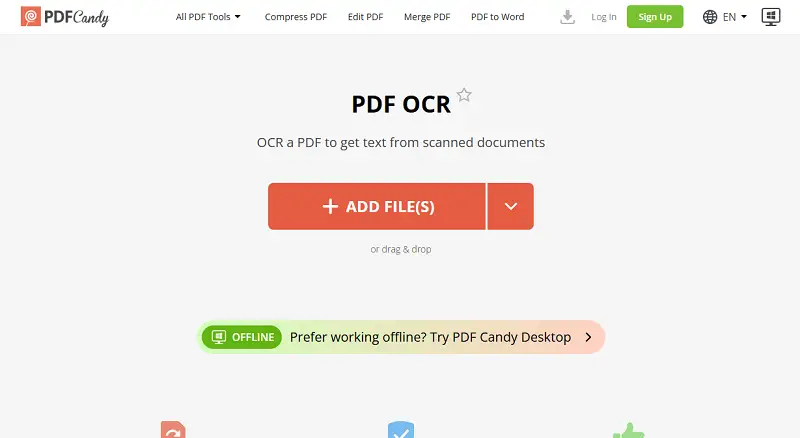
How to turn PDF into editable document with PDF Candy:
- Launch the OCR tool in your browser.
- Upload your file, then choose the draft's language from the drop-down menu. Click "Start" to begin.
- Once processing is complete, download your TXT and share it as needed.
If you do not have a stable internet connection and need an offline solution, than Adobe Acrobat comes in.
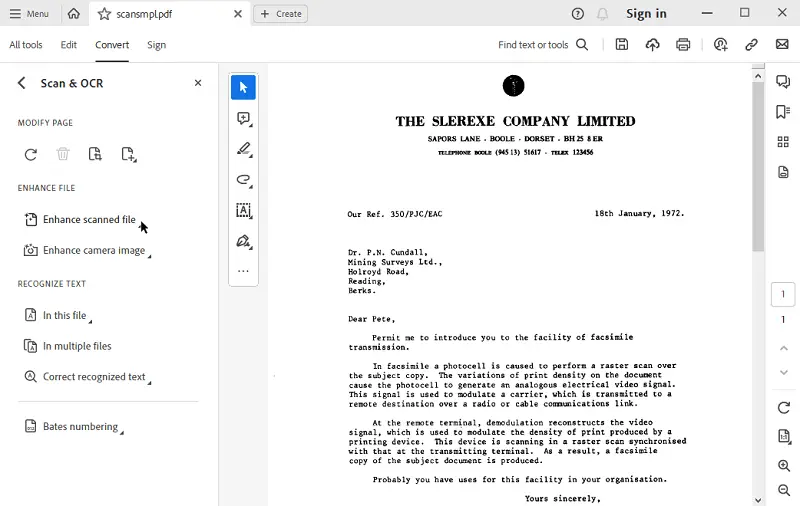
How to make a PDF writable using Adobe Acrobat:
- Open the PDF in Acrobat Pro.
- In the tools panel, find and pick "Scan and OCR".
- Under "Recognize text" press "In this file".
- Ensure to select the correct language of the content.
- Click "Recognize Text" to start the process.
Tips on how how to send an editable PDF:
- The accuracy of OCR depends on the quality of the scanned PDF. High-resolution pictures generally work better.
- Manually adjust or reformat the paragraph after recognition is done.
- If you prefer, you can save the item as a searchable PDF.
Option 2. Convert to create an editable PDF
If the document is mostly composed of text and doesn't contain complex formatting, you can turn it into another type that is easier to edit, such as a Word or Excel.
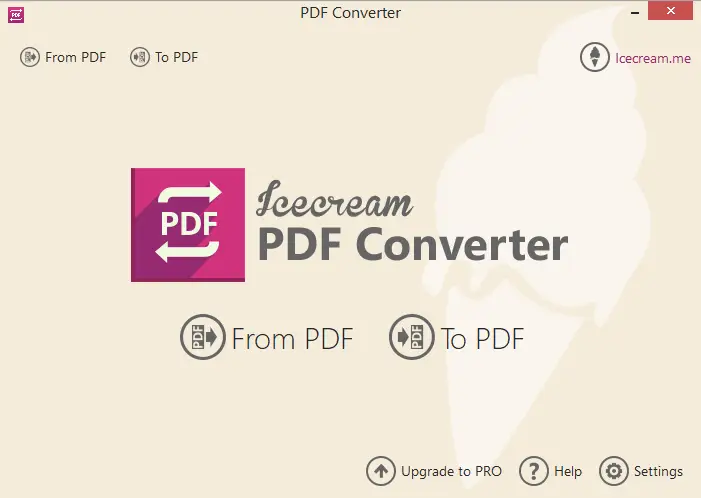
How to make a PDF writable with Icecream PDF Converter:
- Download the free program and install it by following the on-screen prompts.
- Launch the application on your computer.
- From the main menu, click "From PDF" and upload the file you wish to transform.
- Set "DOC" as your target output format.
- If needed, select specific page ranges or split the draft.
- Pick a destination folder, then hit the "Convert" button.
Tips:
- Clean, well-formatted PDFs convert more accurately.
- Choose DOCX if you need more advanced compatibility with modern processors.
- Papers with columns, tables, or graphics may not turn perfectly.
Option 3. Create fillable PDF
If you want others to fill in information in specific areas (such as PDF forms), you can add special fields. This allows recipients to complete the file electronically without altering the main content.
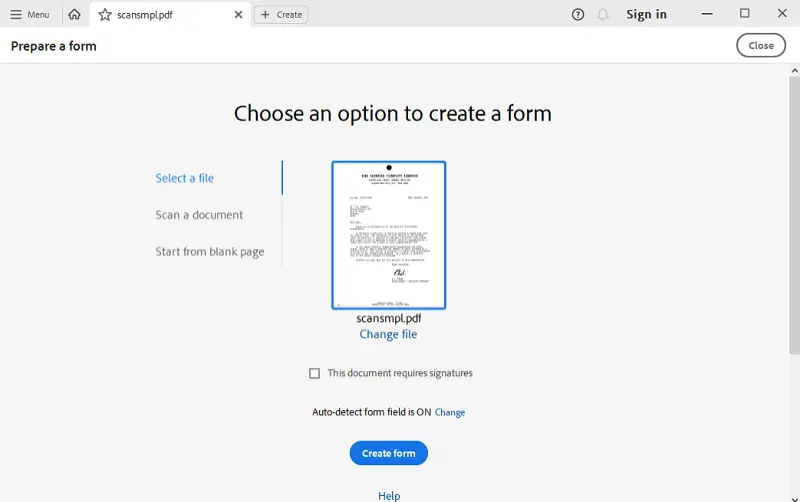
How to make PDF fillable with Adobe Acrobat:
- Open your document in Acrobat and select "Prepare form" from the left menu.
- The app will automatically detect form elements if they exist. Also, you can manually add text boxes, checkboxes, drop-down lists, or signature fields.
- Once you’ve set up the fields, save the output, and share it with others. This will make a PDF editable for others.
Tips:
- Utilize clear labels for each field so users know what to enter.
- Keep formatting consistent (fonts, sizes, spacing).
- Test your document before sending it out to ensure everything works properly.
Option 4. Making a PDF editable by removing protection
If the PDF is protected, you'll need to unlock it before you can tweak changes. Depending on the tool you use, this can be done relatively easily if you have the code.
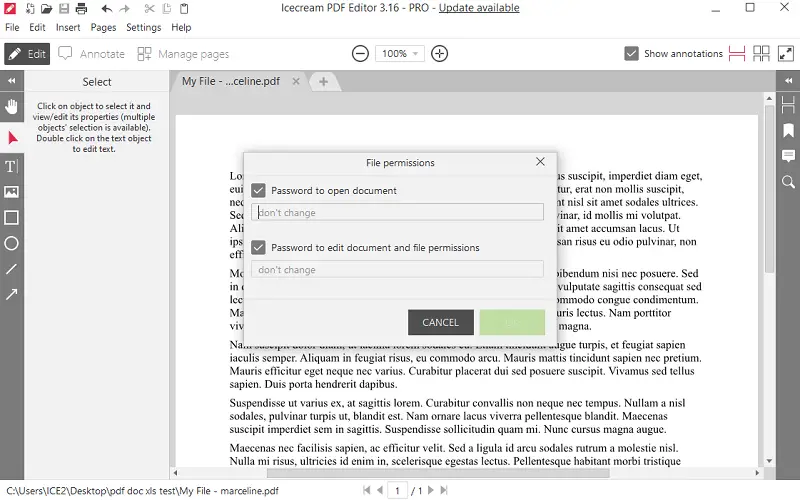
How to remove password with Icecream PDF Editor:
- Download and install the free PDF editor on your computer.
- Open the application and upload the document you want to secure.
- Navigate to the "File" menu.
- Select "File Permissions", then uncheck security options.
Tips:
- Only remove a password from PDF if you are authorized to do so.
- Always save a copy of the original protected file before making changes.
Option 5. Turn PDF into editable document with annotation tool
If you need others to annotate PDF without altering the original content, flattening and marking a PDF is a great choice. Icecream PDF Editor is a versatile and user-friendly software designed for altering digital papers.
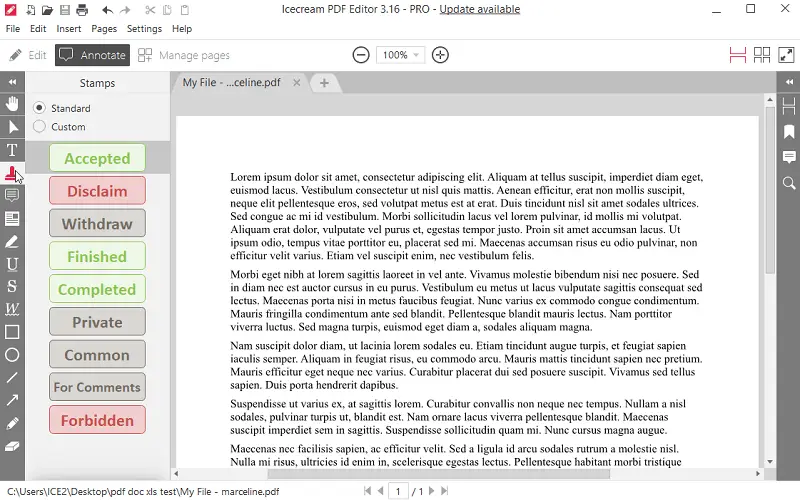
After downloading and installing it on PC, simply open your PDF and switch to the "Annotate" mode. All available instruments will appear in the left-hand menu.
| Tool | Description |
|---|---|
| Hand | Move through the page by clicking and dragging with the left mouse button. Perfect for fast navigation. |
| Select | Modify or reposition elements. |
| Text | Add comments or type freely in blank areas. Options available to adjust font, size, color, and alignment. |
| Stamps | Apply ready-made labels such as "Accepted", or design your own applying time markers or image uploads. |
| Note | Attach colorful notes for feedback, collaboration, or personal reminders. |
| Highlight in PDF | Draw focus to phrases using a selection of 7 preset and 5 custom color options. |
| Underline | Emphasize words by placing a solid line beneath them. |
| Strikeout | Visually remove irrelevant or outdated text by crossing it out. |
| Wavy Underline | Flag issues like grammar or spelling with a distinct curly underline. |
| Rectangle | Frame portions of content with a box. Hold Ctrl for a square. |
| Circle | Enclose elements in an oval or round shape. |
| Line | Insert straight dividers or emphasis lines. |
| Arrow | Point out particular details or illustrate steps in a sequence. |
| Pencil | Sketch, sign, or handwrite utilizing your cursor. |
| Eraser | Delete pencil-drawn items precisely. |
FAQ on how to make a PDF editable for others
- What file attributes can prevent a PDF from being edited?
- Issues such as encryption, password protection, restricted PDF metadata settings, and flattened layers can inhibit modification.
- What is the difference between form fields and plain text?
- Form fields are interactive elements with predefined input types. They are recognized separately from static content and allow for direct data entry without changing the layout.
- Why is letters in some PDFs not selectable?
- This typically occurs when the content is rendered as an image, often due to scanning or exporting settings. In such cases, the text is not encoded as editable and must be recognized via OCR.
- What are embedded fonts, and how do they affect the file?
- These are typefaces included within the PDF to preserve visual fidelity. However, if the licensing restricts refining or if the font is subsetted, it can prevent reflow.
- What role does PDF version play?
- Older types may lack support for modern features like advanced form elements. Updating to a more recent version (e.g., PDF 1.7 or ISO 32000-1) can improve compatibility with redacting environments.
Conclusion
Making a PDF editable for others isn’t only about removing a password or restriction. It’s about shaping a document that’s clear, organized, and easy for everyone to employ.
When you pay attention to formatting, set the right permissions, and lay out your content in a way that has sense, you turn a simple file into a useful tool for real teamwork.
Honestly, a little extra effort now saves everyone a lot of headaches later, and keeps your paper solid, no matter where it goes.

Expert Tech Writer
