
How to Recognize Text in PDF

Knowing how to make a PDF searchable is an essential skill for anyone dealing with digital files.
Fortunately, converting these image-based documents into readable formats is easier than you might think, thanks to Optical Character Recognition (OCR) technology.
This article will guide you through effective techniques and tools to transform your PDFs into accessible resources.

Why is my PDF not searchable?
- Scanned as images. If the file contains only pictures of text instead of actual words, extracting won’t be possible.
- Security restrictions. Some documents have settings that prevent text navigation.
- Unusual fonts or scripts. Certain typefaces or languages can interfere with detection instruments.
- Poor scan quality. Blurred, distorted, or low-resolution footage hinder accurate letter recognition.
Method 1. PDF Candy Desktop
PDF Candy Desktop features advanced OCR technology that converts scanned PDFs into fully editable files. The program maintains high accuracy in character identification, even with intricate layouts, while preserving the original formatting and design.
How to recognize text in PDF with PDF Candy Desktop
- Start by downloading the free software for creating searchable PDF documents and proceed with the set up.
- Once installed, open the application to begin.
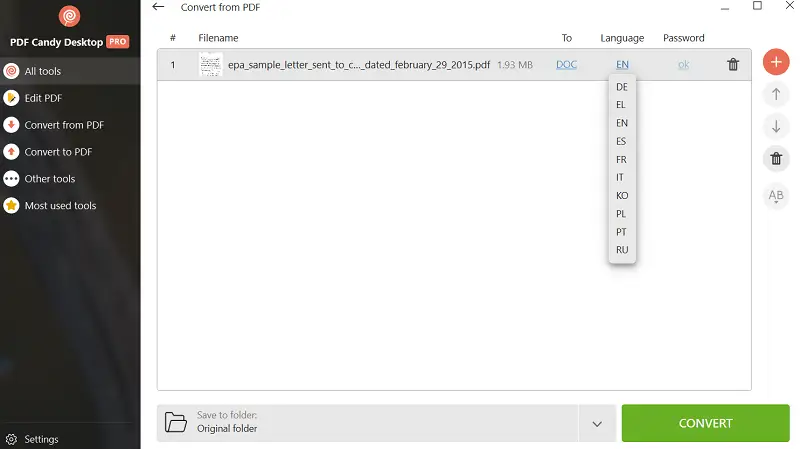
- On the main interface, select the "OCR" option and import the desired PDF from the device.
- Specify the language used in the content to ensure accurate operation.
- Pick your preferred extension for the output (DOC, DOCX, ODT, or RTF).
- Hit "Convert" to initiate the process. When completed, the resulting document will be saved automatically.
Steps like binarization, noise reduction, and skew correction enhance text clarity before parsing.
Pros:
- User-friendly interface makes the conversion straightforward and accessible.
- Offers both online and offline free OCR functionality.
- Ensures full privacy of your information.
- Files can be uploaded directly to Google Drive and Dropbox.
Method 2. Adobe Acrobat
Adobe Acrobat delivers advanced functionality for changing PDFs into readable files using intelligent OCR. Its system supports numerous languages and accurately interprets complex layouts, retaining original structure such as tables, fonts, and multi-column formats.
How to turn a PDF into a searchable document with Adobe Acrobat
- Launch the program and open the PDF you want to work with.
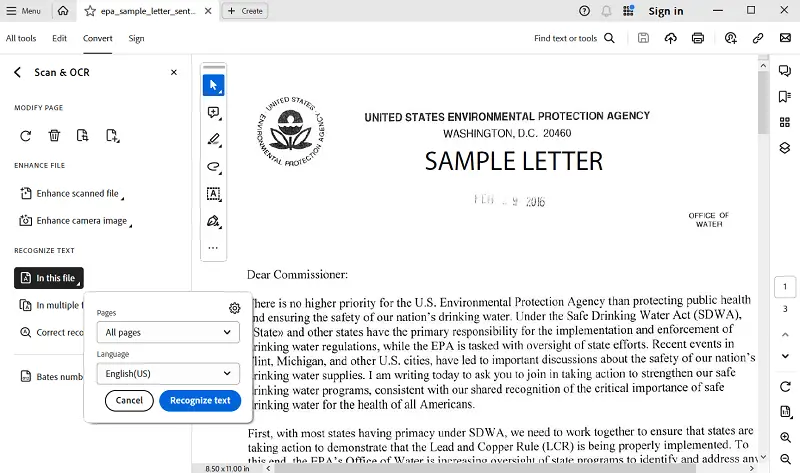
- Access the "Tools" section and pick "Scan & OCR".
- Select "Recognize Text" followed by "In This File".
- Specify the document’s language to enhance accuracy.
- Commence the task by clicking the appropriate button.
- After completion, save the updated file.
OCR may misinterpret characters in unfamiliar scripts unless explicitly trained.
Pros:
- Customizable settings allow to adjust resolution and images for better operation.
- Integrated editing instruments provide quick corrections directly within the application.
Cons:
- For some users the software can be expensive.
- Requires a relatively powerful computer to run smoothly.
Method 3. ABBYY FineReader
ABBYY FineReader excels at transforming documents into extensions where you can easily search text in PDF. It supports interpretation in over 190 languages, ensuring broad compatibility.
How to make PDF file searchable with the help of ABBYY FineReader
- Open the application and find the item you wish to convert.
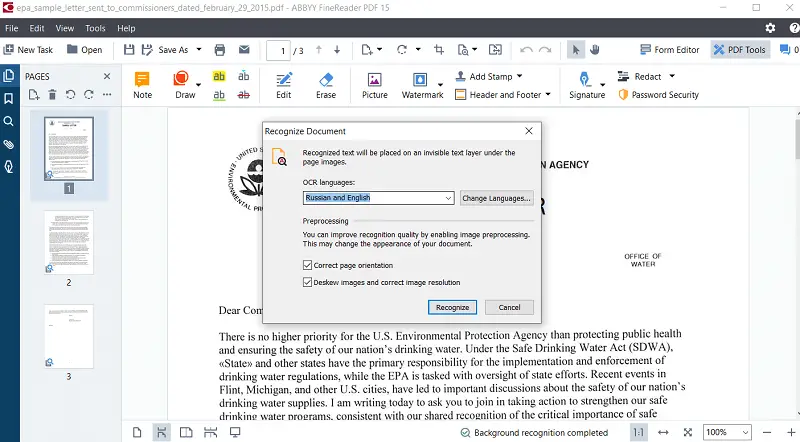
- Follow to the "File" > "Recognize Document". Set the language to guarantee precise detection.
- Pick the desired output format, such as a indexed PDF or editable Word.
- Begin the OCR procedure and let the utility identify and extract the text.
- Check the content for accuracy and adjust any mistakes as needed.
OCR detects shapes that resemble letters or numbers using pattern analysis and machine learning.
Pros:
- Allows simultaneous handling of multiple files, increasing overall productivity.
- Enhanced PNG processing improves text extraction from blurry or distorted scans.
Cons:
- Some advanced functionalities might require a learning period for beginners.
Tips on convert to searchable PDF
- Aim for 300 DPI or higher. Blurry or pixelated images hinder parsing.
- Prevent shadows, glare, or reflections. Uniform illumination improves clarity.
- Skewed or tilted lines reduce fidelity. Correct orientation during preprocessing.
- Focus on text by removing margins, borders, or irrelevant sections.
- Avoid cursive or decorative styles. Clear, printed fonts yield better results.
- Overlapping or irregularly spaced characters confuse extraction engines.
- Unless utilizing specialized models, handwriting often leads to poor results.
- Turn to grayscale or binary, as this simplifies letter scanning and reduces distractions.
- Apply filters to remove specks or background textures.
FAQ: how to make scanned PDF searchable
- How is recognized text incorporated into scanned documents?
- As a hidden text layer precisely positioned beneath the scanned picture for selectable and searchable content.
- Can searchable PDFs handle complex graphical elements?
- Yes, but distinguishing text from footage requires advanced segmentation and filtering algorithms.
- How does text PDF generation affect file size?
- Embedding layers adds minimal overhead compared to picture data but depends on compression and optimization methods.
- What are the best practices for preserving metadata during OCR?
- OCR does not modify or keep original metadata by default. To retain it (e.g., title, author, creation date, custom fields), it must be extracted prior to processing and then reapplied post-OCR.
Conclusion
Creating searchable PDF documents is a powerful way to improve how you access, organize, and manage your files.
By exploring various solutions — from free to sophisticated paid desktop PDF editors — you can efficiently reveal the content hidden inside your PDFs, streamlining your workflow and boosting productivity.
Expert Tech Writer
