
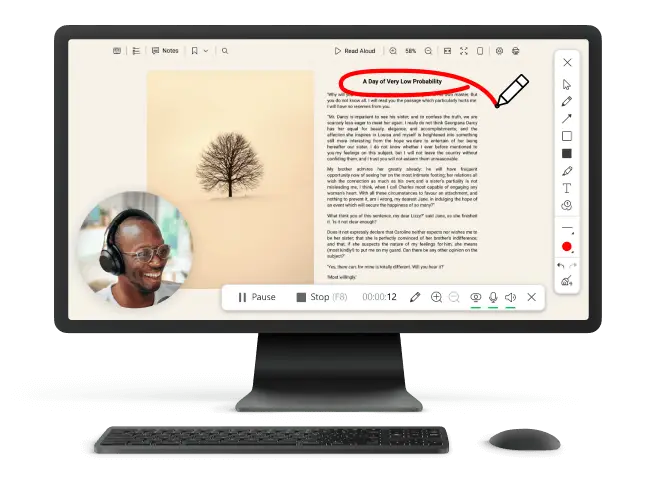
How to Record Skype Video Calls on PC
Virtual communication is a key part of bringing people together from all over the world. Whether you're talking business or just catching up with friends and family, knowing how to record Skype video calls on your PC can make a big difference.
We will show you the 6 easy ways in this article. You don't have to buy any fancy or expensive programs - all you need is your PC, screen recording software, and a few clicks. So, let's get started!

How we picked Skype video call recorders
Choosing the best ways to record videos on Skype required careful thought about a number of things to make sure they worked well and people were happy.
- Ease of use. A good option should have an intuitive interface, making it easy to navigate and start the session without a steep learning curve.
- Recording clarity. It must capture footage and audio with high quality to preserve the essence of the conversation.
- Compatibility. The screen recorder should seamlessly integrate with Skype, ensuring stable and reliable performance without disruptions.
Icecream Screen Recorder
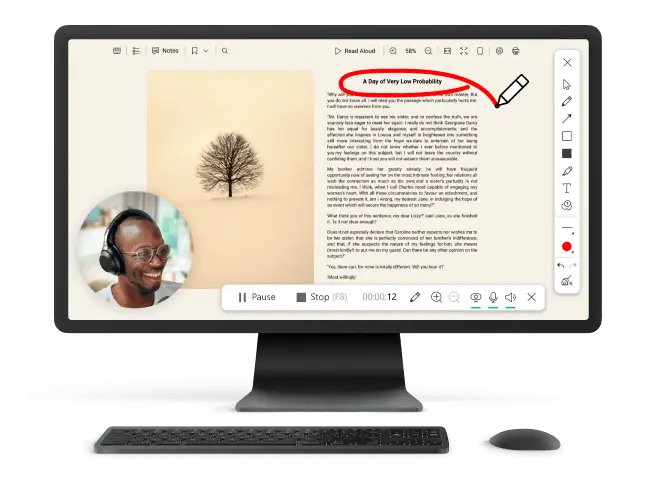
Icecream Screen Recorder is a user-friendly program for capturing desktop activity on your computer. It is a great way to preserve various types of content.
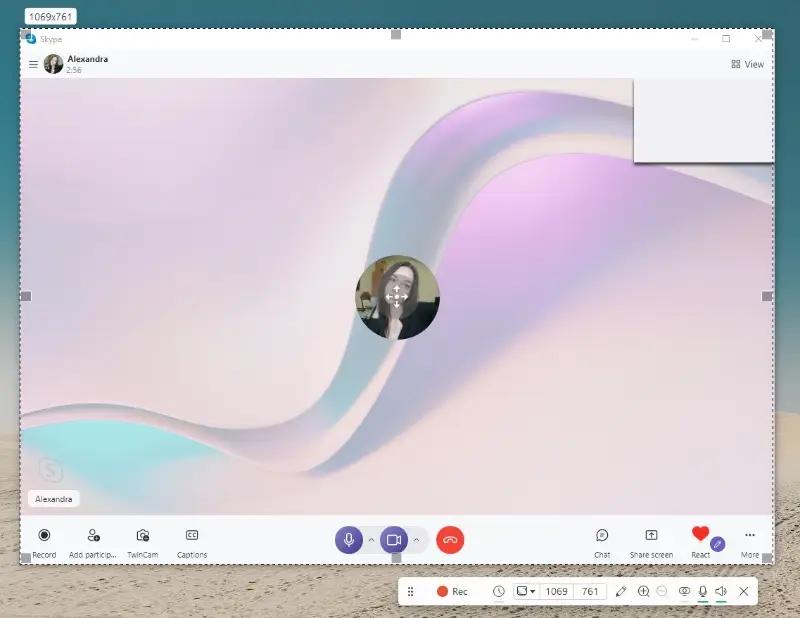
How to record Skype video calls in Icecream Screen Recorder
- Download free screen capture software and install it on your PC.
- Once the call has begun, open the screen recorder and click the "Capture video" button.
- Select the recording mode (full display, custom area, etc.).
- Use the toolbar to choose whether you would like to capture audio from your microphone or system sounds.
- Hit the "Record" button or press F7 to capture your screen. The process will begin after a countdown.
- When the call is finished, select the "Stop" option from the toolbar or hit F8 on your keyboard.
- The program allows you to preview and edit the video. If satisfied, save it to your desired location.
Pros:
- Flexible options. The screen capture software offers various modes, such as full screen, selected area, or specific application windows, providing flexibility in capturing Skype calls.
- Audio sources. Users can capture audio from the system and the microphone simultaneously. This way, you will be able to record Skype calls with sound from both participants.
- Editing features. The screen recorder provides basic tools, allowing you to trim, cut, or annotate content.
- Control over the process. During the call, you can pause or stop the recording by clicking on the corresponding buttons in the toolbar or by using hotkeys F7 and F8.
- Output formats. The program supports various video formats, giving flexibility in choosing the file type that suits their needs for sharing or further editing.
- Recording history. The application includes the "History" tab that allows people to manage and locate their past recordings easily.
- Schedule. The software has scheduled capture option, enabling you to automate the process of recording your Skype calls at specific times.
In conclusion, Icecream Screen Recorder is a reliable and efficient way to record Skype video calls on a PC. Its interface and customizable options make it a preferable choice for both personal and professional needs.
Built-in Skype call recorder
The functionality built into Skype makes capturing video calls on a computer effortless. It facilitates both audio and video during a call or a screen-sharing session. However, this method has more limitations than third-party programs.
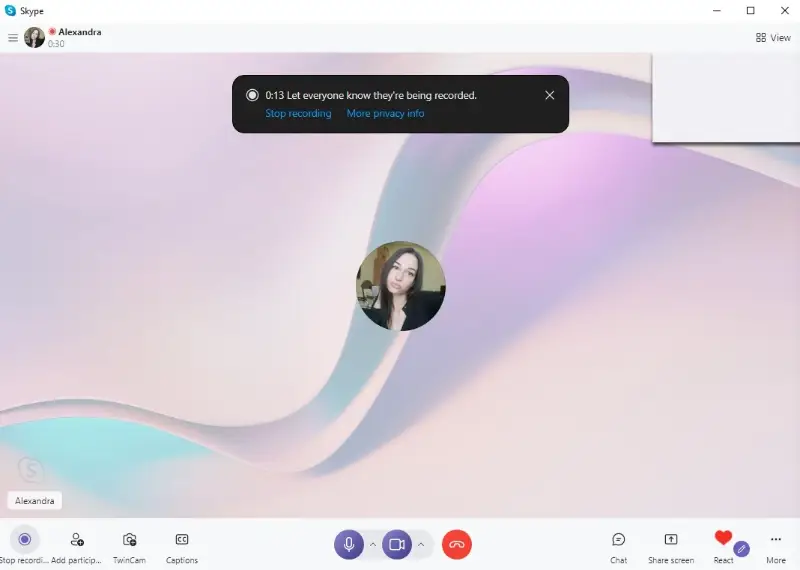
How to record a Skype meeting with a default option
- Open the Skype application on your PC and log in to your account.
- Initiate or join a call with the person you want to record.
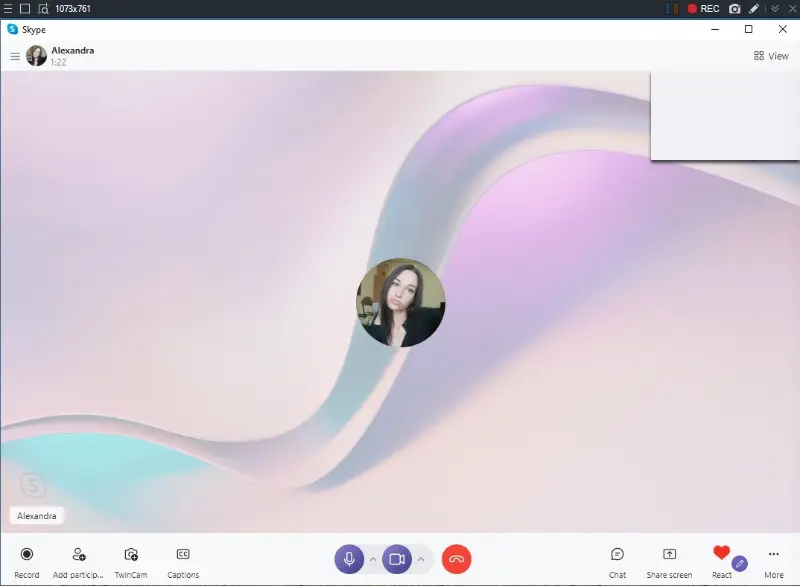
- Click "Record". Skype will start capturing both the video and audio of the call or screen share.
- To end the session, select "Stop recording". The recorded video will be sent to the chat.
Pros:
- Convenience. The built-in feature for recording Skype video calls eliminates the need for third-party tools, making it convenient for those who prefer an integrated solution.
- Free of charge. Users can utilize the built-in screen recording feature without incurring additional costs, making it a cost-effective solution.
Cons:
- No editing. The lack of built-in editing tools restricts people who want to crop or trim the video after recording.
- Incompatibility with some versions. The feature is not available on Skype for Web or Lite.
Overall, using the Skype integrated function is a fantastic way to record video chats on your desktop.
OBS Studio
OBS Studio is a free and open-source screen recording software for capturing and live streaming. It provides you with complete control over the process.
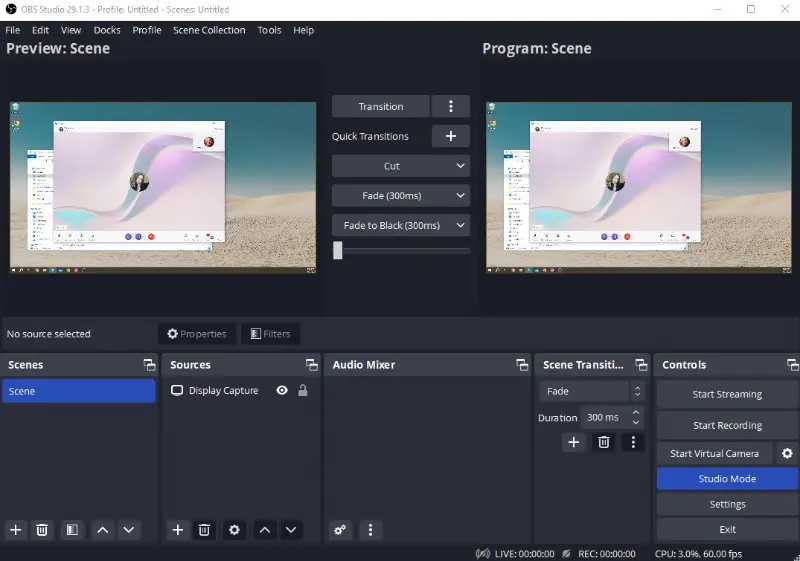
How to record video conference on PC in OBS Studio
- Download OBS Studio from their official website and install it on your computer.
- Open Skype and go to "Tools" > "Options" > "General Settings" > "Audio and Video Settings".
- In the "Microphone" section, select "OBS Virtual Camera" as your input device.
- In OBS Studio, hit "+" in the "Sources" area and choose "Display Capture".
- Click "Start Recording" and begin your Skype call.
- Once you are done with the call, end the process by selecting the "Stop Recording" button.
Pros:
- Open-source. The screen capture software is free and open-source, making it accessible to a wide range of users without any cost.
- Versatility. The program also allows you to capture gameplay, tutorials, live streams, and more.
- Customizable settings. You have granular control over settings, including video quality, resolution, and audio configurations.
- Platform compatibility. The screen recorder is available for Windows, macOS, and Linux, providing a consistent experience across different operating systems.
Cons:
- Learning curve. Setting up OBS Studio for the first time may require some technical knowledge.
- Resource intensive. It may use up more of your computer's resources compared to alternative programs for recording your screen.
OBS Studio offers a powerful and versatile solution for recording Skype calls, providing a range of features that cater to a diverse set of visitors.
Bandicam
Bandicam is a screen recorder designed to capture desktop activity, record gameplay, and take screenshots on Windows computers.
How to record Skype video with Bandicam
- Download and install Bandicam on your PC from the official website.
- Launch it and select the "Specific window " mode on the "Home" page.
- The screen will get dark, prompting you to select the window you wish to capture.
- Click the "Record" button to start the process.
- Once you have finished your Skype call, click the "Stop" button or press F12.
Pros:
- Intuitive design. The Skype video recorder has a simple interface, making it accessible to users of all levels.
- Recording settings. You have the option to pick which part of your screen you desire to capture. This allows for a more focused recording of Skype video calls.
- Advanced features. In addition to recording your screen, the program also offers features such as adding mouse click effects and drawing.
Cons:
- Limited free version. While Bandicam does offer a free version, it has a limited time (10 minutes) and places a watermark to your videos.
- Only available for Windows. The software is exclusively designed for Windows, making it inaccessible for Mac or Linux.
Bandicam is known for its high-quality video recording and relatively low impact on system performance. This makes it popular among gamers, content creators, and those who need to make tutorials or presentations.
ShareX
ShareX is an open-source and free screen capture and sharing program for Windows. It allows users to make screenshots, record desktop videos, and annotate images with various editing tools.
How to record a Skype video call in ShareX
- If you haven't already, download and install ShareX from the official website.
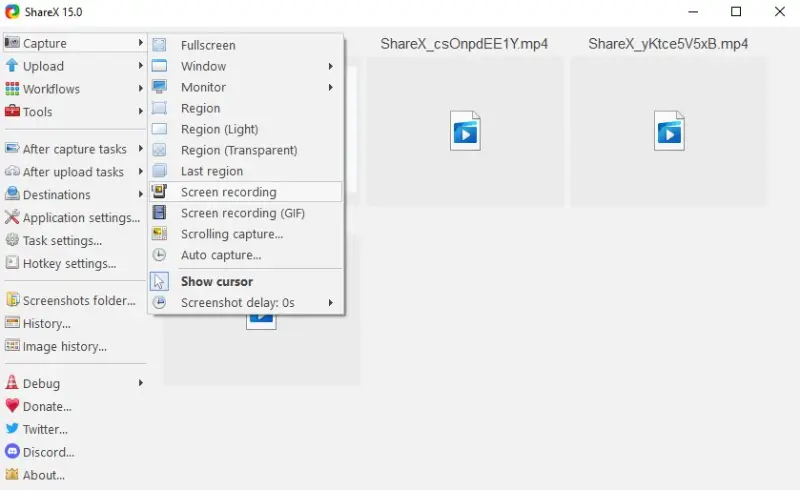
- Click "Capture" > "Screen Recording" and select the Skype window.
- The recording will begin automatically and capture everything within the selected region.
- Once you've finished the call, press Shift + Print Screen or use the controls to stop the process.
Pros:
- Flexible settings. You can configure Skype recording settings, such as video codec, frame rate, and audio source.
- Easy sharing. The app offers features for automatically uploading captured content to various destinations such as cloud storage, social media platforms, and file-sharing services.
- Hotkey support. It supports customizable hotkeys for starting, pausing, and stopping. This provides convenient control over the process.
Cons:
- Learning curve. The interface can be overwhelming for new visitors due to its abundant features and settings.
ShareX is a great tool for making quick guides, documents, and visual communication. It is known for its ability to be customized, its hotkeys, and its support for many ways to capture.
CamStudio
CamStudio is a simple, no-cost solution for basic screen recording tasks. The program is particularly popular for creating tutorials, software demonstrations, and other instructional videos.
How to record a Skype call in CamStudio
- Download and set up the software.
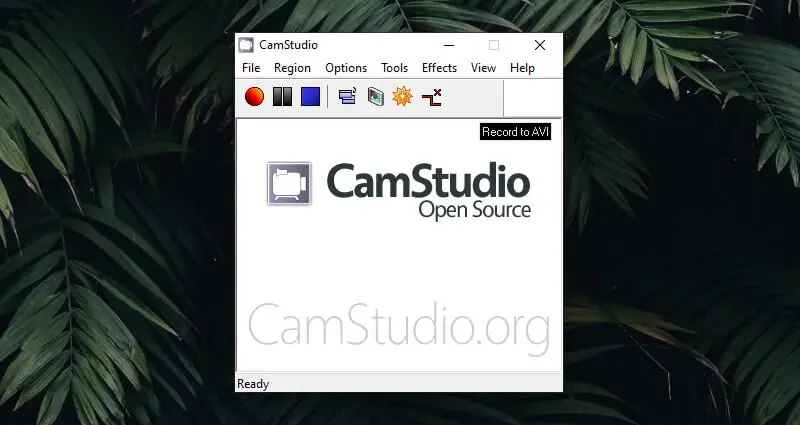
- Open the app and go to "Options" > "Video Options".
- Choose a codec to ensure optimal quality. Adjust the frame rate (e.g., 15-30 fps) to match the call’s smoothness.
- Use "Region mode" to pick the Skype window.
- Navigate to "Options" to enable microphone input and system audio.
- Start the video call you want to record. Click the red button.
- Once the call is finished, press "Stop".
Pros:
- Free. No cost makes it an attractive option for casual tasks.
- Ease. Straightforward interface with no steep learning curve.
- File conversion. Built-in capability to change AVI files into SWF for web deployment.
Cons:
- Limited output. Restricted to AVI and SWF, which are less common today compared to MP4 or MKV.
- Performance issues. Users often report crashes and glitches, especially on newer versions of Windows.
- Lack of updates. Development activity has significantly decreased, resulting in outdated features.
CamStudio is good for people who don't need a lot of features and have older systems. But because it doesn't have many professional options, it is not as competitive as newer software.
FAQ
- What is the necessary memory space for recording Skype video calls on my PC?
- The amount of storage space needed depends on the length and quality . Typically it requires around 1GB per hour.
- Will the other person know if I am recording our Skype video call?
- If you use the built-in feature, Skype will notify all parties involved in the call when the capturing starts or stops.
- Can I record only audio on Skype?
- Yes, Icecream Screen Recorder allows you to record only audio from your Skype calls.
- What file formats should I use to record my Skype calls?
- Common formats include MP4, AVI, and others, depending on the tool.
- How can I improve audio quality in Skype call recordings?
- Invest in a quality microphone, reduce background noise, and adjust audio settings in your recorder.
- Can I record group calls on Skype?
- Yes, all methods mentioned in this article support capturing both one-on-one and group Skype calls.
- Are there any limitations to the built-in Skype call recorder?
- Skype's built-in recording option has a 1080p resolution cap and doesn't provide any annotation and editing features.
- How do I access my recorded Skype calls?
- Skype stores recorded calls in the chat where the call took place. Third-party services allow you to choose the output folder for the recorded calls.
Tips on how to record Skype video calls
- Check privacy laws. Familiarize yourself with the legalities of recording conversations in your country or state. In many places, it is essential to inform all parties involved and obtain consent beforehand. Make sure you comply with privacy laws.
- Adjust settings. Configure the recording parameters in your chosen software. Ensure that both video and audio settings are optimized for your needs, including resolution, frame rate, and sources.
- Test your setup. Conduct a test recording before your actual Skype call starts to check the quality. Verify that your microphone and camera are functioning correctly.
- Prepare your workplace. Choose a quiet and well-lit environment to record your Skype calls. Minimize background noise and eliminate potential distractions to maintain focus on the conversation.
- Check storage space. Large video files can quickly consume storage, so ensure you have enough space for your recordings.
- Update programs. Keep your screen recorder and Skype application up to date. Regular updates often include bug fixes, improvements, and new features, ensuring a smoother experience.
- Use headphones. Wear headphones when recording Skype calls to minimize the risk of audio feedback or echo.
- Protect sensitive information. Be cautious about recording and sending personal information during Skype calls. If necessary, try a video editor to blur personal data like names and phone numbers before sharing .
If you're using Skype for Business, make sure to enable recording in your account settings beforehand.
Common issues and troubleshooting
| Issue | Possible Cause | Solution |
|---|---|---|
| No audio in recording | Incorrect source selected. | Check settings in the software and system. |
| Poor video quality | Low resolution or slow internet. | Increase resolution, ensure stable connection. |
| Recording lag or stuttering | High CPU usage or insufficient RAM. | Close some applications, lower recording quality. |
| File not saving | Insufficient storage or incorrect format. | Free up space, check the save location and file type. |
| Audio out of sync with video | High CPU load or variable frame rate. | Use a constant FPS setting, sync tracks manually in an editor. |
Conclusion
Now you know how to record your Skype video calls! You can easily save important meetings, conversations, or interviews for later by following the simple steps in this article.
Recording Skype calls can be useful in a lot of situations, whether you're a businessperson, a student, or just want to stay in touch with family and friends.
Always let the other people on the call know that it is being recorded and respect their privacy.
Now go ahead and give it a try!

Experte für Technische Texte
Co-Autoren

Chefredakteur bei Icecream Apps
