
How to Convert PDF to DOCX with No Formatting Loss
How to convert PDF to DOCX is a common question for anyone who needs to edit a document in Microsoft Word.
Whether you're a student, professional, or just handling paperwork, changing a file to a flexible format can save time and effort.
In this guide, we’ll explore the fastest and most reliable methods — including online PDF to DOCX converters and dedicated software — so you can choose the best option for your needs.
Method 1: PDF Candy Desktop
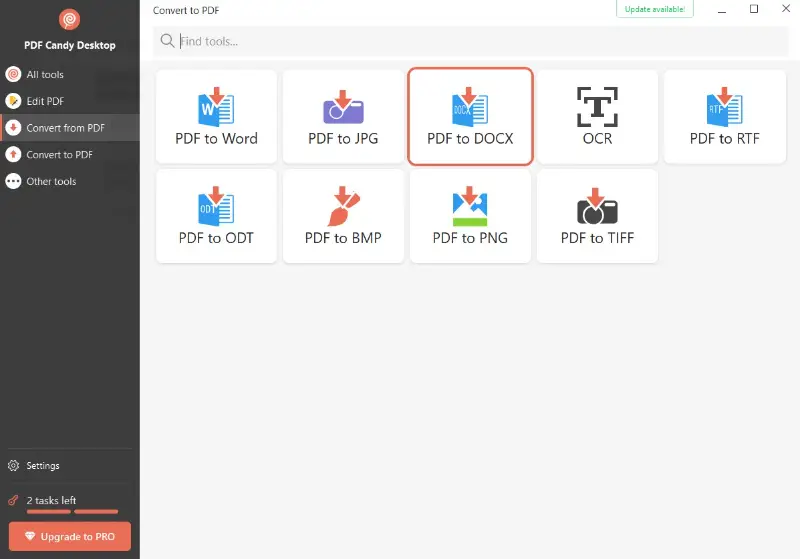
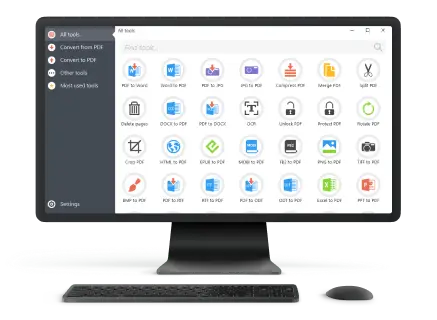
PDF Candy Desktop is a powerful application designed for various manipulations, including transforming files into editable Word format without the need for an internet connection.
How to change PDF to DOCX with PDF Candy Desktop
- Download and install the free PDF to Word converter if it’s not already on your computer.
- Open the program and pick the "PDF to Word" feature from the main menu.
- Choose the desired document from the storage.
- If needed, select specific pages or rearrange the order if you've added multiple files.
- Once done, press "Convert" to initiate the transformation.
Pros:
- Operates fully offline, safeguarding your data from online exposure.
- Enables batch processing, so you can convert several PDF to DOCX simultaneously.
- Maintains original layout elements such as fonts, tables, and images.
- Clean design makes it accessible for users of all experience levels.
Cons:
- The free version of this PDF software restricts daily operations; purchasing a license removes this limit.
Method 2: Microsoft Word
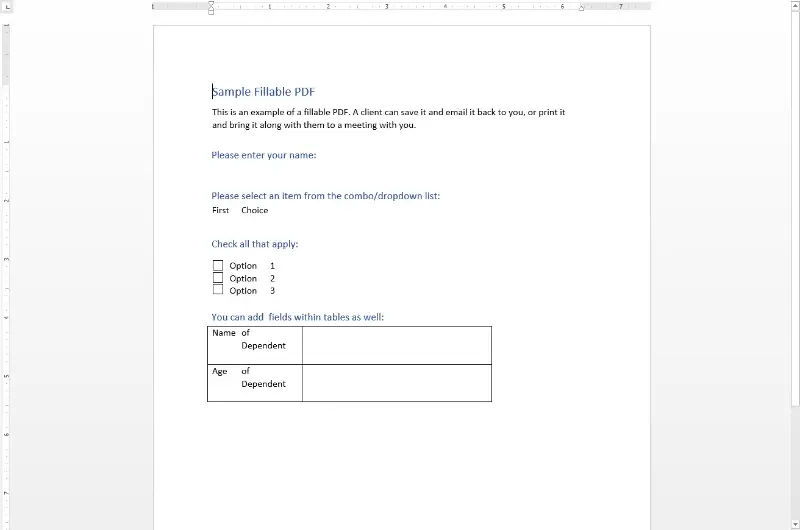
Microsoft Word includes a native capability to open PDF files, providing an easy way to edit PDF documents them without installing additional tools.
How to save PDF as DOCX using MS Word
- Launch Word on your device (versions 2013 or newer are recommended).
- Navigate to "File" > "Open" and locate the paper you want to convert.
- A prompt will appear notifying you that the file will be turned into Word—click "OK" to continue.
- Check for any formatting inconsistencies or misplaced elements.
- If everything's fine, select "File" > "Save As". Pick a folder to store the document and choose "Word Document (.docx)".
- Click "Save" to finalize the process.
Pros:
- Built directly into a widely utilized PDF text editor, no downloads required.
- Fast turnaround, suitable for quick file transformations.
- Preserves most styles and basic layouts in straightforward documents.
- Works offline, ideal for privacy-conscious users.
Cons:
- May struggle with complex page designs, requiring manual corrections afterward.
- Only 2013 and later editions can save PDF as Word.
Method 3: iLovePDF
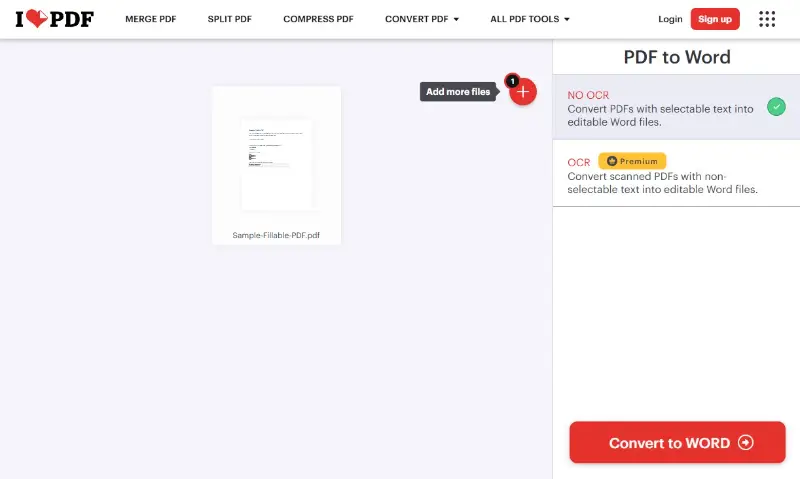
iLovePDF is a widely used online toolset providing various services. It includes an easy solution to convert PDF files to editable Word format without installing any programs.
How to use iLovePDF as an online PDF to DOCX converter
- Open your browser and go to the iLovePDF page.
- Press the "Select PDF file" button or simply drag your document onto the upload zone.
- Choose between the OCR and No-OCR modes and click "Convert to Word".
- When finished, save the result to your device.
Pros:
- Accessible from any device with internet access and a modern browser.
- Intuitive drag-and-drop feature simplifies file submission.
- Fast turnaround for small to medium-sized documents.
Cons:
- The number of free operations per day is restricted.
- Some detailed formatting could be altered when you export PDF to Word.
Tips to convert PDF to DOCX effectively
- Make sure your file is not password-protected or encrypted before starting the process.
- Utilize PDFs with clear text rather than scanned images to improve accuracy.
- For best results, avoid overly complex layouts or heavy graphics in the source file.
- Close other applications to free up system resources during offline operations.
- When using online tools to convert PDF to Word, ensure a stable internet connection to prevent interruptions.
- Always review the resulting DOCX file and adjust formatting if necessary.
- Consider splitting very large PDFs into smaller parts to speed up the process.
- Keep your software or browser updated to access the latest features and fixes.
- Back up your original document to avoid accidental data loss.
Conclusion
Converting a PDF to a DOCX file doesn’t have to be complicated. With so many reliable tools available, you can easily choose the method that fits your needs and device.
Whether you're looking for speed, accuracy, or privacy, there’s a perfect solution for every situation. Try out a few options and enjoy the flexibility of working with editable documents.

Expert Tech Writer
