
How to Convert PDF to PNG: 7 Ways
People now use PDFs as the main way to share documents. No matter where you open them, they look the same. But there are times when you need to change the format. For example, you might want to send it without changing the layout.
Converting a PDF to PNG may sound a little technical, but it's really not that hard. I'll show you a few simple ways to do it, including quick online tools and desktop software. If you like to get hands-on, we'll even talk about some programming tricks.
When you're done reading, you'll know exactly how to save any PDF as clear PNGs without any trouble. Let's get going.
PDF Candy Desktop
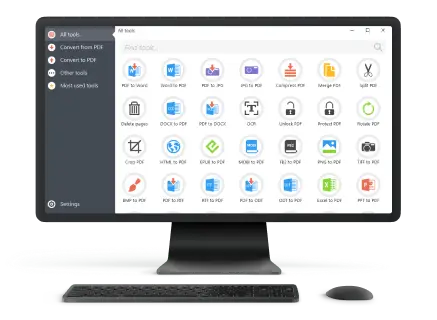
PDF Candy Desktop is a powerful and versatile PDF software designed to handle a wide range of document-related tasks with ease.
It is a comprehensive offline solution, tailored for those who need robust tools to manage, convert, and edit PDF files directly from their computers.
How to quickly change PDF to PNG with PDF Candy Desktop
- Visit the official website and download the PDF to PNG converter.
- Follow the instructions to set up the application on your PC.
- Launch the program after installation.
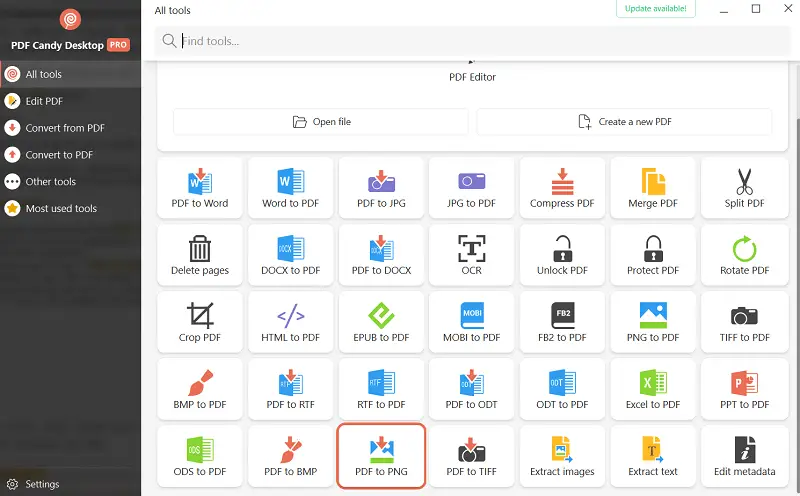
- On the main interface, look for the "PDF to PNG" option under the list of tools and click on it to upload your file.
- Navigate to the location of your PDF and select it. You can also drag and drop directly into the program for convenience.
- Choose the pages you want to process (e.g., all pages or specific ones).
- Hit the "Convert" button. The software will turn your file into pictures.
Benefits:
- No need to upload your data online; everything stays local to your computer.
- Minimal learning curve with drag-and-drop functionality and straightforward tools.
- All-in-one solution for editing and protecting PDFs.
- High-resolution conversions ensure professional-grade results.
Who is it for?
- Students needing to extract text or photos from PDFs.
- Specialists managing large document workflows.
- Designers converting PDFs into image formats for presentations.
Adobe Acrobat
Acrobat is a comprehensive software suite developed by Adobe Systems, designed for creating, editing, and sharing PDF files.
The program is still one of the best on the market because it was one of the first to use PDF technology. It has powerful features, is flexible, and works well with other Adobe products and cloud-based tools.
How to turn a PDF into a PNG using Adobe Acrobat
- Launch Adobe Acrobat on your computer.
- Load the document you want to change by going to "File" > "Open" and navigating to the needed location.
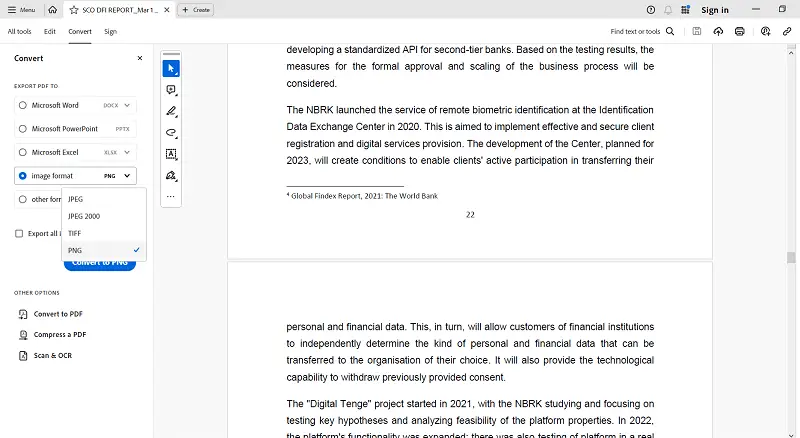
- In the right-hand pane, click the “Export a PDF” option. The panel will appear, offering various formats to choose from.
- Under "Export To", select "Image". From the dropdown list, pick PNG as the desired output format.
- Hit the "Settings" icon to adjust export options. Press "Convert to PNG".
- A dialog box will appear asking you to choose a folder to save the PDF as PNG.
- Open the results to ensure they were processed successfully.
Pros:
- Ensures sharp, detailed images.
- Offers control over resolution and color preferences.
Cons:
- The export feature is only available in paid versions.
- Does not natively support multiple PDFs to PNG in a single operation.
- Can feel overwhelming to new users.
Who is it for?
- Professionals and business people managing contracts, reports, and secure documents.
- Creative writers preparing interactive PDFs or extracting design elements.
- Marketing and sales teams creating polished brochures and engaging presentations.
PDF Candy
PDF Candy is a web-based service that offers a bulk of document management features, allowing users to convert, edit, and manipulate files from their browsers.
It's a free, simple-to-use platform that doesn't need to be installed. This is great for people who want to quickly work with PDFs without having to pick a program.
How to easily convert PDF to PNG online using PDF Candy
- Open your browser and go to the PDF Candy website.
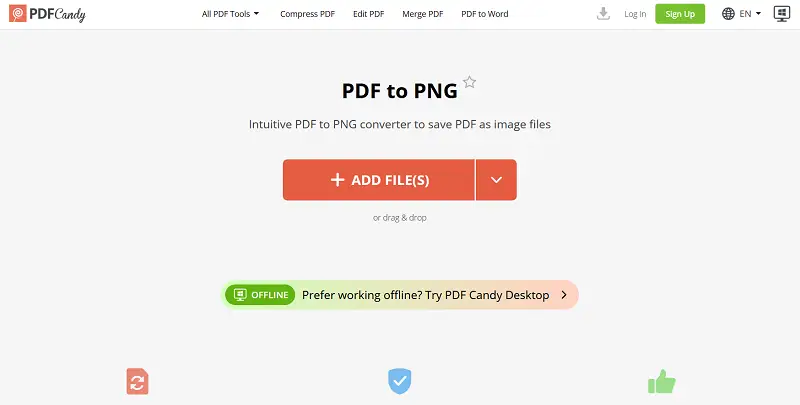
- On the homepage, find and click the "PDF to PNG" tool.
- Press the "Add file" button or drag and drop into the designated area.
- Wait for the document to upload. This may take a few moments, depending on the size.
- Choose the output image quality.
- Tap "Convert PDF" button to begin the process.
- After the conversion is complete, click the "Download" button to save the PNGs.
Pros:
- Since it's browser-based, you can access it from any device without downloading software.
- The interface is simple, intuitive, and accessible for users with all levels of experience.
- Provides many PDF tools, such as editing, converting, merging, and splitting, all in one place.
Cons:
- The free version has some restrictions on the number of tasks you can perform daily.
- Requires an internet connection, meaning you can't use it offline.
Who is it for?
- Anyone who needs a quick, easy tool for basic PDF tasks.
- Fast edits, document conversions, or optimization for sharing and storage.
- Suitable for those who want to work with PDFs across different devices.
FreeConvert
FreeConvert is an online platform that offers a fast way to transform a wide range of formats, including PDFs, images, videos, audio files, and more.
It is a free, easy-to-use service made for people, businesses, and anyone else who needs a hassle-free solution.
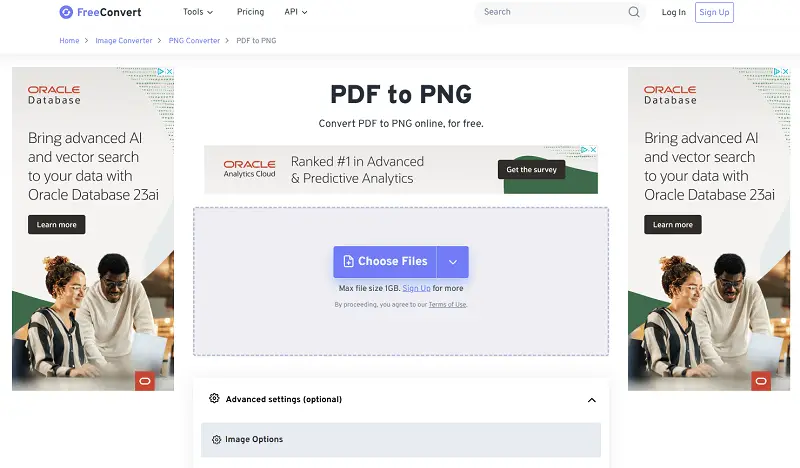
How to export the PDF to PNG online in FreeConvert
- Visit the site and locate the "PDF to PNG" converter.
- Press the “Choose Files” button to select and import your original.
- Wait for the upload to complete, depending on the size.
- If needed, adjust options such as: compression, quality, and transparency.
- Once your settings are ready, click “Convert”.
- When the conversion is finished, a “Download” button will appear.
Pros:
- It’s a fast, free online tool with no installation required.
- Add from cloud services like Google Drive or Dropbox.
Cons:
- The free version includes ads.
- The PDF to image conversion process could sometimes result in minor quality degradation.
Who is it for?
- Casual users who occasionally need to convert from PDF to PNG with minimal hassle.
- Those looking for an easy-to-use tool for managing basic PDF tasks online.
Python
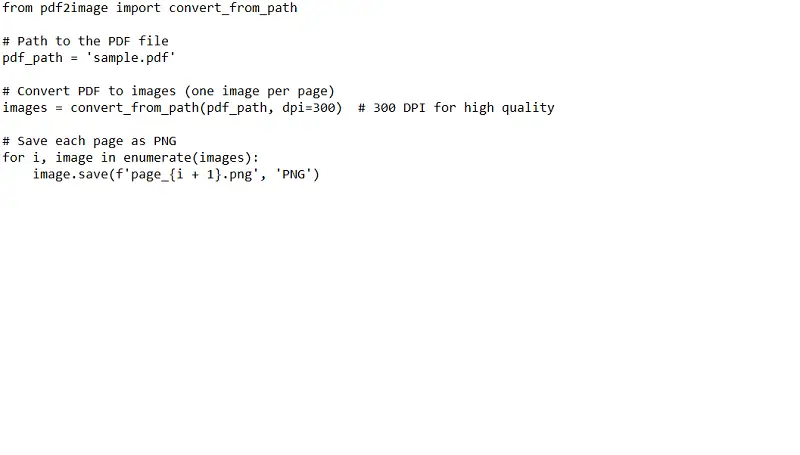
Many people utilize Python to work with documents, and the pdf2image library makes it simple to turn PDFs into pictures, such as PNGs.
Explanation:
- convert_from_path(): This function reads the file and gives you a list, one for each page in the original. The dpi setting changes the resolution.
- The image.save() function saves each page as a separate PNG.
- This method handles multi-page PDFs, saving each list as an individual picture.
Cons:
- Can consume a lot of memory for large PDFs.
Node.js
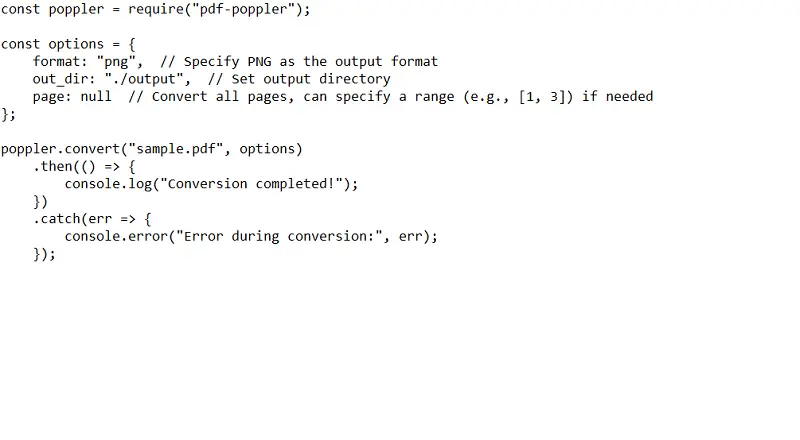
One of the libraries available is pdf-poppler, which wraps around the Poppler tool for PDF rendering.
Explanation:
- poppler.convert(). The options object allows you to set the output format, specify the directory, and choose which pages to process.
Cons:
- The usage can be difficult on some systems, especially Windows.
- The library is essentially a wrapper around Poppler, so it's dependent on external installation.
Java
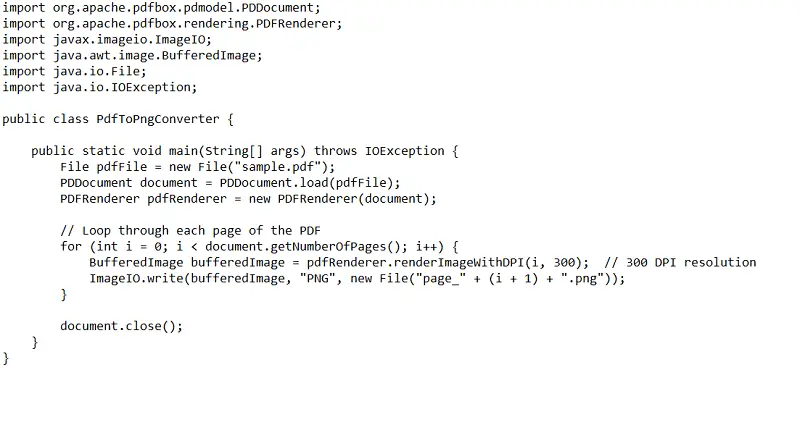
You can try Apache PDFBox, a strong library for working with PDF files. When used with ImageIO, it lets you change PDFs into images
Explanation:
- PDDocument.load(): Loads the PDF document.
- PDFRenderer.renderImageWithDPI(): Renders each page into a picture at the specified DPI (dots per inch). DPI results in higher quality.
- ImageIO.write(): Saves the rendered result to disk in PNG format.
Cons:
- Requires adding PDFBox dependencies and handling Java environment setup.
- Memory-intensive for large PDFs or high-resolution images.
FAQ
- Can a multi-page PDF be converted into several PNG files?
- Absolutely. Each page of the document can be turned into an individual photo.
- Will the colors match those in the original PDF?
- PNG supports a wide range of colors. The conversion process, however, might cause some small differences in how things look.
- Can embedded fonts be preserved in a PNG?
- All text will be turned into images, which will keep their look in the output. Just keep in mind that the content won't be able to be edited.
Conclusion
In the end, there are a lot of ways to convert a PDF to a PNG format, such as online tools and software programs.
These methods are both flexible and effective. You can keep high-quality pictures from your document or take out certain pages.
Easily turn your PDF into PNG in just a few simple steps, making it ready to share, edit, or store.

Expert Tech Writer
