
How to Convert PDF to PowerPoint
How to convert PDF to PPT is a common need for anyone looking to present information more dynamically.
While PDFs are great for sharing and preserving formatting, they’re not ideal for delivering engaging presentations. That’s where turning PDF to PowerPoint comes in - allowing you to edit PDFs, animate, and structure content more effectively.
In this article, we’ll walk you through the most reliable and user-friendly methods to make the conversion, helping you move from static documents to impactful slides in just a few steps.
PDF Candy
PDF Candy provides a straightforward way to export PDF to PowerPoint. The service maintains the original structure, including layouts, visuals, and typography, for a smooth transition into PPTX format.
How to convert your PDF to slides with PDF Candy
- Navigate to PDF to PPTX online tool in your preferred browser.
- Click "Add file(s)" or move them into the designated area to begin.
- Once the upload finishes, review the document and rearrange files if needed.
- Press "Convert PDF", the system will immediately start the transformation.
- After processing, hit "Download file" to retrieve the PPT version to the PC.
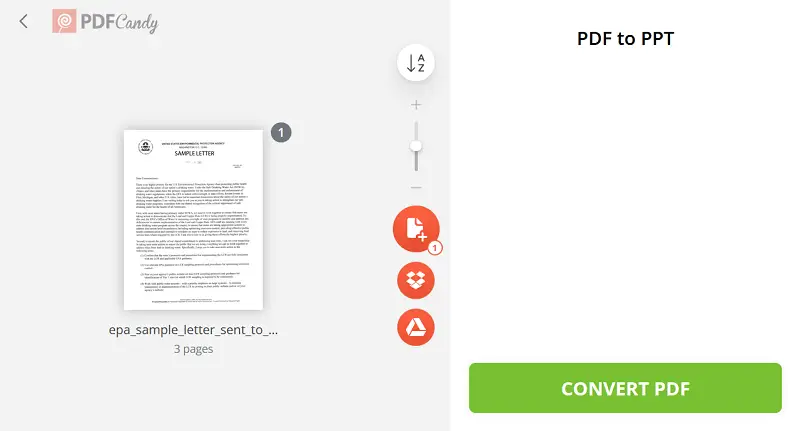
You may also export the presentation directly to Google Drive or Dropbox for easy access across devices.
Pros:
- No installation or account required; works entirely in the browser
- Simple drag-and-drop interface makes inserting files easy
- Fast conversion for most standard documents
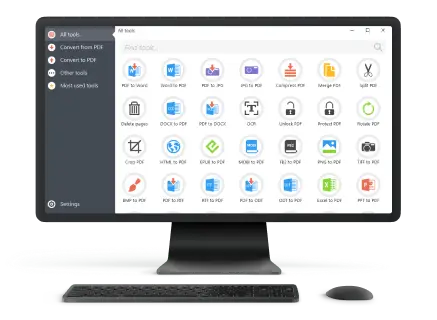
Adobe Acrobat
Adobe Acrobat offers a professional-grade solution for converting a PDF to PowerPoint with high accuracy and control. The software supports complex document structures, including multi-column layouts and embedded multimedia.
How to turn a PDF into a PPT
- Launch the application and load the file you wish to convert.
- Locate and select "Export PDF" from the tools menu on the right side.
- Choose "Microsoft PowerPoint Presentation" from the available options.
- Click "Export" to initiate the file transformation.
- Pick a location on your computer and confirm.
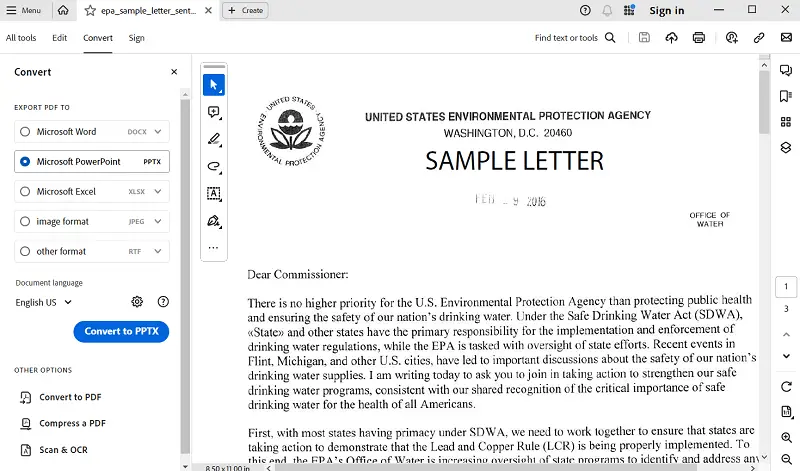
Integration with Adobe Cloud allows seamless access and conversion across devices, while real-time syncing ensures workflow continuity.
Pros:
- Allows content adjustments before exporting
- Includes OCR technology to turn scanned PDF into editable PowerPoint
Cons:
- Requires a paid subscription, which may not suit occasional users
- Interface may be challenging for beginners unfamiliar with Adobe software
Why use PDF to PPT converter
- More engaging: PPT supports animations, transitions, and multimedia for a lively presentation.
- Saves time: Reuse existing text without rebuilding slides from scratch.
- Better collaboration: Multiple creators can edit and review the slideshow easily.
- Visual friendly: Videos and audio can be embedded to enhance impact.
- Great for education: Converts manuals and reports into clearer lessons.
FAQ on how to convert pdf to PowerPoint presentation
- Are all PDF components transferable to slides?
- While most text and graphics convert well, interactive features like forms for filling or code may not fully incline and often require reconstruction.
- How is the extraction of text managed?
- The process distinguishes between words stored as vector data and phrases placed within images. Accurate recognition ensures file remains editable and searchable.
- How are color differences handled during conversion?
- Variations in tone management between formats can alter appearance slightly. Proper color profile handling helps preserve the original look.
Conclusion
Converting PDF to PPT bridges the gap between static documents and dynamic visual storytelling, enabling users to better communicate their ideas.
Whether for business, training, or creative projects, mastering this skill enhances flexibility and efficiency, making it easier to tailor content for any audience or purpose.

Expert Tech Writer
