
Top 15 Best Photo Viewers for Windows
Visuals are everywhere these days. Whether you’re organizing family snapshots or flipping through work images, having the right photo viewer just makes everything look and feel better.
But with so many apps out there, picking the best one gets confusing fast. So, I’ve rounded up the top picture viewers that are ideal for everyday use. I’m looking for easy interfaces and features that work, not a bunch of pointless extras.

How we chose the best photo viewers for Windows 10
Here’s what I paid attention to when sorting through the options:
- Intuitive interface. Nobody wants to fumble around. I went for image viewers that keep things simple, so anyone can figure them out, no manual required.
- Functionality. Modifying tools need to be right where you need them, organizing should be a breeze, and the app has to open every format you throw at it.
- Performance. Slow instruments are the worst. The ones I found run smoothly and don’t bog down your PC, so you get a crisp, fast viewing experience every time.
1. Icecream Photo Editor
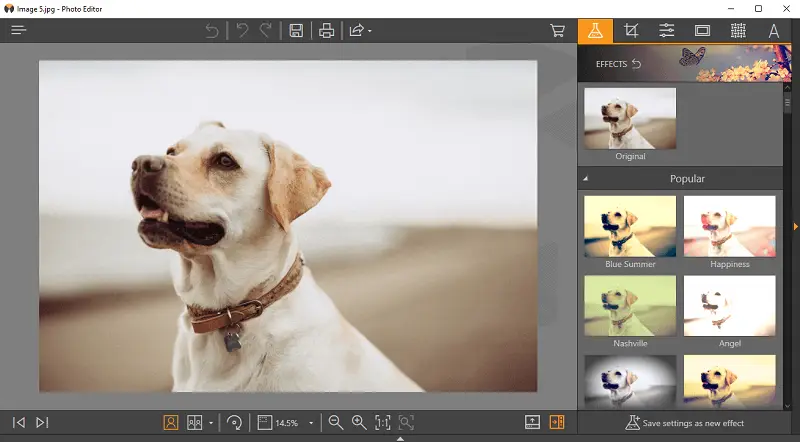
Icecream Photo Editor serves as an ideal stills viewing and editing app for Windows. Its intuitive design makes it simple for both beginners and professionals to use. The app can be obtained without charge, offering a remarkable selection of tools.
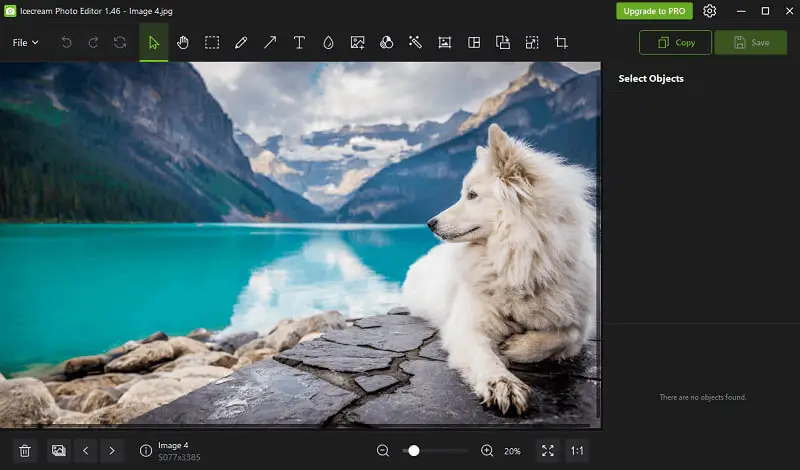
With this exposure-viewing application, you can easily view images in various formats, including JPG, PNG, and GIF. It also offers basic capabilities, like cropping, picture resizing, rotating, and adjusting brightness, contrast, and saturation.
Moreover, you can use distinctive effects to give your frames an exceptional appearance. These include slide enhancement, the addition of frames to photos, the availability of filters and stickers, and blur options.
Additionally, the program includes an advanced collage maker that helps combine several negatives into one. You can also insert text or watermarks into your pictures. Plus, this photo viewer allows you to quickly save images in different extensions and resolutions.
Pros:
- Easy-to-use interface. The photo editor has an easily understandable UI. Its icons are clearly laid out, making it simple to find what you need.
- Variety of tools. It provides an extensive selection of tools for editing prints.
- Support for multiple file types. It is equipped to process widespread image formats like JPG, PNG, GIF, BMP, TIFF, etc.
- Photo manager. The best Windows viewer simplifies organizing captures on your computer. Easily browse, rotate, and delete unwanted ones.
2. IrfanView
IrfanView is a fast, compact, and innovative freeware image viewer/converter for Windows. It is crafted to be simple for beginners and powerful for professionals.
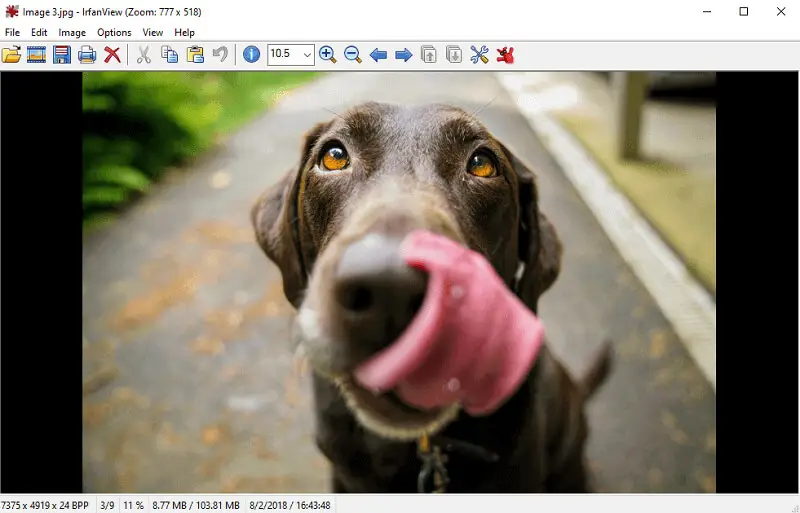
The user interface is intuitive and straightforward. There are lots of features available, such as batch conversion, image editing, slideshow creation, batch renaming, file search, and more. You can quickly resize or rotate graphics with a few clicks. Additionally, this free photo viewer provides support for plugins, expanding its capabilities further.
Pros:
- Works with almost all formats.
- The app for Windows 10, 11 has a scroll navigation.
- Built-in batch processing.
- Accommodates plugins for extra features.
Cons:
- Limited support for RAW files.
- Not suitable for professional tasks.
- No automatic backup system.
- This picture viewer has an outdated UI.
3. Apowersoft Photo Viewer
Apowersoft Photo Viewer is a comprehensive application for Windows. It's designed to meet the needs of both professional photographers and casual users. It provides a simple interface and powerful features to help you view, and edit your pics effortlessly.
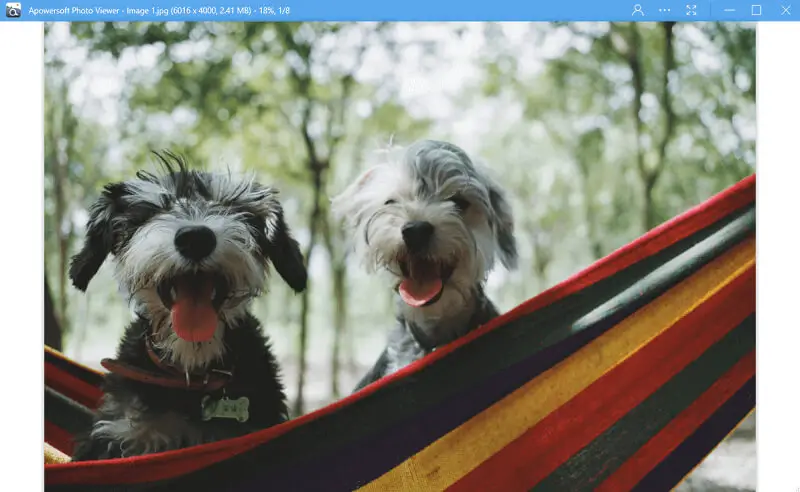
The main window displays all your photos in an organized grid layout. You can sort your snaps by filename, addition date, or size. You can even create custom categories and sub-categories to keep related stills together.
The image viewer for Windows 10 also includes several editing tools. You can crop, rotate, resize montages, and adjust color settings such as brightness, saturation, and contrast. It also integrates various formats including JPEG, PNG, TIFF, and BMP.
Pros:
- Offers basic editing functions like crop, rotate, resize, adjust effects, and more.
- Can open multiple images at once in separate tabs.
- The picture viewer powers drag and drop for quick importing.
Cons:
- No built-in printing option.
- No ability to process multiple visuals together in one operation.
- Some may find the UI cluttered and confusing.
4. ACDSee Photo Studio Ultimate
With ACDSee Photo Studio Ultimate, Windows owners can enjoy an optimal experience. The image viewer has all the features you may need for manipulating, viewing, and sharing scans. Manage and edit renders quickly and easily with the simple layout.
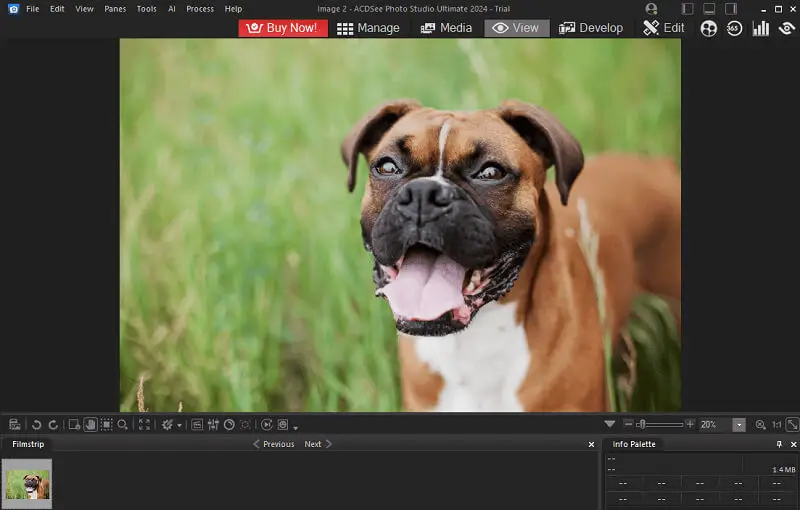
This software is capable of handling JPG, PNG, TIFF, and RAW illustrations. You can also attach tags or ratings to stills for easy sorting and searching.
The viewer app also has advanced features like layers and blending modes that let you create unique items. Additionally, it incorporates over 100 special effects to impart a professional touch to your photos.
Pros:
- The design is uncomplicated and user-friendly, making it ideal for beginners.
- Program for Windows 10 and 11 allows you to view elements within the ZIP archive without extraction.
- You can easily open and edit RAWs with this software.
Cons:
- Presence of numerous advanced tools hidden within menus.
- Slower import performance when working with large docs.
- This photo viewer can be resource-intensive for your PC.
5. Wondershare Fotophire
Fotophire is a premier image viewer for those who use Windows. The features include an advanced editor, a picture viewer, a collage maker, and a batch resizer.
The photo editor lets you adjust exposure, brightness, color temperature, contrast, saturation, and clarity. You can also add filters, crop captures, remove red-eye, and sharpen details.
The app allows you to preview your items in full screen or as a slideshow. It also supports RAW format, which makes it great for professionals. The collage maker is perfect for creating a unique look for your artwork. You can add text, frames, and clipart to create stunning collages.
Pros:
- Includes numerous editing utilities that permit you to quickly modify snaps.
- You can add filters, frames, and other effects to your stills.
- The drag-and-drop functionality makes it easy to import and work with images.
Cons:
- Does not support such formats as NEF or CR2.
- Subscription-based pricing model.
6. Movavi Photo Manager
Movavi Photo Manager is a beginner-friendly software designed to streamline the management and enhancement of photo collections. With its intuitive interface, users of all levels can easily organize, categorize, and locate their images efficiently.
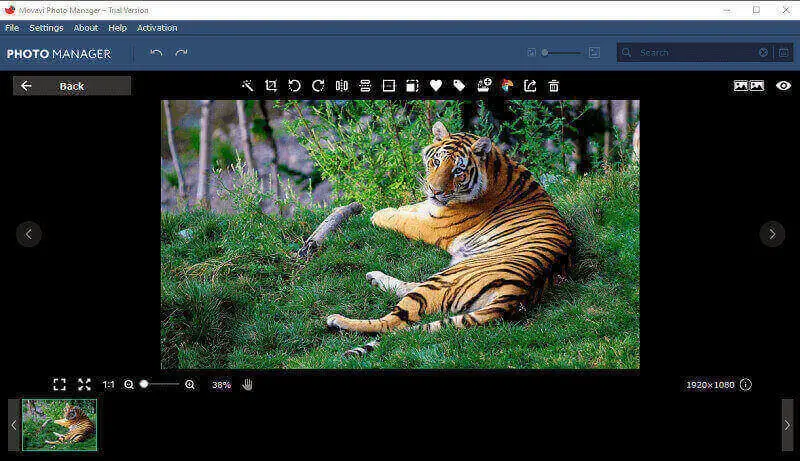
The application simplifies organization through features such as tagging, sorting, and facial recognition. It also offers the convenience of automatic album creation, intelligently grouping docs based on events, dates, or facial recognition to minimize manual categorization efforts.
The photo viewer includes built-in editing tools. People can adjust colors, perform basic retouching, and improve quality. It supports geotagging, enabling adding location information to renders for an interactive way to visualize and organize on a map.
Pros:
- Boasts an intuitive and user-friendly interface.
- The advanced image editing tools allow you to add text to your pics, frames, filters, and more.
- You can share your montage via email, social media networks, or cloud storage services directly from the app.
Cons:
- Lacks robust cloud integration features.
- Only a 3-day free trial.
7. Google Photos
Google Photos is an outstanding viewer for Windows. It offers a streamlined and easy-to-navigate interface designed to make organizing simple.

With this online image viewer, individuals can upload an unlimited number of negatives and videos and store them in the cloud. This facilitates access to files from any location which has an internet connection.
Compositions can be sorted by date, location, or even people who appear in them. Users can also create albums and photo books with their uploaded shots. This photo software provides fundamental editing capabilities like cropping and altering brightness, saturation, and contrast.
Pros:
- Stills can be accessed from any device with internet access.
- Visuals are automatically backed up online so they can be retrieved anytime.
- Photo viewer with a simple interface which is easy for beginners.
Cons:
- Viewing frames is online only.
- Google may apply uploaded slides for data mining purposes which has raised privacy issues.
- Loading time may be slow depending on your internet connection speed and the size of the renders being loaded.
8. FastStone
FastStone is one of the best free Windows photo viewers. It's a lightweight, stable, and beginner-friendly app, editor, and converter. It offers a nice array of features, including image viewing, management, red-eye removal, resizing, cropping, and color adjustments.
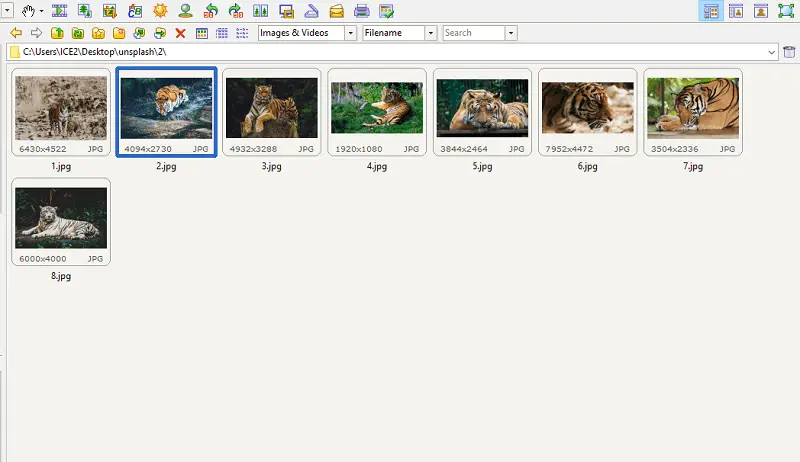
This picture viewer has an intuitive full-screen mode to browse through shots quickly and easily. It includes a magnifier and a full-screen slideshow mode with effects like fades and wipes.
Pros:
- Photo viewer offers batch processing of scans.
- Has an intuitive interface with useful features like full-screen view and slideshow.
- Allows you to add annotations or branding to the pics.
Cons:
- No support for RAW items.
- Can be slow when dealing with large folders.
- Unsuitable for professional photographers or graphic designers due to limited capabilities.
9. Microsoft Photos
Microsoft Photos is a free program for Windows 10. It has a straightforward interface that allows users to quickly find and view captures, as well as edit them if desired.
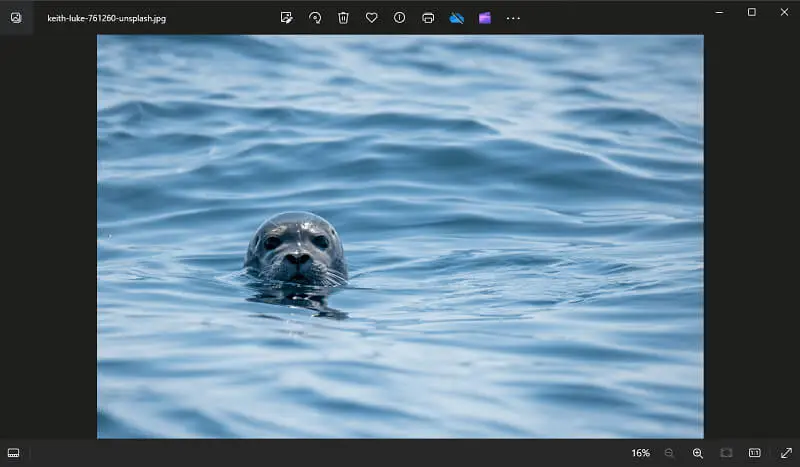
The main window helps users easily access their pics through albums, folders, and tags. Consumers can also employ the search bar to quickly find specific files. Once found, individual images can be viewed in full-screen mode or edited with the included basic tools.
The photo viewer app also has the ability to make slideshows. In addition, it has some great sharing options. You can quickly send pictures to friends and family via email or through social media. Also, you can dispatch depictions straight from the app to any device running Windows 10.
Pros:
- Photo viewer for Windows 10 that is built-in. No additional purchase is necessary.
- Has an understandable and modern interface.
- Comes with a variety of basic editing tools.
Cons:
- No advanced features such as layers or clone stamping.
- Lacks support for certain types and formats such as RAW or panoramic renders.
- The interface is not optimized for touchscreen devices.
10. 123 Photo Viewer
123 Photo Viewer provides quick access to all your photos, enabling you to find, view, and organize them with ease. You can zoom in and out, combine, and rotate images.
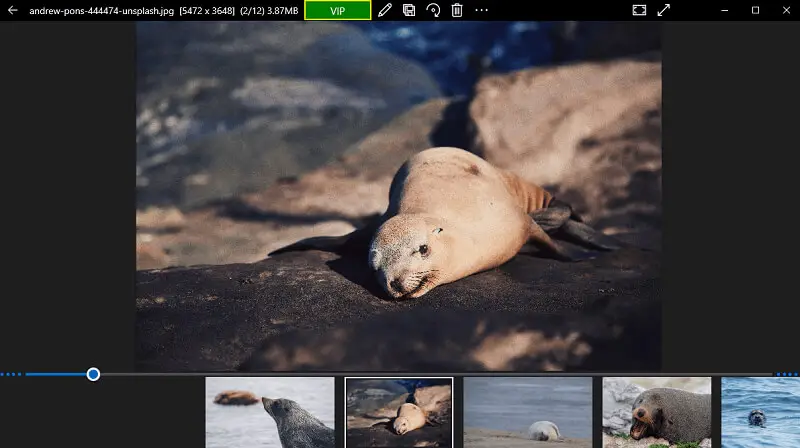
The software also maintains batch operations, allowing you to quickly carry out a range of tasks on multiple stills at once. You can rename files, add tags, resize snaps, or change their format. Plus, it can easily integrate with image-editing software such as Photoshop.
Pros:
- Built-in facilitation for printing and sharing images.
- The app has support for LIVP.
- Compatible with touch-screen laptops.
Cons:
- No integrated editor.
- Distracting advertisements.
11. Honeyview
Honeyview is a lightweight, fast, and free image viewer for Windows. It provides an intuitive user interface, allowing you to easily browse pictures within a folder or open selected photos directly from Windows Explorer.
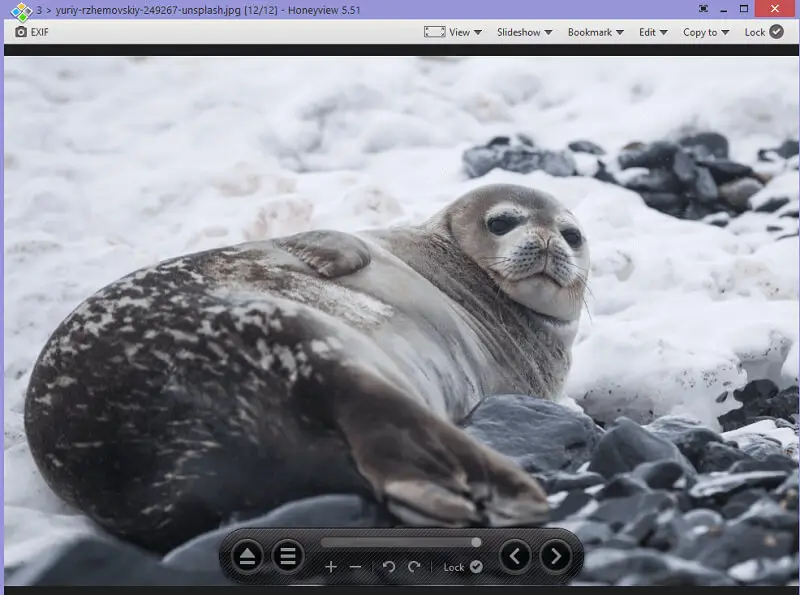
The application can quickly display full-size artworks without any lag or distortion. It also supports specialized graphic formats like HEIC, WebP, and TIFF. Furthermore, it has various zooming options to view your pictures in greater detail.
The photo viewer also offers basic editing tools like cropping and resizing. You can even add effects to enhance the look of your shots. Also, it allows you to add bookmarks to the visual.
Pros:
- Quick loading times and smooth scrolling let you quickly browse through large folders of pics.
- Support for many formats: RAW files, GIFs, and other can be easily viewed.
- Offers fundamental editing services including cropping, adjusting color, and rotating images.
Cons:
- There are no advanced features like layer support or HDR editing.
- You can't sync your photos with the cloud for storage or sharing.
12. JPEGView
JPEGView is recognized as one of the simplest programs on Windows. It's open-source, so you can utilize it without worrying about costly licenses.
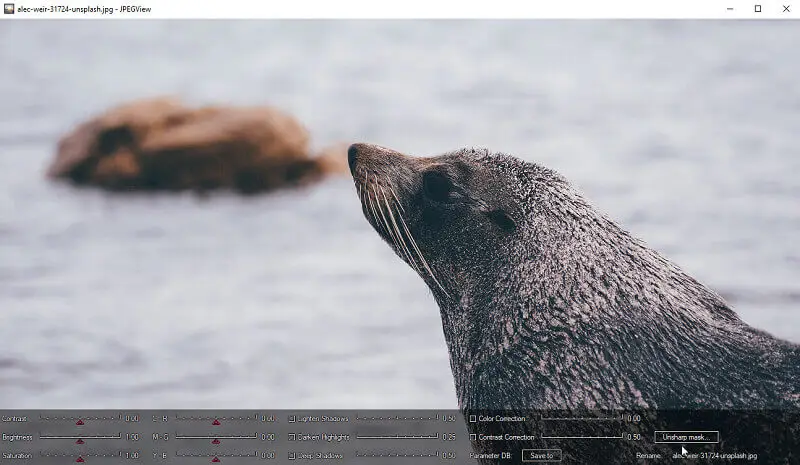
The application features a no-nonsense navigation bar with buttons to zoom, rotate, slideshow, and more. You can easily find the images you need via the browser, or open them in the program with the drag-and-drop feature. Additionally, you can quickly preview without opening them in an editor.
The image viewer also provides advanced tools for editing frames. You can crop, resize, tweak brightness and contrast, apply gamma correction, and more. In addition, you can include text or shapes in your images and keep them as JPEGs.
Pros:
- Fast and responsive photo viewer, making it an ideal choice for viewing large image collections.
- Includes powerful editing tools such as color adjustment, cropping, and red-eye reduction.
Cons:
- Doesn't have a slideshow feature to quickly view images in sequence.
- The software has no batch processing capabilities.
13. Adobe Photoshop Elements
Adobe Photoshop Elements is also in our list of the top image-viewing programs for Windows. It offers still editing and organizing tools, which let you easily modify photos. It boasts a straightforward interface and user-friendly tools for uncomplicated application.
This is one of the best Windows viewers that supports RAW file formats that allow you to edit portraits in a more professional way. It has built-in filters that can help to enhance renders, such as the auto-correct tool, which can quickly improve the quality of a snap. Additionally, the cropping, resizing, and red-eye removal tools are great for making quick edits.
Pros:
- Comes with a wide selection of editing instruments for negatives.
- The utility integrates with Adobe Creative Cloud.
Cons:
- Overwhelmed with various features, making it too complicated for just image viewing.
- The absence of batch processing can make the whole experience time-consuming.
14. nomacs
nomacs is a free and open-source utensil that facilitates multiple platforms including Windows, Linux, and macOS. It is designed to provide users with a lightweight yet feature-rich alternative to other graphic viewing software.
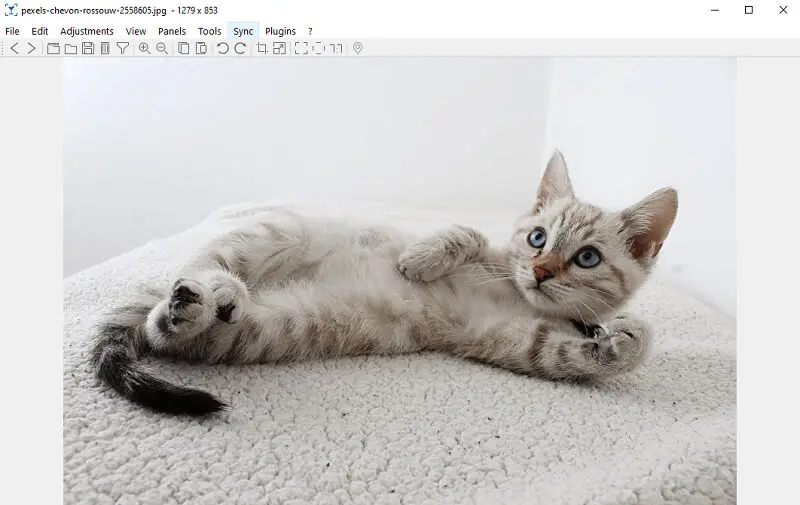
This viewer provides a thumbnail preview of pictures within directories, allowing people to quickly browse through their media collections and select the ones they want to open or edit. Also, it supports plugins and extensions, which extend its functionality beyond the built-in features.
The "Viewer Synchronization" feature simplifies image comparisons by ensuring that zooming and panning are synchronized to identical locations. Additionally, it enables overlaying frames with varying opacities for enhanced comparison.
Pros:
- Fosters community-driven development, encourages transparency, and allows for user contributions and customization.
- Image viewer with the acceptance of RAW, WebP, and AVIF file formats.
Cons:
- Does not work with JPEG-XL and has limited assistance for HEIC.
- After updating the software, the photo viewer reverts to default settings.
15. Visum Photo Viewer
Visum Photo Viewer is a lightweight and user-friendly application designed to provide a simple and efficient way to browse and open pics on a computer.
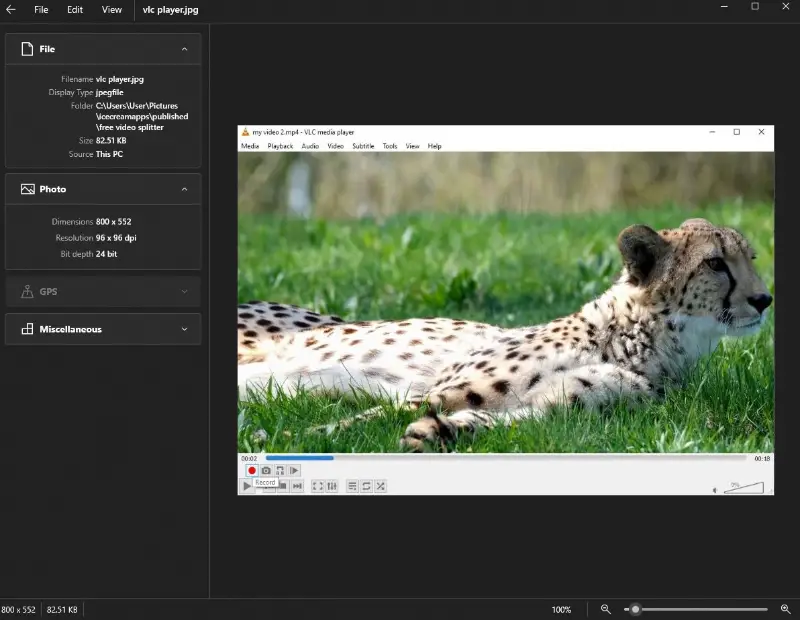
The interface is designed to be minimalistic, ensuring that people can focus on their pictures without distractions. The app is optimized for speed, allowing for quick loading times and smooth transitions between files.
The slideshow feature makes it suitable for automatically displaying photos during presentations or family gatherings.
Pros:
- Clean and straightforward interface.
- Compatibility with a wide range of image formats.
- Easy and quick to install, taking up minimal space on the device.
Cons:
- Lack of advanced photo editing tools.
- Does not display or allow editing of metadata such as EXIF data.
Tips
- Pick a photo viewer that opens fast and doesn’t eat up your computer’s memory. No one wants to wait ages for a single picture to load.
- Verify it can handle lots of different extensions - JPEG, PNG, TIFF, GIF, BMP, RAW, HEIC - the more, the better. That way, you won’t get stuck with files you can’t view.
- Go for an interface that feels easy, not overwhelming. The best ones keep things simple: zooming, rotating, fullscreen, just the basics, right where you need them.
- It helps if you can tweak visuals right inside the app. Adjust brightness, mess with contrast or color balance, all without switching to a different program.
- Thumbnails are a lifesaver. Being able to see tiny previews means you can flip through whole folders in seconds.
Organizing your photo library
- Create folders by theme – Sort stills into groups like "Trips," "Family," or by year.
- Organize with subfolders – If you’ve got a ton of footage, break big categories into smaller ones: by event, place, whatever works.
- Rename files descriptively – Use names or dates that tell you what the graphic is, like "Beach_Trip_2025.jpg." Saves a lot of scrolling.
- Tag for easy search – Add labels for people, places, or events so you can find stuff later without digging.
- Remove duplicates – Get rid of copies or blurry shots every so often. Keeps things tidy.
- Utilize cloud storage – Back up your favorite images to the cloud. They’ll be safe and you can get to them from anywhere.
- Create a "Favorites" folder – Throw your best snaps into one place so you can always find them fast.
FAQ
- Can photo viewers integrate with cloud storage services?
- Absolutely. Plenty of utilities connect straight to cloud storage, so you can pull up your items from anywhere, on any device. It makes organizing and backing up a breeze.
- Do apps support features like geotagging or facial recognition?
- Yep, some let you tag where you took your stills, and a few can even recognize faces automatically. That means your shots get sorted by who’s in them, or by location, without you having to dig through everything.
- Can you create and manage albums or portfolios in picture viewers?
- Definitely. Group your favorite images and flip through them, or show them off, whenever you want.
- Are there any accessibility features available in photo viewer for PC for users with disabilities?
- Yes, there are features such as screen reader compatibility or keyboard shortcuts to assist individuals in navigating and interacting with the application.
- Can photo viewers handle big panoramic or super high-res elements?
- For the most part, yes. Most Windows apps can open huge, detailed images without slowing down much. Of course, how smooth things run depends on both the software and your computer’s specs.
- How do you boost a photo viewer’s performance?
- If you want it running at its best, clear the cache now and then, shut down background utensils you don’t need, and verify your PC fits the requirements.
- What new trends are showing up in photo viewer apps?
- Lately, AI is changing the game. Tools are getting smarter about tagging and sorting. Plus, more readers are syncing up with cloud storage, so grabbing your visuals across all your gadgets is simpler than ever.
Conclusion
Picking the best photo viewer for Windows 10 can feel like a hassle. But now you’ve got a solid guide to help you sort it out.
FastStone Image Viewer is easy to use, while Icecream Photo Editor packs in more features if you want to do a bit more. Each one brings something different to the table, whether you just want to browse or get creative with your pictures.
Find the one that fits your vibe, and let your footage stand out on Windows 10. Your graphics deserve it.

Tech Writer and Photography Aficionado
