
How to Screen Record on a Samsung Laptop
A lot of people want to know how to screen record on a Samsung laptop so they can make video guides, capture gameplay, or save calls.
Samsung laptops that run on Windows come with built-in tools and support third-party apps that ensure the process is easy and quick.
We'll show you all the different ways to start video screen capture in this guide.
Method 1: Icecream Screen Recorder
Icecream Screen Recorder is a flexible and easy video recording program that lets people catch what's happening on their PC.
It works well with a variety of Samsung models, from ultra-thin Galaxy Books to high-resource notebooks, so you can preserve content without any problems. The program is light, so it doesn't use up a lot of your device's capabilities. This keeps it running smoothly and stops lag.
How to use screen recorder on Samsung
- Head to the page of free screen recorder and get the installer.
- Run the downloaded file and complete the setup by following the prompts.
- Launch the app from your desktop or "Start" menu.
- Click the "Settings" icon to customize key features.
- Choose your preferred format.
- Select audio input sources (internal sound, microphone, or both).
- Adjust quality and hotkeys.
- Define the screen recording area.
- A compact control bar appears. Press the red button to begin.
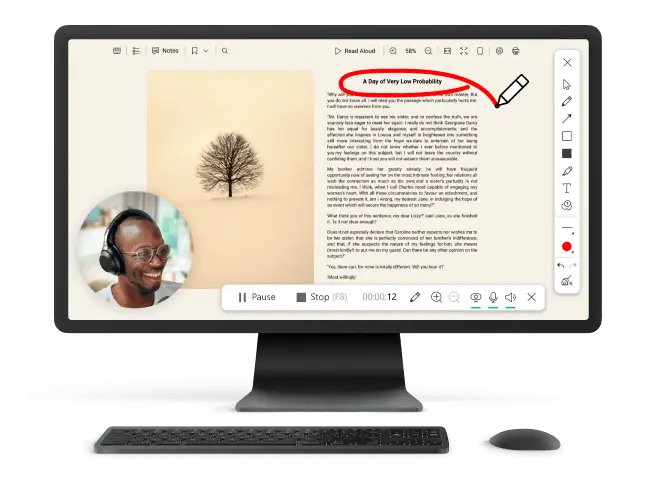
- Use the "Draw" tool to add shapes, arrows, or notes during the session.
- Once you're done, tap "Stop".
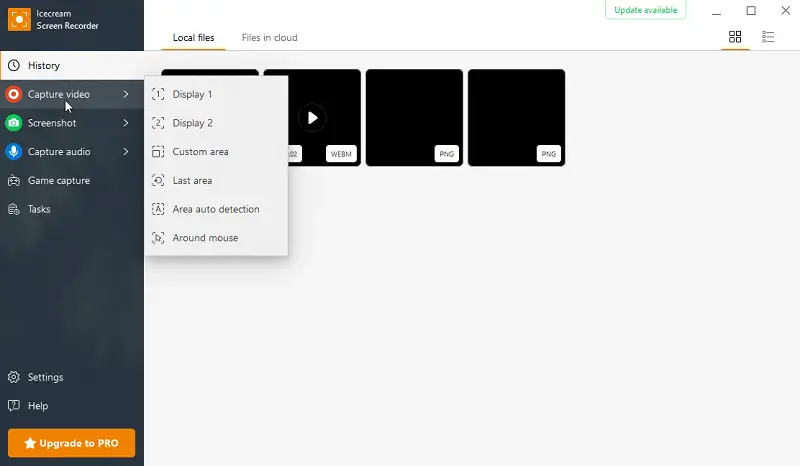
From the main interface, you can play back the clip, rename, edit screenshots and videos, or delete them.
Bonus Tip: If your Samsung laptop supports touchscreen or an S Pen, annotating becomes even more precise and intuitive.
Icecream Screen Recorder also includes a video capture scheduler, which lets you set a specific time to begin capturing, perfect for writing streams automatically.
Method 2. OBS Studio
OBS Studio is a highly customizable, open-source screen recorder engineered for advanced real-time broadcasting. Designed with professionals and power users in mind, it offers a modular architecture and scene-based workflow to handle complex production environments.
Laptops featuring Intel Core processors with Quick Sync, or NVIDIA with NVENC support, allow OBS to offload tasks to the GPU, minimizing CPU load and delivering high-quality screen recording on laptop without throttling performance.
How to employ this screen recorder for Samsung
- Load the OBS Studio and run the Auto-Configuration Wizard. Pick "Optimize for recording".
- Set up a layer by clicking "+" in the "Scenes" panel. In "Sources", add "Display Capture" to record your screen.
- Enable audio by selecting "Audio Input Capture" for your mic.
- Go to "Settings" > "Output". Choose a save location, format (MP4/MKV), and enable hardware encoding (NVENC/Quick Sync) for better flow on supported Samsung models.
- Adjust resolution and frame rate in "Settings" > "Video". Pick 30 or 60 fps.
- Press "Start Recording". Once done, tap "Stop"—the file will be saved to the specified folder.
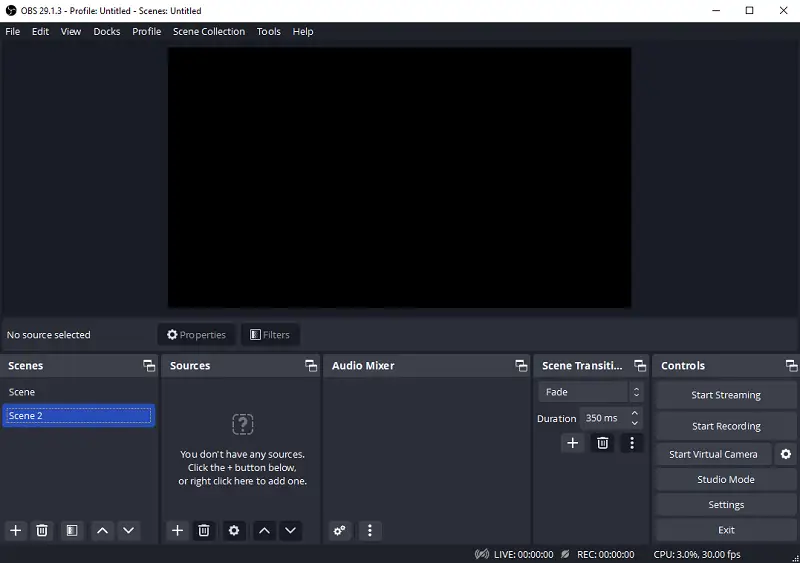
One of software’s most defining features is its plugin architecture. Users can extend functionality with third-party tools for virtual cameras, replay buffers, NDI streaming, VST audio, Twitch integration, and more.
Additionally, it supports Lua and Python scripting, allowing for automation and custom controls that adapt to unique production workflows.
Method 3. Game Bar
Game Bar is a native Windows 10 and 11 overlay utility specifically designed to provide streamlined recording, GPU monitoring, and in-game social options with minimal system overhead.
It is application-specific, meaning it captures only the active window (not the entire desktop). This maintains system performance by ignoring background processes.
How to screen record on Samsung computer with Game Bar
- Open the app you want to catch and tap "Win + G" to bring up the Game Bar overlay.
- Click the "Record" button in the "Capture" widget, or press "Win + Alt + R" to start.
- If you want to include your voice, hit the microphone icon or "Win + Alt + M".
- To finish, find "Stop" or press "Win + Alt + R" again. Your output will be saved in "Videos" > "Captures".
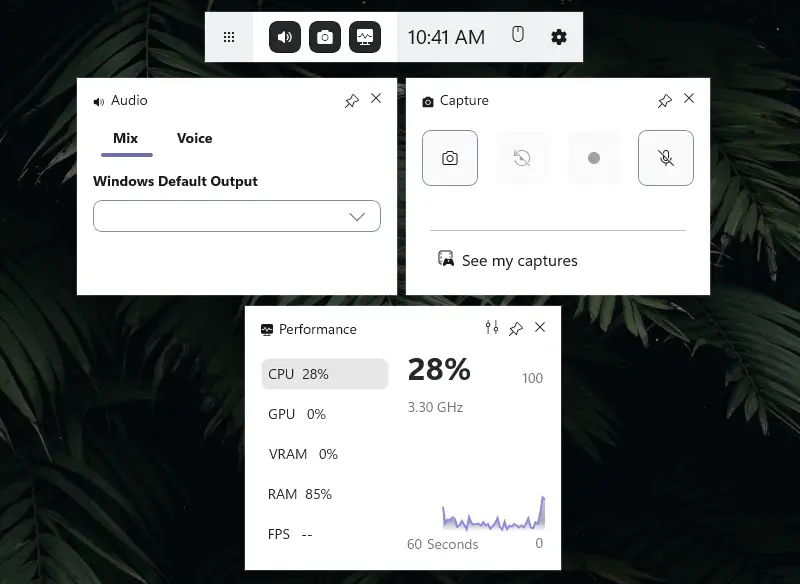
PCs with AMOLED or QLED displays benefit from Samsung screen recorder’s ability to capture vivid visuals at full resolution, preserving the sharpness and color depth of the content.
The Performance widget offers live telemetry for CPU, GPU, VRAM, and RAM utilization. This is especially useful for laptops, which often have to find a balance between getting work done and saving battery life.
Method 4: Bandicam
Bandicam is a specialized video screen capture program that is known for its HD resolution and is best for people who need both quality and speed.
The app doesn't need a lot of CPU power, so your Samsung device can handle sessions without too much strain. This makes it great for mid-range models with built-in graphics.
How to use Bandicam as a Samsung video recorder
- Download the software and complete the setup on your PC.
- Open the app and choose the appropriate type.
- Employ options like "Full Screen" or "Rectangle" to target the section.
- Configure resolution, frame rate, format, and enable audio sources.
- Click REC or press F12 to start.
- Utilize the built-in drawing feature for annotations while recording live.
- End with F12 or the stop icon. Files are automatically saved in the "Videos" > "Bandicam" directory.
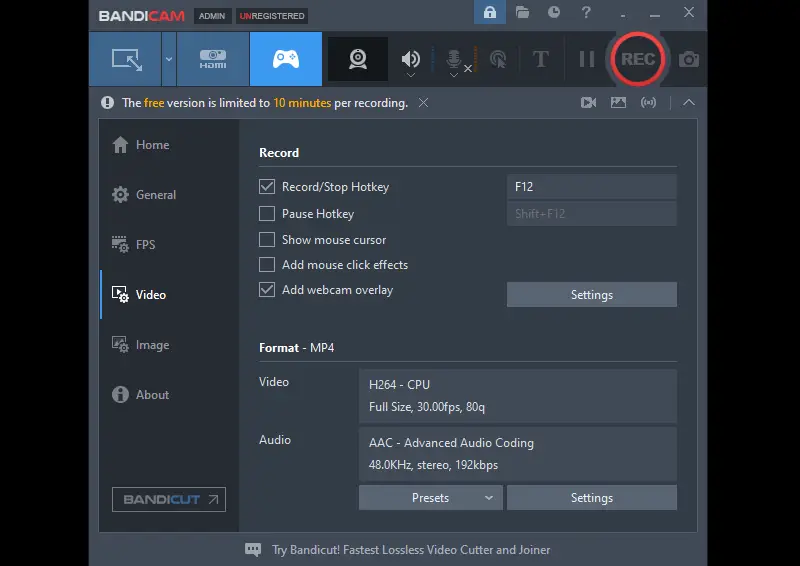
Bandicam is made to employ less battery power, so you can record on the go without quickly running out of power. This is very important for Samsung's ultra-portable models like the Galaxy Book and the Chromebook series.
It works with NVIDIA, AMD, and Intel hardware, so it can be utilized with a wide range of setups, even if you have the newest GeForce RTX graphics or Intel Iris Xe.
Tips for screen recording on Samsung
To get high-quality, stable video screen capture on a laptop, you need to make sure that both the hardware and software are set up correctly.
1. Performance settings
Choose a system profile that prioritizes speed and responsiveness.
| Mode | Location | Recommended |
|---|---|---|
| High Performance | Control Panel > Power Options | Intensive recording, gaming sessions |
| Balanced | Windows default | Light tasks, minimal resource use |
2. Video encoding
Leverage the hardware encoder built into your laptop’s processor or GPU to reduce load on the CPU.
| Platform | Technology | Ideal Scenario |
|---|---|---|
| Intel Core (i5/i7/i9) | Intel Quick Sync | Software tutorials, browser capture |
| NVIDIA GeForce GTX/RTX | NVENC | Game recording, 3D-heavy content |
| AMD Ryzen with Radeon | AMD VCE | Balanced performance across tasks |
3. Display settings
Accurate resolution prevent blurry visuals and ensure that screen recording on Samsung appears clear.
- Set scaling to 100% for sharp interface elements.
- Use 1920x1080 (Full HD) as a baseline for compatibility and file size balance.
- Pick the sRGB profile to secure color accuracy in design-related footage.
4. Audio input
Clear sound enhances the quality of instructional or commentary-based recordings. Adjust microphone sensitivity and system audio levels to achieve a balanced mix.
| Source | Recommended Level | Additional Notes |
|---|---|---|
| Built-in Microphone | 70–85% gain | Try noise suppression if available |
| External USB Microphone | 60–80% gain | Ideal for narration or presentations |
| System Sound | 80–90% volume | Verify output is not distorted |
5. Temperature
Extended sessions can raise internal temperatures, potentially triggering performance throttling. Monitoring system thermals guarantees consistent result.
- Keep CPU temperatures under 85°C.
- Elevate the laptop for improved airflow.
- Avoid placing the device on soft surfaces that block vents.
6. Dual-monitor setup
Separating the recording screen from the control workspace allows for a more organized sequence, especially during live content creation or video editing.
7. Voice quality
Control your environment and input settings for crisp, intelligible narration.
- Capture in a space with minimal background noise.
- Use a pop filter or foam cover with external microphones.
8. Adequate storage speed
HD screen recording on Samsung can consume significant disk space.
| Drive Type | Minimum Write Speed | Preferred Format | Scenario |
|---|---|---|---|
| Internal SSD (SATA/NVMe) | 150 MB/s | MP4 (H.264) | Standard for all needs |
| External SSD (USB 3.0) | 100 MB/s | MP4 or AVI | On-the-go or backup storage |
| HDD | Not recommended | N/A | May cause lag or data loss |
9. Tasks in the system
In Task Manager, set the Samsung video recorder to "High" priority. This improves stability by allocating more system resources.
10. Test runs
Before capturing an important session, make a short test to confirm functionality and detect any synchronization issues or unexpected performance drops.
- Check microphone levels.
- Confirm the area and resolution settings.
- Play back the test file to identify issues.
How to screen record on Samsung laptop: conclusion
Screen recording on a Samsung device is a straightforward process, offering flexibility for various purposes.
With a combination of built-in features and third-party software, you can easily achieve high-quality content. By optimizing system settings and using best practices, you'll enhance performance and ensure smooth video captures.

Expert Tech Writer
