
How to Screenshot on Asus Laptop
Knowing how to screenshot on an Asus laptop is a valuable skill for making images, sharing important information, or saving a moment from your desktop. Whether you're using it for work, school, or personal reasons, it's essential to know the most efficient way to produce a display picture.
Asus computers provide several methods, including keyboard shortcuts and third-party tools, to help you catch your monitor with ease. In this guide, we’ll walk you through the different ways how to screen capture on your device.
Icecream Screen Recorder
Icecream Screen Recorder is a versatile program that allows you to snap a photo of the desktop on any Windows device. The app works efficiently on a variety of Intel and AMD processors. These are commonly found in Asus models, including i3, i5, i7, Ryzen 5, and Ryzen 7 CPUs.
The utility prioritizes high-resolution output, ensuring that pictures maintain excellent clarity and detail, whether you’re preserving complex graphics, small text, or HD visuals. The clean layout allows users to quickly navigate between different functions, such as selecting the mode, applying annotations, and saving or sharing screenshot.
How to screen capture on Asus laptop with Icecream Screen Recorder:
- If you haven’t already, download free screen recorder from the official website.
- Complete the installation and launch the application.
- Once opened, you’ll see a simple interface with various options for screen recording.
- Click the camera icon on the toolbar. Choose between several modes.
- After selecting the desired area, release the mouse to create a frame.
- Adjust the settings and leave comments if needed.
- Hit "Screenshot" to grab a picture of the chosen part.
- After, enter the name and pick to edit or save the result.
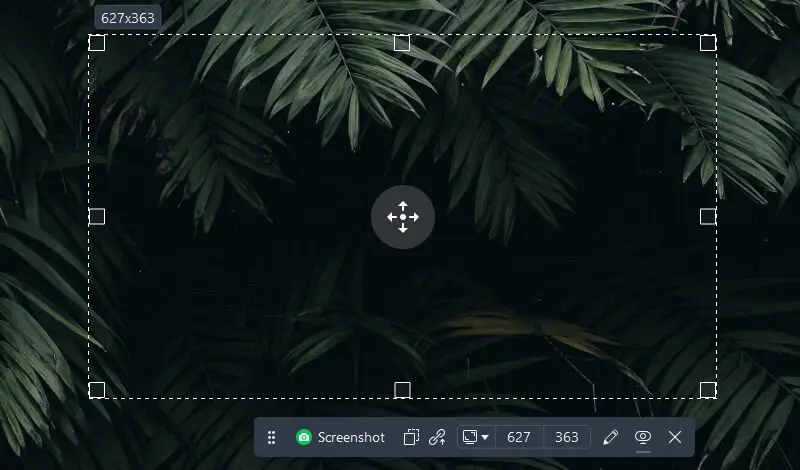
You can configure keyboard shortcuts for faster access.
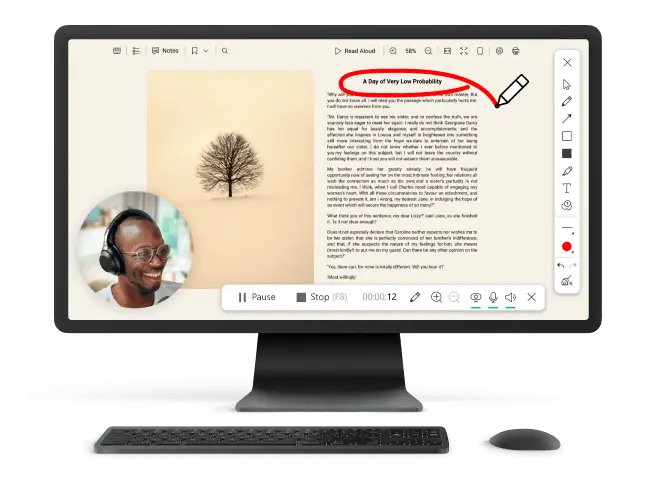
Features:
- Image Editing: Annotate with text, shapes, lines, arrows, and freehand drawings.
- Blur screenshot: Conceal sensitive information by applying this effect.
- Multiple Save Options: Store files in formats like PNG or JPEG.
- Clipboard Support: Copy the result to the clipboard for easy pasting into other programs.
- Auto-Save: Automatically store results in a predefined location for quick retrieval.
Icecream Screen Recorder works flawlessly with Asus 2-in-1 models (ZenBook or VivoBook), allowing you to make a screenshot even in tablet mode.
Bandicam
Bandicam is a powerful Asus laptop screenshot software that offers high-quality captures of your games and webcam. It includes controls for managing video and snapshot settings, so it is convenient to adjust preferences during use.
The output files can be saved in PNG, JPEG, or BMP formats, so that still images are taken without loss of detail.
How to ss on Asus laptop with Bandicam:
- Go the official website and download the latest version. Follow the installation prompts.
- Open the program. The main interface will appear.
- To use the tool, ensure you're in the "General" mode.
- Pick the area. To take a screenshot, click the camera icon next to the red button.
- By default, Bandicam will save the file in the "Images" folder.
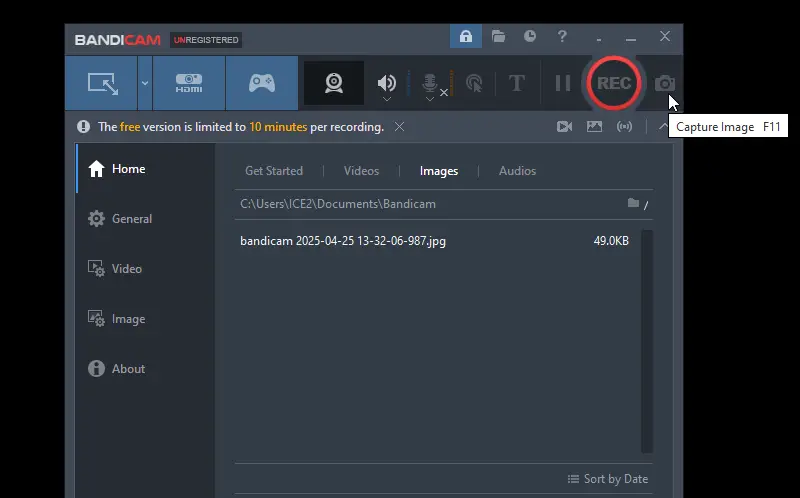
You can customize the location by going to Settings -> General -> Output tab and changing the directory.
Features:
- Delay: Set a countdown timer before taking a screenshot.
- Efficient Performance: Operates smoothly with minimal resource usage.
- Naming: Automatically names files based on date and time.
- Opacity: Adjust the visibility of the UI.
Many Asus laptops feature displays with Full HD, 4K, and UHD resolutions. Bandicam works seamlessly with these, ensuring crisp visuals.
ScreenRec
ScreenRec is a highly specialized program designed to streamline the process of screen capturing on PC and storing visual content, with an emphasis on speed, security, and simplicity. Its cloud integration and professional-grade options make it ideal for users who need seamless, high-quality screen recording with a minimal system impact.
The link-based sharing avoids the hassle of dealing with attachments or file transfers, offering a clean and quick solution for communication.
How to screenshot on Asus laptop with ScreenRec:
- Download the utility and follow the installation instructions for your OS (Windows).
- Open it by clicking the icon on your desktop or start menu.
- Look for the camera image, or press the hotkey "Ctrl + Alt + S" to switch to screenshot mode.
- Hit and drag to catch the specific area. The image will automatically upload to ScreenRec’s private cloud, providing you with a unique sharing link.
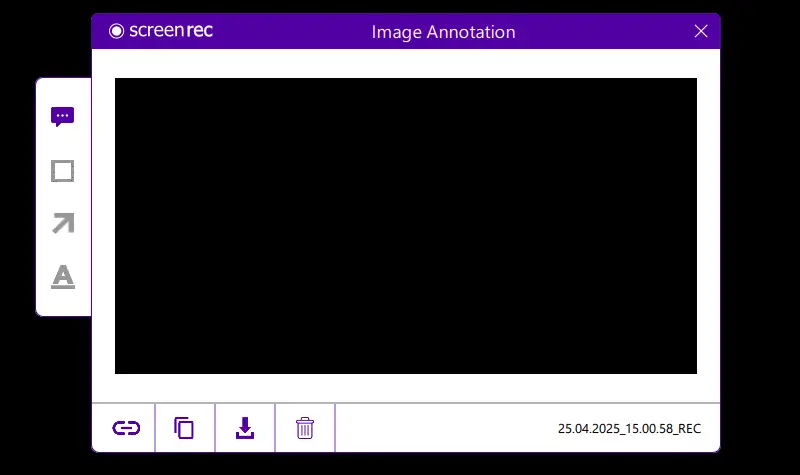
- Use built-in tools to add bubbles, shapes, text, or arrows for additional context.
While it’s designed for Windows, the Linux version (with some limitations) ensures accessibility for a wide variety of devices.
Features:
- No Watermarks: Captured images remain clean.
- Integration: Copies pictures to the clipboard for fast pasting into other applications.
- Free Cloud Storage: Offers 2GB of space to organize your captures securely.
It operates smoothly on both entry-level and higher-end Asus devices, so that individuals can make a screenshot without performance issues.
ScreenPal
ScreenPal (formerly Screencast-O-Matic) is a powerful program designed to simplify content making. It provides a rich suite of features aimed at professionals and beginners alike, which is ideal for creating training videos, presentations, and videos.
With it, you can instantly annotate pictures, so it is easy to highlight important elements or provide visual feedback. This capability is perfect for those who want to quickly capture and share information without the need for screen recording.
How to grab an image on Asus with the help of ScreenPal
- Get the tool from the official website and install it. Launch the program.
- Click "Screenshot" and then press "Ready."
- Use your cursor to select the area, and the ss will be made automatically.
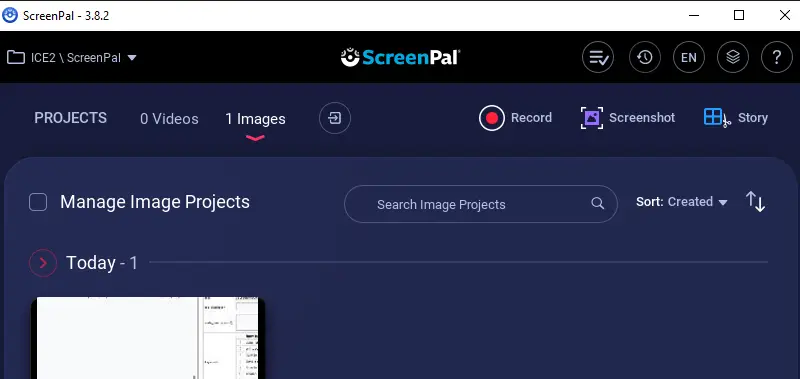
You can edit the resulting file directly within the application.
Features:
- Crop: Crop your images to focus on the desired area, removing any unnecessary parts.
- OCR: Extract text automatically using Optical Character Recognition.
- Annotation: Add text, shapes, arrows, and highlights to emphasize key points.
If you have an Asus PC with macOS via virtualization or dual-boot, ScreenPal supports these environments as well.
How to take a screenshot on Asus: Built-in tools
Option 1. Print Screen on Asus laptop
Full-Screen Capture:
- Press PrtSc on your keyboard.
- This copies the entire screen to your clipboard.
- Open an image or document editor, then tap Ctrl + V to paste the image.
- Save the file as needed.
Active Window Capture:
- Tap Alt + PrtSc to take a screenshot of the currently active window.
- Paste it into an editing software with Ctrl + V.
- Export the footage if desired.
Option 2. Snip & Sketch
- Press Windows + Shift + S to activate the instrument.
- The desktop will dim, and a toolbar will be seen with several options:
- Rectangular
- Freeform
- Window
- Full-Screen
- A notification will appear, allowing you to access the image for further editing in Snip & Sketch.
Option 3. Snipping Tool
- Open the app (search in the Start menu).
- Click New and choose the area to capture.
- When done you can annotate and save the picture as a file.
Asus laptop specs
Different screen recorders have varying system requirements. Understanding your processor speed, RAM, and storage helps you select software that can run efficiently without causing lag or consuming excessive resources.
Asus Gaming Laptops (ROG Series)
Designed for demanding gaming and heavy tasks.
- Processor: Intel Core i7/i9 or AMD Ryzen 7/9 (up to 12th Gen or Ryzen 7000 series)
- Graphics: NVIDIA GeForce RTX 3060, 3070, 3080, or AMD Radeon RX 6000 series
- Memory: 16GB to 32GB DDR4
- Storage: 512GB to 1TB SSD (some include additional HDD)
- Display: 15.6-inch or 17.3-inch Full HD (1920x1080) or 4K with up to 300Hz refresh rate
- Battery: 6-8 hours
- Additional: RGB keyboard, custom cooling solutions, Dolby Atmos audio
Asus ZenBook
Slim, portable, and perfect for productivity.
- Processor: Intel Core i5/i7/i9 or AMD Ryzen 5/7
- Graphics: Integrated Intel Iris Xe or NVIDIA GeForce MX450 (higher-end models)
- Memory: 8GB to 16GB LPDDR4X
- Storage: 256GB to 1TB SSD
- Display: 13.3-inch to 15.6-inch Full HD or 4K OLED touchscreen
- Battery: 10-12 hours
- Additional: Lightweight (2-3 lbs), high-quality sound, fast charging
Asus VivoBook
Designed for everyday tasks and general use.
- Processor: Intel Core i3/i5/i7 or AMD Ryzen 3/5/7
- Graphics: Integrated Intel UHD/Iris Xe or dedicated NVIDIA GeForce MX250/MX330
- Memory: 4GB to 16GB DDR4
- Storage: 256GB SSD to 1TB HDD
- Display: 14-inch to 15.6-inch Full HD
- Battery: 6-10 hours
- Additional: Value for money, backlit keyboards, slim design
Asus TUF Gaming Laptops (Durable)
Built for durability and intensive gaming.
- Processor: Intel Core i7/i9 or AMD Ryzen 7/9
- Graphics: NVIDIA GeForce GTX 1660 Ti, RTX 2060, RTX 3060 or higher
- Memory: 8GB to 32GB DDR4
- Storage: 512GB SSD to 1TB SSD
- Display: 15.6-inch Full HD with up to 144Hz refresh rate
- Battery: 6-8 hours
- Additional: MIL-STD-810G military-grade durability, RGB lighting
Asus Chromebook Series
Ideal for web-based tasks and education.
- Processor: Intel Celeron, Pentium, or Core i3/i5, ARM-based processors
- Graphics: Integrated Intel UHD or Intel Iris Xe
- Memory: 4GB to 8GB LPDDR4X
- Storage: 32GB to 128GB eMMC or SSD
- Display: 11.6-inch to 14-inch HD or Full HD
- Battery: 8-12 hours
- Additional: Affordable, touchscreen options, cloud-based focus
Asus ExpertBook
Designed for business users with an emphasis on productivity and security.
- Processor: Intel Core i5/i7/i9 (up to 12th Gen)
- Graphics: Integrated Intel Iris Xe or NVIDIA GeForce MX
- Memory: 8GB to 32GB DDR4
- Storage: 256GB to 1TB SSD
- Display: 14-inch to 15.6-inch Full HD or higher
- Battery: 10-15 hours
- Additional: Business-grade security (fingerprint scanner, TPM 2.0), professional design
Conclusion
In conclusion, capturing screenshot on an Asus laptop is a straightforward process, offering several methods depending on your needs and preferences. By understanding the different options and matching them with your computer's specifications, you can choose the most efficient way for your specific use case.
Whether you’re taking a quick snapshot, editing for work purposes, or sharing a detailed screen capture, knowing the tools at your disposal ensures an efficient and productive experience.

Content Managing Editor at PDF Candy
