
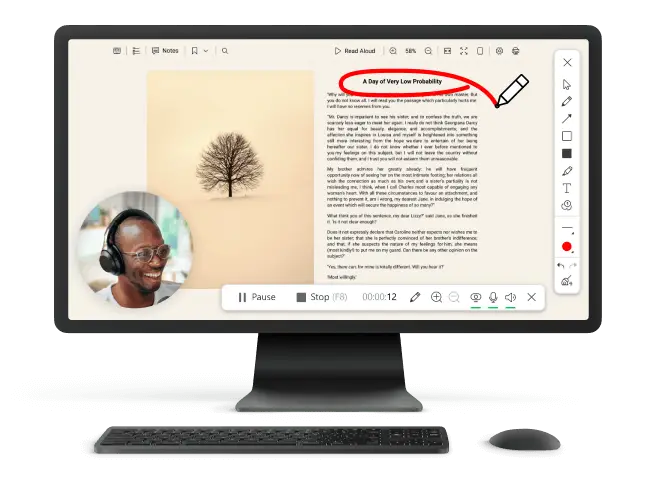
How to Capture Screen on Windows and Mac
Knowing how to capture your screen comes in handy more often than you’d think. Maybe you want to create a tutorial, show something cool to your friends, or get help with a tech issue - desktop grabbing streamlines the process.
Here’s how you can catch your monitor on both Windows and Mac. Doesn’t matter which one you use; taking screenshots saves time and makes sharing stuff a breeze. Let’s jump in and figure out the best way to do it.
Way 1. Icecream Screen Recorder
Ever wanted to shoot what’s happening on your PC? Maybe you’re trying to share a presentation, or you want to save something important for later. But let’s be honest, figuring out how to do this isn’t always clear.
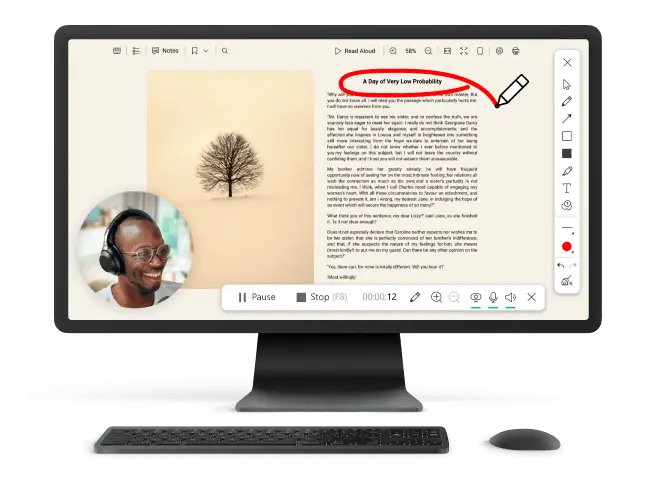
In any situation, Icecream Screen Recorder stands out as an exceptional way of capturing and exporting your desktop as a video or image file.
How to take a screenshot on Windows with Icecream Screen Recorder
- Download screen capture software for Windows and install it.
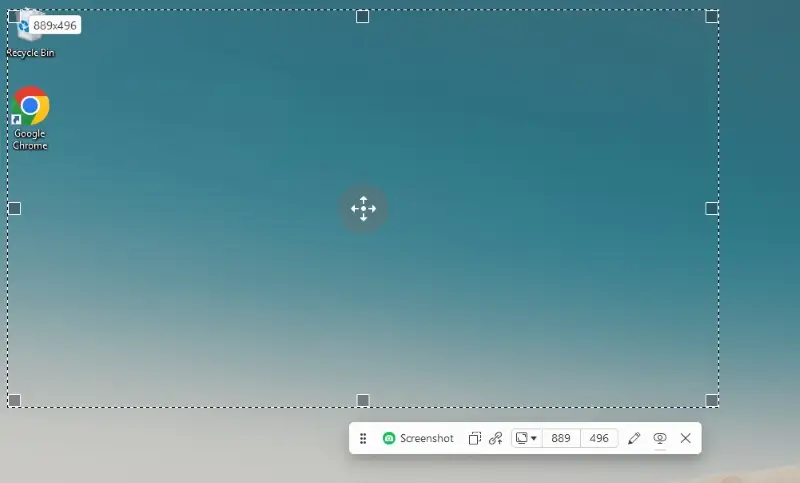
- Open the program and press "Screenshot" in the side menu.
- Select and adjust the area by dragging the corners.
- In the toolbar, you can also choose to include your webcam and employ a drawing panel.
- When you are done preparing, click the green "Screenshot" button.
- Now you can open the depiction in the built-in editor, save it to your PC, or share it by URL.
Pros:
- Easy to use. The design’s so straightforward, anyone can figure it out - doesn’t matter if you’re a beginner or a pro.
- Flexible screen capture. Grab shots however you want: full area, just a section, or let the auto detection mode do the work for you.
- Clipboard. Copy your screenshots straight to the clipboard, then paste them wherever you need.
- Annotation feature. Want to point something out or leave a note? You can draw, add text, or drop in shapes right on your picture. It’s perfect for making things clear or highlighting what matters.
- Output formats. Save the output as PNG or JPG - pick whatever suits you best.
- Multiple monitor support. Got more than one monitor? No problem. You can pick exactly which display you want to grab, so it fits right in with any setup.
- Recording features. You can create videos, too. This versatility is perfect for building static and dynamic content.
To summarize, Icecream Screen Recorder serves as a trustworthy and intuitive solution for screen capturing needs.
Way 2. Game Bar
Game Bar proves to be an invaluable asset for saving your screen. It allows you to effortlessly to snap shots and record your desktop without relying on third-party software.
How to capture screen with Game Bar on Windows
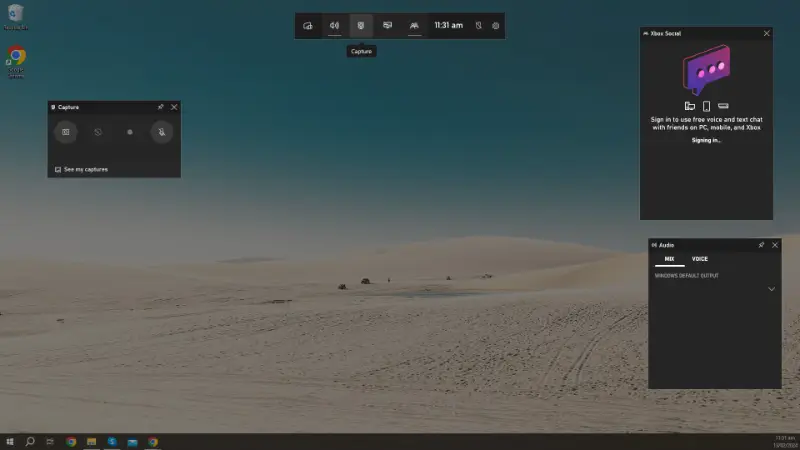
- While in a game or other supported application, press the Windows key + G to open the Game Bar.
- Click the "Capture" button up top. A new window will show up.
- Hit the camera icon or tap the Windows key + Alt + PrtScn to take a screenshot.
- You can find your output in the
C:\Users\Username\Videos\Captures.
Pros:
- Windows 10 and 11 come with this tool already built-in, so you don’t have to hunt down or install anything extra.
- You can launch it in a flash with a keyboard shortcut, which is perfect when you want to grab a quick screenshot - especially if you’re in the middle of a game.
- The overlay design means you stay in the action. No jumping between programs, no awkward pauses. Just snap your picture and go on.
Cons:
- Sometimes, the instrument doesn’t pick up all utilities, so you’re stuck if you want to capture something outside your game.
- It only works with full-screen apps. If you want to grab a part of your monitor or something from a windowed utensil, you’re out of luck.
With Game Bar, you can finally relax and stop worrying about missing those legendary moments. It’s quick, it’s easy, and it keeps you focused on the fun.
Way 3. Snipping Tool
If you frequently capture screenshots on computer, you’ll want to know about Snipping Tool. It’s built right into Windows, so you don’t need to install anything. With it, you can copy in picture of whatever’s on your display just the bit you want, or the whole thing - and save it as an image.
How to use the Snipping Tool
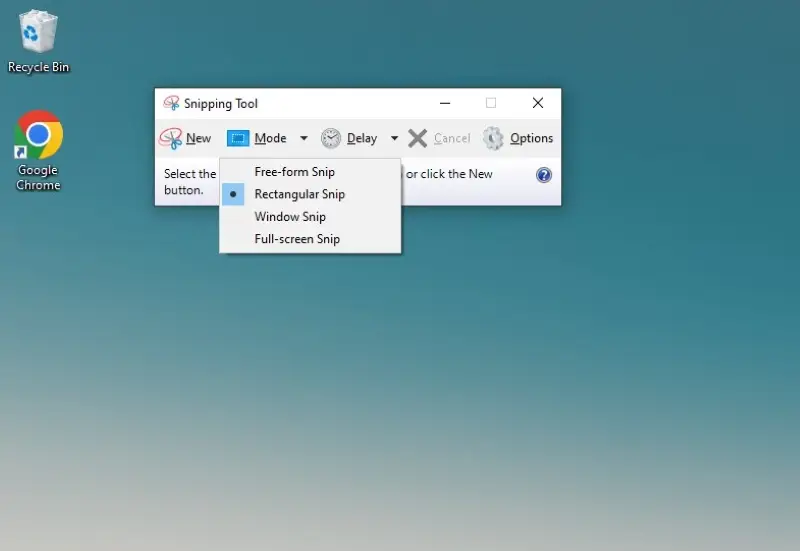
- Open the app by typing "Snipping Tool" in your PC’s search bar, then click it.
- Pick the type you want from the "Mode" menu - Rectangular, Free-form, Window, or Full.
- Hit "New", then drag your mouse to select the area. Let go when you’re done.
- Annotate or mark up the screenshot with the available tools.
- Go to the "File" menu and choose "Save As" to export the depiction.
Pros:
- You get it right out of the box with most Windows versions.
- The layout is clean and straightforward.
- You can quickly highlight or draw on your pictures via simple instruments.
- There’s even a delay feature, handy for grabbing pop-ups or tooltips that don’t stick around.
Cons:
- If you want a utensil that does both pics and recording on Windows, you’ll have to look elsewhere.
Overall, it is a versatile tool for not just capturing stills but also editing them. Next time you find yourself in need of such screenshot software, keep in mind the reliable Snipping Tool at your disposal.
Way 4. Keyboard shortcuts for PC
If you’re running Windows, you’ve got a bunch of handy hotkey combinations. Here’s a quick list of the most useful ones:
Basic shortcuts
- PrtScn (Print Screen)
Pressing the PrtScn key captures the entire screen and copies it to the clipboard. You can then paste it into an image viewer or editor or another document.
- Alt + PrtScn
This combo snaps just the window you’re using and tosses it on the clipboard. Super quick if you don’t want the whole desktop.
Advanced shortcuts
- Windows key + PrtScn
Captures the entire screen and automatically saves the output as a file. It is saved in the "Screenshots" folder within the "Pictures" library.
- Windows key + Shift + S
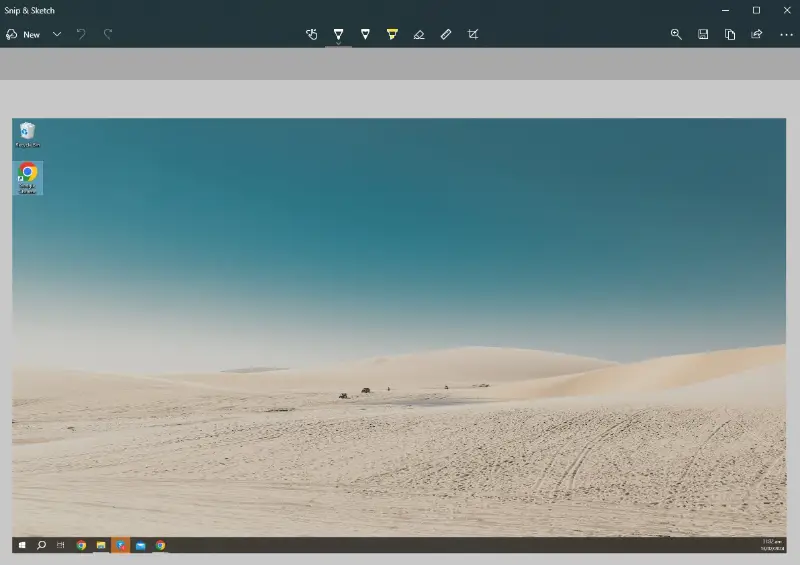
This will open Snip & Sketch, allowing you to take a specific region of the monitor. This shortcut is available on Windows 10 and 11.
Clipboard Operations
- Ctrl + V
Once you’ve used Print Screen or Alt + PrtScn, tap Ctrl + V to drop your screenshot into an editor, email, or whatever app you want.
Way 5. Command Line
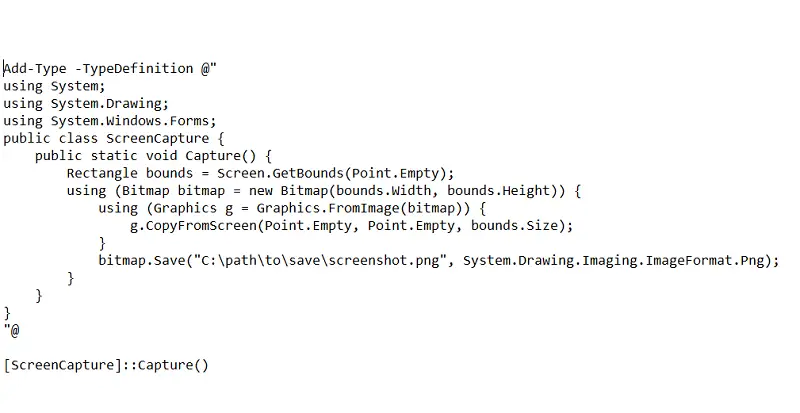
Feeling techy? You can also employ PowerShell, a built-in Windows tool.
- Press Win + X and select "Windows PowerShell (Admin)", or search for it in the "Start menu".
- Enter the script to capture the screenshot of the entire desktop and save it as PNG.
- Tapress Enter to run it.
Way 6. Keyboard shortcuts on macOS
Entire screen
- Command (⌘) + Shift + 3
Your Mac drops the visual right onto your desktop.
Slected area
- Command (⌘) + Shift + 4
Click and drag to pick the area you want. Let go of the mouse, and your Mac gets the footage.
Specific window
- Command (⌘) + Shift + 4
Press the Spacebar and click on the window you want to catch.
Way 7. Preview
Preview is a built-in macOS application primarily used for viewing and editing PDF documents and pictures. However, it is a versatile tool that also allows you to shoot screenshots and provides basic image editing capabilities.
Preview is one of those free screen capture software that quietly sits on your Mac, waiting to help whenever you need to open a PDF or check out some photos. But it does more than view files - you can also some basic image edits right inside the app.
How to snap a picture on Mac in Preview
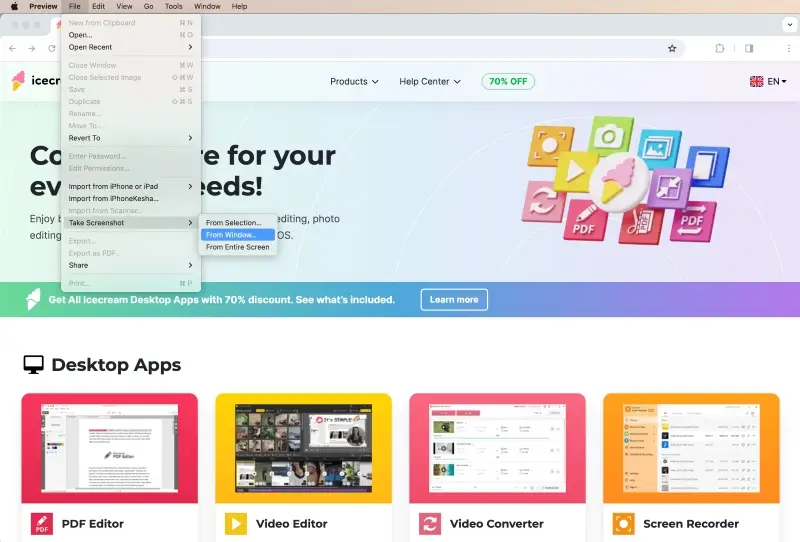
- Fire up the Preview application.
- Go to the "File" tab and choose "Take Screenshot."
- Select the type of screenshot you want.
Pros:
- It’s easy to tweak your pictures: add a bit of text, draw shapes, or highlight something important.
- Preview comes with every Mac, so there’s nothing extra to download or set up.
- Besides snapping screenshots, it’s great for reading and marking up PDFs.
Cons:
- Designed for static images. It can't capture dynamic content or record your screen.
Way 8. Touch Bar screenshot on Mac
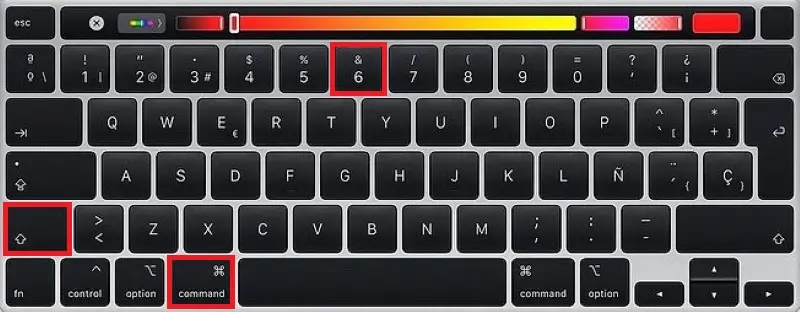
On MacBook Pro models equipped with a Touch Bar, a screenshot of the Touch Bar itself can be done using the built-in macOS tools.
- Press and hold the Command (⌘) + Shift + 6 keys.
- The file is saved on your desktop by default.
Capture screen tips
- Tap into your GPU for speed, especially when you’re grabbing high-res shots.
- Go with PNG if you want flawless quality, or pick JPEG when you care more about keeping sizes down.
- For video or anything that moves, shoot for 30+ FPS. If you’re just dealing with static images, 15 FPS works fine.
- Stick to a clear naming system and organize your folders, so you’re not hunting for files later.
- Match your capture to your screen’s resolution for the sharpest results.
- In multi-monitor setups, pick the exact displays you need, or combine them if you want the big picture.
- Make your depictions pop with post-editing tools- insert highlights, markups, or text to point out what matters.
- Double-check for any weird artifacts before you stash or share your footage.
FAQs on how to capture your screen
- How do I change the default folder?
- On Windows, right-click your Screenshots directory, select Properties, then open the Location tab to choose a new destination. On a Mac, press Command (⌘) + Shift + 5, click Options, and select where you want your captures saved.
- How can I make delayed screenshots on Mac?
- If you’re using macOS Mojave or later, hit Command (⌘) + Shift + 5 to launch the toolbar. Under Options, opt for a timer for a delayed grab - perfect for menus or hover elements.
- What is the difference between a screenshot and a screencast?
- The first one freezes a single frame of your display. A screencast catches ongoing monitor activity plus audio, so you can guide someone through steps or demonstrations.
- What file formats should I use for saving captures?
- Common choices include PNG, JPEG, and GIF. PNG delivers sharp, lossless results. JPEG keeps sizes smaller but reduces quality. GIFs are ideal for brief looping visuals or lightweight animations.
- How do I make a screenshot of a specific program on Windows?
- Press Alt + PrtScn to snag only the active window. The picture goes to your clipboard, just paste it into any editor or document.
- What should I do if the screen capture tool isn’t working?
- Verify that the app has permission to access your display. Update your system and software. If issues persist, restart your machine or the utility. Still stuck? Check out this resource on resolving screen recording problems.
Conclusion
In summary, knowing how to take a screenshot on both Mac and Windows is a fundamental skill that comes in handy for various purposes. Don't forget to check your output's fidelity and save it in a suitable extension.
Choosing the right method depends on your specific needs and preferences. Native keyboard shortcuts provide a seamless way to capture screen for free. If you require advanced features or want more control over your results, third-party applications are available.

Chefredakteur bei Icecream Apps
