6 Good Screen Recording Software for PC

Finding good recording software is essential, whether you’re creating video tutorials, streaming gameplay, or capturing meetings.
With so many options available, it can be challenging to identify which program provides the best combination of ease of use, features, and output quality.
This article will help you explore what makes the best screen recording software stand out, review popular tools, and provide tips on how to choose the right one for your needs.

Key features to look for in screen recording software
High-definition capture and smooth playback
Ability to record videos in sharp resolutions such as HD, Full HD, or 4K with adjustable frame rates like 30fps or 60fps to ensure fluid motion.Clear and versatile audio input
Support for different sound sources, like system and microphones, along with options for noise suppression and video volume adjustment.Intuitive design and controls
Simple and straightforward interface that allows quick access to the best free screen recorder functions without a steep learning curve.Multiple capture modes
Options to grab the entire display, specific windows, customized areas, or overlay webcam footage for screen and face recording to suit various content styles.Built-in editing and markup tools
Features such as trimming clips, inserting text, arrows, shapes, and highlights that enhance the final clip without needing a separate program.Wide range of sharing possibilities
Export options include MP4, AVI, MOV, or GIF, and direct uploads to platforms like YouTube, Twitch, or cloud services.Efficient resource usage
The best screen recording software runs smoothly without causing significant slowdown or interruptions during sessions.
Option 1. Icecream Screen Recorder
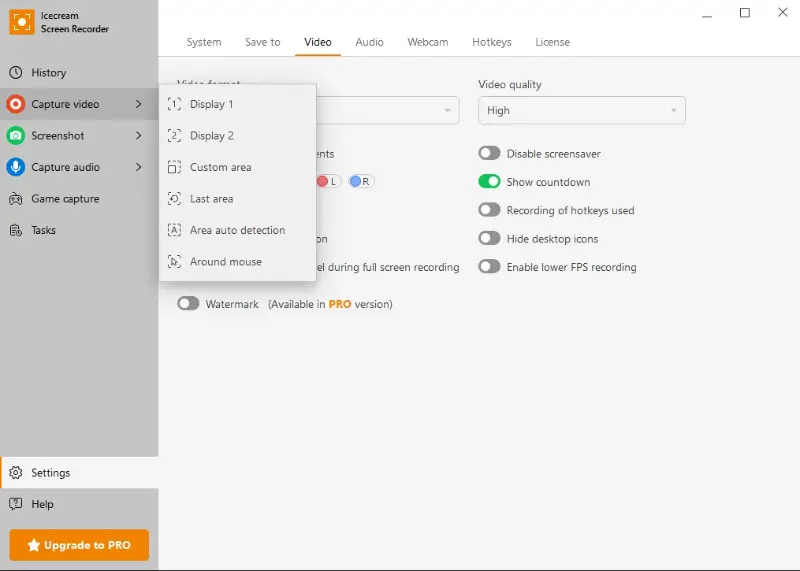
Icecream Screen Recorder is a flexible and easy-to-use application designed to capture any section of your display effortlessly. It enables both video and screenshot snapping, combined with essential editing tools suitable for novices and experienced users alike.
The program offers multiple modes, including full screen, custom regions, and webcam overlays, along with markup features to highlight key elements in your videos.
This recording software for Windows supports diverse export formats and features scheduling functions for video capture to automate the process.
| Feature | Description |
|---|---|
| Capture Modes | Ability to get the full screen, a specific region, or overlay footage from a webcam during sessions |
| Audio Input | Simultaneous recording of system sounds and microphone audio, with adjustable levels and noise filtering |
| Export Formats | Supports saving in formats such as MP4 for broad compatibility, WebM optimized for web tasks, AVI for high-quality files, and MOV for Mac users |
| Annotation Tools | Tools to insert text notes, directional arrows, geometric shapes, and highlight cursor movements live |
| Scheduled Recording | Options to program automatic start and stop times, allowing unattended capture |
| Editing Functions | Basic video modifications like cutting unwanted parts and altering playback speed for better pacing |
| Keyboard Shortcuts | Customizable key combinations to quickly control functions without interrupting workflow |
| ****Platform Compatibility | Designed specifically for Windows systems, ensuring smooth and reliable operation |
Pros:
- Straightforward setup minimizes learning curve for new users
- Lightweight enough to run smoothly on most modern computers
- Helpful annotation tools make tutorials and presentations clearer
- Scheduling feature allows hands-off recording sessions, saving time
- Offers a generous free tier for casual tasks
Cons:
- Lacks native streaming options, requiring additional software
Option 2. OBS Studio
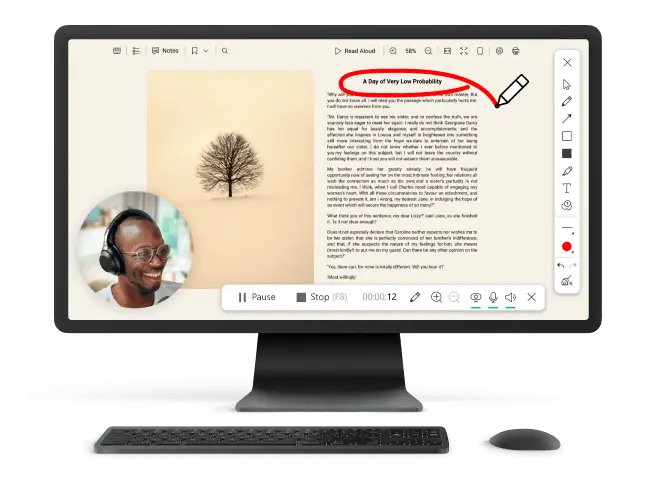
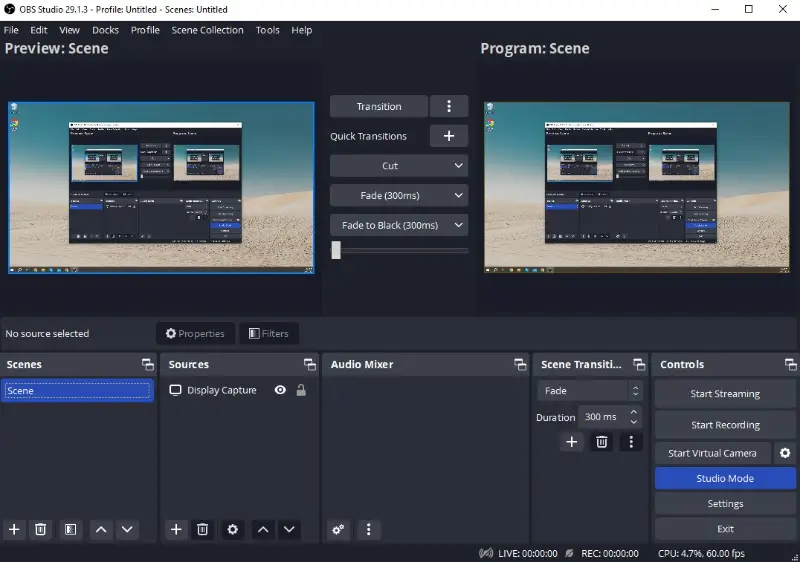
OBS Studio is a versatile open-source program tailored for video capturing and live broadcasting. Its highly adaptable interface and comprehensive tools serve both newcomers and seasoned users aiming to produce professional-grade footage.
Unlike basic screen capture software, it excels at mixing multiple media inputs — such as application windows, images, webcams, and text—into dynamic, customized layouts in real time.
This software supports numerous streaming services and file formats, making it a preferred choice for gamers, educators, and creators seeking extensive control over their live sessions and material.
| Feature | Explanation |
|---|---|
| Scene Composition | Assemble diverse sources including screens, graphics, webcams, and browser windows into tailored layouts |
| Audio Management | Sophisticated mixer featuring noise filters, gating, and volume adjustment |
| Output Formats | Exports recordings in MP4, MKV, FLV formats, plus streaming via RTMP |
| Streaming Support | Direct broadcasting compatibility with Twitch, YouTube, Facebook Live, and other platforms |
| Extensibility | Robust plugin framework for adding functionalities and integrating external tools |
| Resource Efficiency | Optimized CPU and GPU usage to maintain smooth capturing and streaming |
| Shortcut Customization | Fully assignable keyboard commands for seamless control during sessions |
| Multi-Platform | Available for Windows, macOS, and Linux systems |
Pros:
- Exceptional flexibility allowing creation of complex, multi-layered presentations
- Open-source video recording software with an active community providing plugins and troubleshooting help
- Enables simultaneous streaming and saving, perfect for live content creators
- Advanced sound controls enhance clarity and minimize background disturbances
- Frequent updates add features and improve stability on all supported systems
Cons:
- Initial setup can be challenging due to extensive options and configurations
- Demands more processing power, potentially slowing down older or less powerful devices
- Lacks integrated post-production tools beyond scene transitions and filters
- Those without a technical background may need time and tutorials to utilize the full potential
Option 3. Bandicam
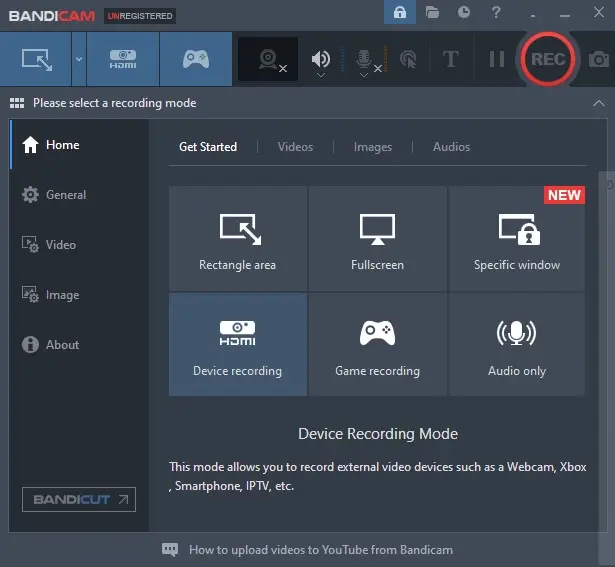
Bandicam is a robust utility tailored for gamers, instructors, and professionals who require sharp output with minimal impact on device performance.
It excels at recording gameplay, desktop activities, and external inputs like webcams or HDMI devices while maintaining smooth frame rates and clear visuals.
Its streamlined architecture ensures steady performance, even on moderate systems. This is one of the best screen recording software that supports numerous codecs and file types suitable for multiple scenarios.
| Feature | Details |
|---|---|
| Options | Entire screen, selected zones, or feeds from devices such as webcams and gaming consoles |
| Video Customization | Modify resolution, frame rate, and codec parameters to find the ideal balance between size and fidelity |
| Live Annotation | Add shapes, lines, and text during capture to highlight key points |
| Automated Capture | Schedule sessions with precise start and stop times |
| GPU Encoding | Supports hardware acceleration via NVIDIA, AMD, and Intel technologies for efficient processing |
| Supported Formats | Exports primarily in MP4 and AVI, with flexible codec configurations |
| Sound Capture | Simultaneously get system audio and microphone input with independent volume adjustment |
| Platform Availability | Designed for Windows environments with a macOS version available |
Pros:
- Multiple setups accommodate various content creation demands, including external input
- On-the-fly drawing features enhance instructional and demonstration videos
- Leverages GPU resources to ease CPU workload, enabling longer, smoother sessions
- Intuitive interface makes navigation and operation straightforward for beginners and experts alike
Cons:
- Trial version imposes watermarks and time limits
- Advanced configuration settings may intimidate less tech-savvy users
Option 4. Game Bar
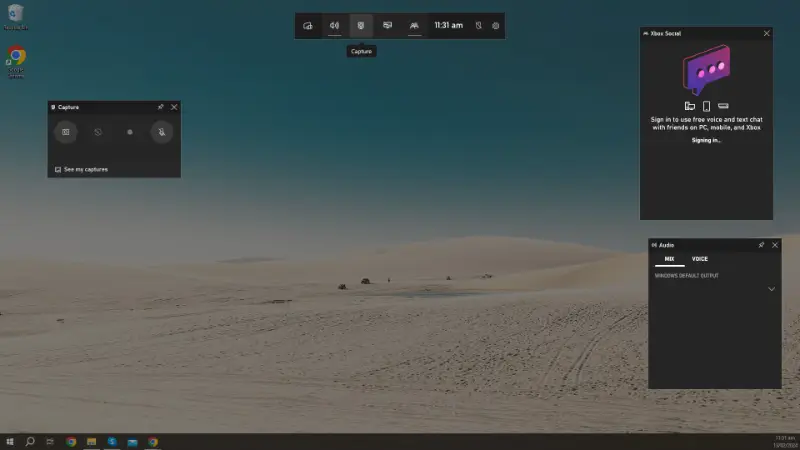
Xbox Game Bar is a native Windows utility designed to effortlessly capture gameplay and other activity.
This screen recording software operates as an overlay, enabling you to make videos, take screenshots, and manage performance metrics without leaving the current application. While its toolset is modest, it offers quick access to essential functions for casual needs.
The panel appears instantly through a keyboard shortcut, revealing widgets for media capture, resource monitoring, and communication features linked to Xbox services. Though advanced video editing is not included, its seamless integration makes it one of the best screen recorders for everyday use.
| Feature | Information |
|---|---|
| Launch Method | Activated with Win + G keys, opening an unobtrusive overlay interface |
| Recording Modes | Grabs entire display or a selected application window, with optional voice input |
| Resource Tracking | Real-time widget showing CPU, GPU, and memory consumption during sessions |
| Clip Sharing | Direct posting of snippets to Xbox network and social platforms |
| Sound Mixer | Independent control of system sounds and chat audio levels |
| Output Format | Saves media as MP4, ensuring compatibility with most popular video players and editors |
| OS Integration | Built directly into Windows 10 and 11, eliminating separate setup |
Pros:
- Best free screen recorder that comes preinstalled, requiring no download
- Overlay allows interaction without interrupting games or apps
- Hardware tracker is helpful for performance-conscious users
- Fast sharing of captured videos to online communities and services
- Completely free with no functional restrictions
Cons:
- Supports only one export format, limiting flexibility
- No trimming, cutting, or other capabilities included
- Several functions cater mainly to gamers, offering less value for professional workflows
Option 5. Camtasia
Camtasia is an advanced platform developed for instructors, business specialists, and video creators.
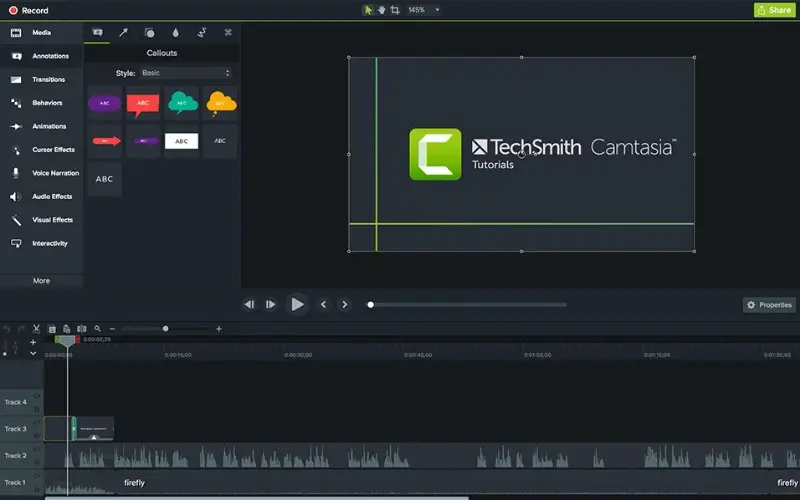
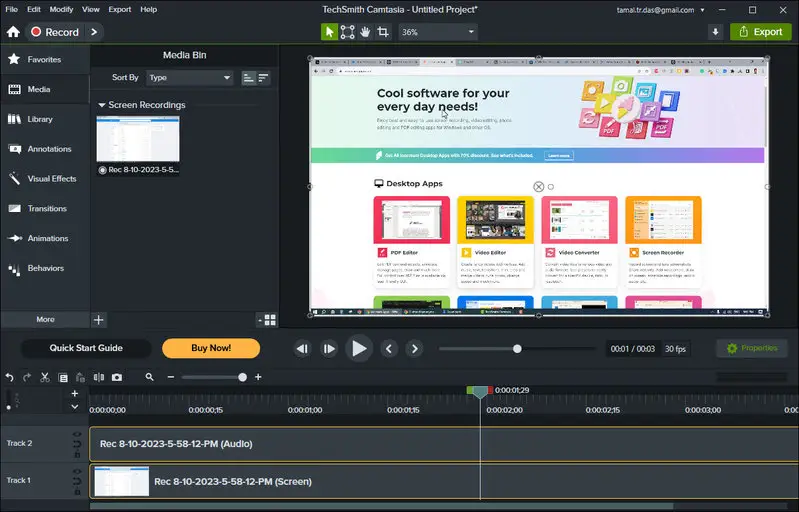
It blends a high-resolution screen recorder with a feature-rich editor, enabling you to craft engaging training materials and presentations without relying on additional tools.
The program supports capturing any display area, integrating webcam feeds, and enhancing projects with transitions, animations, and visual effects directly within the app. Its intuitive layout helps newcomers build professional-quality videos without steep technical knowledge.
| Feature | Details |
|---|---|
| Screen Capture | Full desktop, chosen segments, or combine footage with webcam streams |
| Layered Editing | Multi-track timeline to arrange clips, audio, images, and overlays |
| Built-In Assets | Collection of royalty-free music, icons, and motion templates for quick content creation |
| Interactive Components | Options to embed quizzes, clickable links, and callouts to boost viewer engagement |
| Sound Tools | Includes noise suppression, volume balancing, and narration recording |
| Output Choices | Supports multiple formats (MP4, WMV, AVI, MOV, M4V) plus direct sharing to YouTube, Vimeo, and others |
| Compatibility | Works on both Windows and macOS platforms |
Pros:
- Integrates a robust editor with screen recording software in a single solution
- Interactive features enhance learning materials and audience participation
- Ready-made graphics and audio elements streamline video development
- Simple drag-and-drop workflow appeals to beginners and experienced users alike
- Direct distribution to popular hosting services reduces post-production effort
Cons:
- An expensive license may deter those with occasional tasks
- Demands strong hardware for flawless performance during editing
- Overkill for those seeking only straightforward screen capture
Option 6. ScreenFlow
ScreenFlow is a macOS-only solution designed for those who want to produce refined videos quickly.
It merges high-fidelity screen recording software with a built-in editor, making it ideal for tutorials, promotional clips, and presentations. Its clean interface simplifies complex tasks while still offering creative depth.
The program captures either the full desktop or a chosen section, lets users overlay webcam streams, and supports enhancements through transitions, effects, and layering. It’s crafted to take advantage of Apple hardware, ensuring smooth performance throughout production.
| Feature | Information |
|---|---|
| Capture Options | The entire screen, selected areas, and combines video with webcam and mic input |
| Editing Suite | Multi-layer timeline for organizing visuals, soundtracks, and annotations |
| Built-In Media | Stock imagery, music tracks, and templates included to enrich projects |
| Animation & Effects | Dynamic text, filters, and seamless transitions enhance the final output |
| Audio Processing | Noise reduction, voice improvements, and sound mixing available |
| Export Methods | Saves to MP4, MOV, GIF, and allows instant sharing to platforms like YouTube or Vimeo |
| OS Support | Exclusively optimized for macOS, helping with stable and efficient operation |
Pros:
- Integrates a full video editor with capturing abilities in a streamlined package
- Preloaded stock assets help speed up project creation
- Strong audio tools refine narration and background sound
- Motion and animation features add a professional touch to videos
- Quick export and direct upload simplify publishing
Cons:
- macOS-only best screen recorder limits cross-platform availability
- High price tag can discourage casual users
- Advanced toolkit may feel overwhelming for those wanting just basic tasks
Tips for the best results from your screen recording software
- Organize Your Desktop – Close irrelevant programs, mute pop-up alerts, and remove clutter so the viewer’s focus stays on your content.
- Optimize Resolution and FPS – Configure the display settings to the highest quality your hardware supports for fluid, sharp visuals.
- Improve Audio Input – Utilize an external microphone or enable noise suppression features for clear speech without background interference.
- Outline Your Content – Prepare a brief script or step list to keep the recording structured and on point.
- Enhance with Markup – Apply highlights, captions, or pointers to draw attention to critical sections.
- Run a Test Session – Make a short sample to confirm sound balance, camera angle, and area selection in your best screen recorder are accurate.
- Refine Through Editing – Remove unnecessary segments, adjust levels, and add subtle transitions to deliver a polished result.
- Select Proper Export Options – Choose the most suitable format and compression rate to maintain clarity while keeping size manageable.
Conclusion
Good recording software can transform how you share and create video content, making it easier to communicate, educate, and entertain.
By understanding the key features, exploring popular tools, and knowing what fits your specific needs, you’ll be well-equipped to select the perfect screen recorder.
Whether you are a beginner or a professional, investing in the right program ensures smooth, high-quality results every time.
Expert Tech Writer