
Top Screen Recording Software for a PC
A good screen recorder for your computer isn’t just handy - it can completely change how you work. Maybe you want to capture your desktop for a quick tutorial, catch gameplay, or save that important call. The right app makes all of this way easier.
So, what should you look for? In this article, I’ll break down the features that actually matter and point you toward some of the top tools out there. Let’s find the one that fits you best.
Top best screen recorder for computer
| Software | For | Key Features | Pricing |
|---|---|---|---|
| Icecream Screen Recorder |
Windows
|
Webcam recording Audio capture Annotations HD video quality Easy sharing |
Free |
| OBS Studio |
Windows
MacOS
Linux
|
Live streaming Scene transitions 4K recording Plugin support |
Free & open-source |
| Bandicam |
Windows
|
Game recording Webcam overlay Hardware acceleration Scheduled recording |
Free & Pro versions ($39 one-time) |
| ScreenRec |
Windows
MacOS
Linux
|
HD recording Cloud storage (2GB) Instant sharing No watermarks |
Free (with paid cloud storage plans) |
| ScreenPal |
Windows
MacOS
|
Video editing Zoom Captions Multi-language support |
Free & Premium ($1.65/month or $19.99 one-time) |
| CamStudio |
Windows
|
Text annotations Lossless compression AVI/SWF output |
Free (open-source) |
| Game Bar |
Windows
|
Real-time performance monitoring Webcam overlay Background recording |
Free (built into Windows) |
As of 2024–2025, about 92% of internet users worldwide watch online videos at least once per month.

What to look for in screen recording software?
- User Experience: You want something that feels simple right from the start. If the interface makes you scratch your head, it’s probably not worth your time.
- Quality: Go for a video recorder that gets crisp, clear footage in HD - think 720p, 1080p, or even higher if you need it.
- Audio: Good software grabs both what’s happening on your monitor and what you’re saying into the mic. Don’t settle for less.
- Editing Capabilities: Built-in tools like trimming, adding captions, or scribbling notes save you from juggling extra apps.
- Format Support: Ensure your visuals can be exported as MP4, AVI, MOV.
- Customization: It’s handy to pick exactly what part of the display you want, throw in a webcam overlay, or tweak the frame rate.
- System Performance: The last thing you need is a laggy computer. Choose a capture program that runs smooth without hogging all your resources.
- Share: Fast sending to YouTube or cloud storage makes distribution less of a hassle.
- Multi-Monitor: If you’ve got more than one screen, get utility that can keep up and record them all.
- Pricing: Check if there’s a free version and see what’s behind the paywall - sometimes the extras are totally worth it.
Icecream Screen Recorder
- For: Windows
Icecream Screen Recorder does a lot more than its name suggests. It’s built for anyone - whether you’re just getting started or you’ve been producting films for years. You can grab a screenshot of a certain part of your desktop or capture the whole thing. Easy.
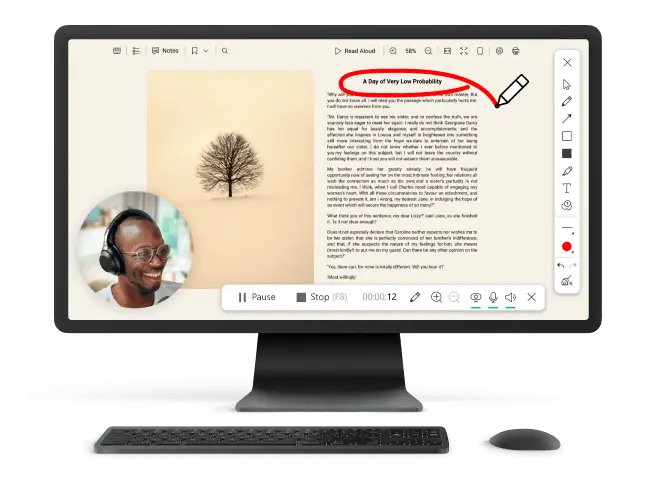
You want to track your webcam? No problem. This is super handy for teachers, streamers, YouTubers - anyone who likes adding their face to presentations or tutorials.
Need to do quick edits? The built-in functionality lets you trim clips and insert notes or highlights right after processing. No need to mess with extra software.
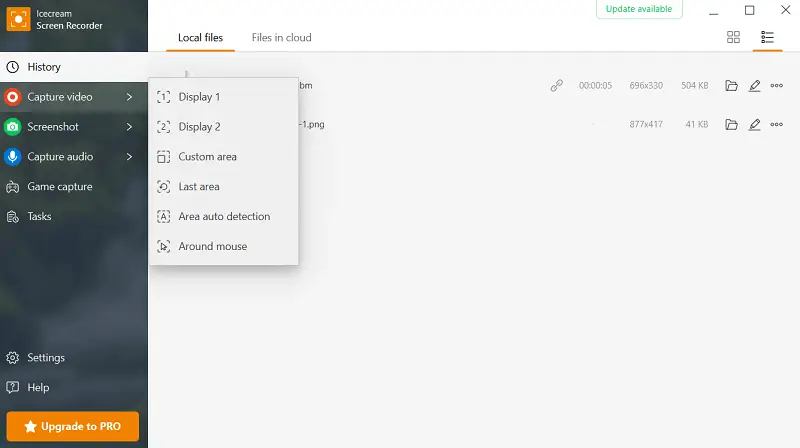
Key Features:
- Webcam Recording
- Audio Capture
- Annotation
- Editing Options
- HD Video Quality
- Screenshots
- Export and Easy Sharing
Icecream Screen Recorder is available in both Free and Pro versions. The cost ranges from $59.95 for a one-time payment to $29.95 per year for the subscription model.
OBS Studio
- For: Windows, macOS, Linux
OBS Studio isn’t just another screen recorder - it’s a powerhouse for anyone serious about broadcasting. You get loads of customization, all the advanced features you could want, and, best of all, it won’t cost you a thing.
With its scene-based setup, creators can mix in different media, jump between scenes on the fly, and incorporate real-time effects. The end result? Your footage look sharp and professional, even if you’re getting started.
The modular interface means you can build your own workspace however you like. Prefer a clean look? Go for it. Need a ton of sources and panels? You’re covered.
Video recording software handles high-performance capture and live streaming with barely any lag, even if you’re pushing 4K.
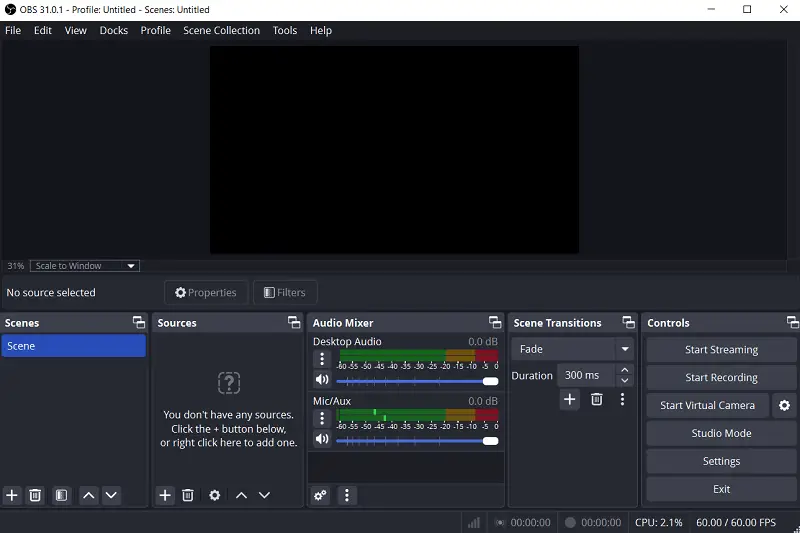
Key Features:
- Audio Mixing
- Scene Transitions
- High-Performance Recording (up to 4K)
- Live Streaming
- Multisource Support
- Filters and Effects
- Plugin Support
- Studio Mode
OBS Studio is totally free and open-source screen recording software. No paywalls, no sneaky upgrades, just a solid tool that keeps getting better thanks to a passionate community.
Bandicam
- For: Windows
Bandicam packs a punch for such a lightweight screen recorder. Whether you want to catch epic gaming moments or need to take your desktop, it’s got you covered. The compression tech here is solid, so you can film in HD and your PC won’t turn into a slow, wheezing mess.
You get buttery-smooth footage too, thanks to support for crazy-high frame rates - up to FPS. That means your movies look sharp and feel super responsive. Plus, there’s a bunch of settings to mess with, like drawing on your monitor in real time or scheduling so you never miss anything important.
The interface is dead simple. You open it, and you’re basically ready to go. But dig a little deeper and you’ll find all sorts of advanced tweaks for folks who want more control.
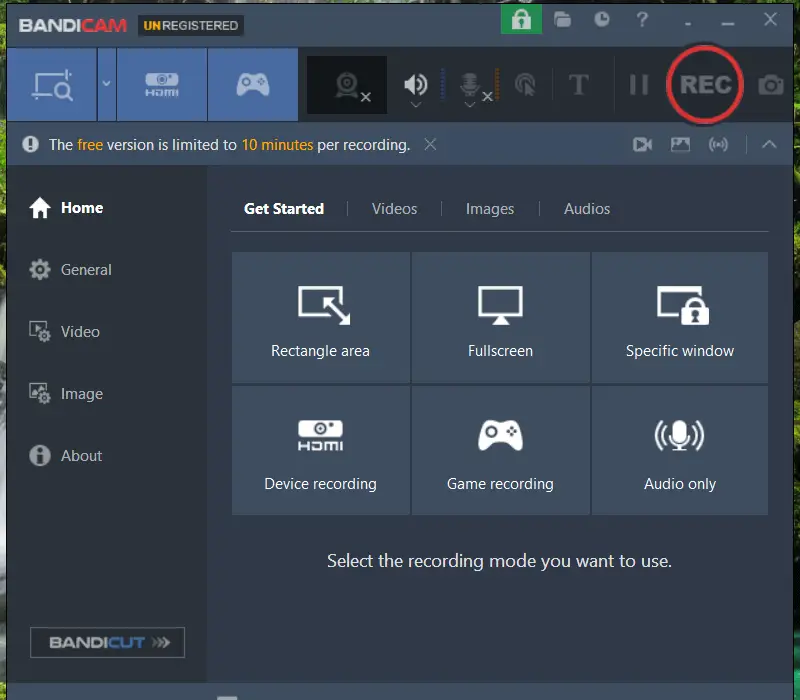
Key Features:
- Game Recording Mode
- Webcam Overlay
- Hardware Acceleration for Reduced CPU Usage
- Timer
- Advanced Compression
- Multiple Export Formats
- Simple Upload to YouTube
Bandicam comes in both Free and Pro flavors. The license costs $39, and once you’ve got it, you can tape as much as you want - no watermarks, no time limits.
ScreenRec
- For: Windows, macOS, Linux
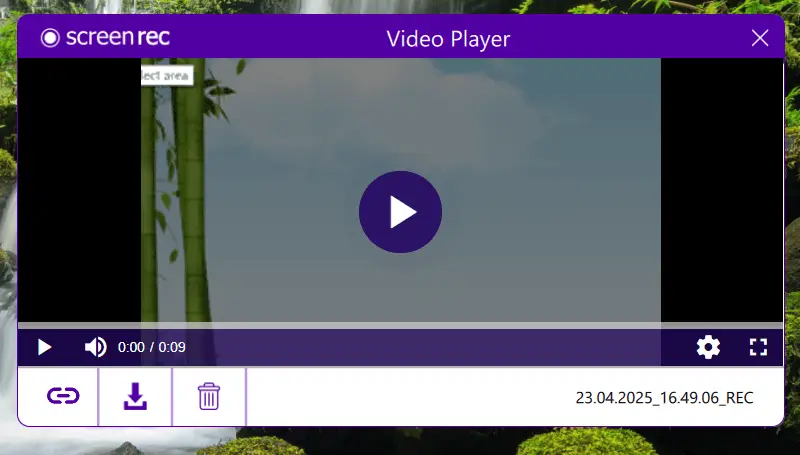
ScreenRec makes recording feel effortless. It’s packed with features, but you don’t have to be a tech wizard to figure it out.
Whether you’re working on a big project or want to show something quick to a friend, the app captures crisp, high-definition shot from your screen or webcam. The best part? As soon as you’re done, you get a private link - no messing around with giant file uploads or worrying about running out of space.
Need a screenshot? One click, done. Grab a still image whenever you want.
Key Features:
- Instant Sharing with Secure Links
- No Watermarks
- Screenshot
- Zero-Lag Recording
- Cloud Storage (2GB Free)
- Simple Interface for Easy Setup
ScreenRec is available in a Free version, offering full package. Additional cloud storage can be accessed through customized plans.
ScreenPal
- For: Windows, macOS, Android, iOS
ScreenPal (you might remember it as Screencast-O-Matic) has a punch for anyone looking to create clips.
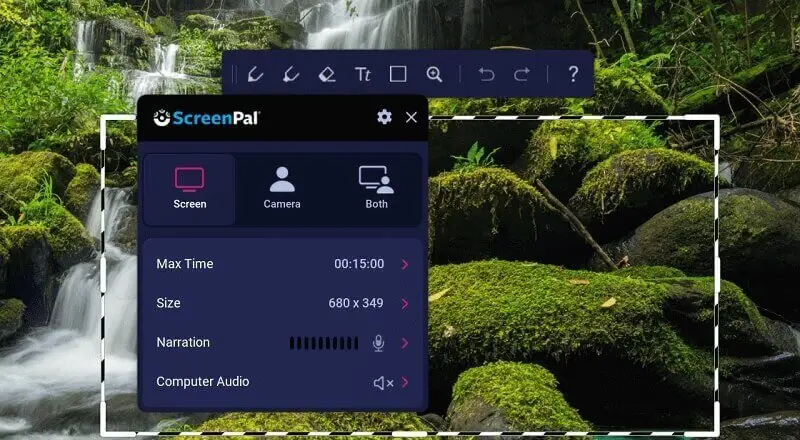
The interface? Super easy to get the hang of. You can start recording your screen in no time. If you want to polish your footage, the built-in redacting tools let you add text, throw in some annotations, and pop in transitions. There’s more - ScreenPal gives you features like zoom and automatic captions, which really help make your content more lively and accessible.
Sharing your work is a breeze, too. It hooks up with cloud services, so you can shoot straight to YouTube or Google Drive without any hassle. Fast export? Absolutely.
Key Features:
- Video Editing
- Zoom
- Automatic Captions
- Multiple Publishing Options
- Multi-Language Support
- Instant Sharing
ScreenPal comes in both Free and Premium versions. The Premium upgrade costs just $1.65 a month (billed annually), or $19.99 if you want to buy it outright.
CamStudio
- For: Windows
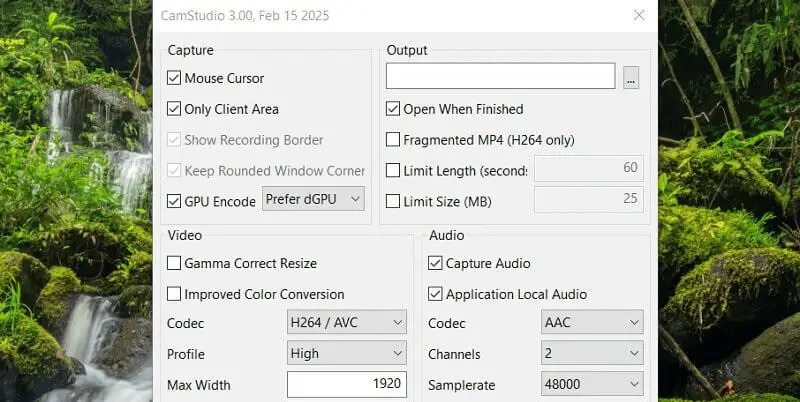
CamStudio is a no-nonsense, open-source screen recorder built for Windows. If you need to capture your display without any fuss, it gets the job done. It’s free, but don’t let that fool you - it gets full desktop or custom regions smoothly, without slowing down your PC.
You get a few choices for saving your creation. Go with classic AVI if you want, or convert your footage to SWF (Flash) when you need to share it easily.
What really helps CamStudio stand out is its built-in lossless compression. Your visuals stay small, but the quality doesn’t take a hit. Plus, you can tweak a bunch of settings, set up hotkeys, and make the whole experience your own.
Key Features:
- Text Annotations
- Lossless Compression
- Adjustable Settings
- Simple Interface
- Lightweight
CamStudio is open-source, so you never have to worry about paying or messing with licenses.
Game Bar
- For: Windows
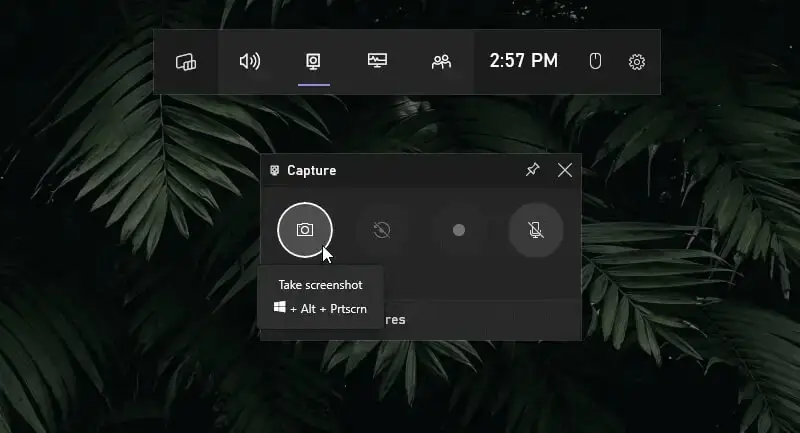
Game Bar comes built into Windows 10 and up. Microsoft made it mostly with gamers in mind, so you can share your screen or catch gameplay without hunting down extra apps.
It’s got a video recorder packed with tools to keep an eye on your system - you’ll see live stats for your CPU, RAM, and GPU right on the overlay. Everything’s right there on your monitor: you can control captures, turn on your webcam, and tweak your audio as you go. No digging through menus.
The real gem? Game DVR. It lets you catch just about any app running on your system, not only games.
Key Features:
- Real-Time Performance Monitoring
- Webcam Overlay
- Audio Controls
- Background Recording
Game Bar is available for free as part of Windows 10 and newer versions, with no separate licensing.
Conclusion
So, what’s the best screen recorder for your computer? Honestly, it all comes down to what you need. Whether you’re grabbing clips for fun, making content, streaming your high score, or working on something professional, there’s a tool out there that fits. Just pick what matches your style, and you’re good to go.

Expert Tech Writer
